 Goblin
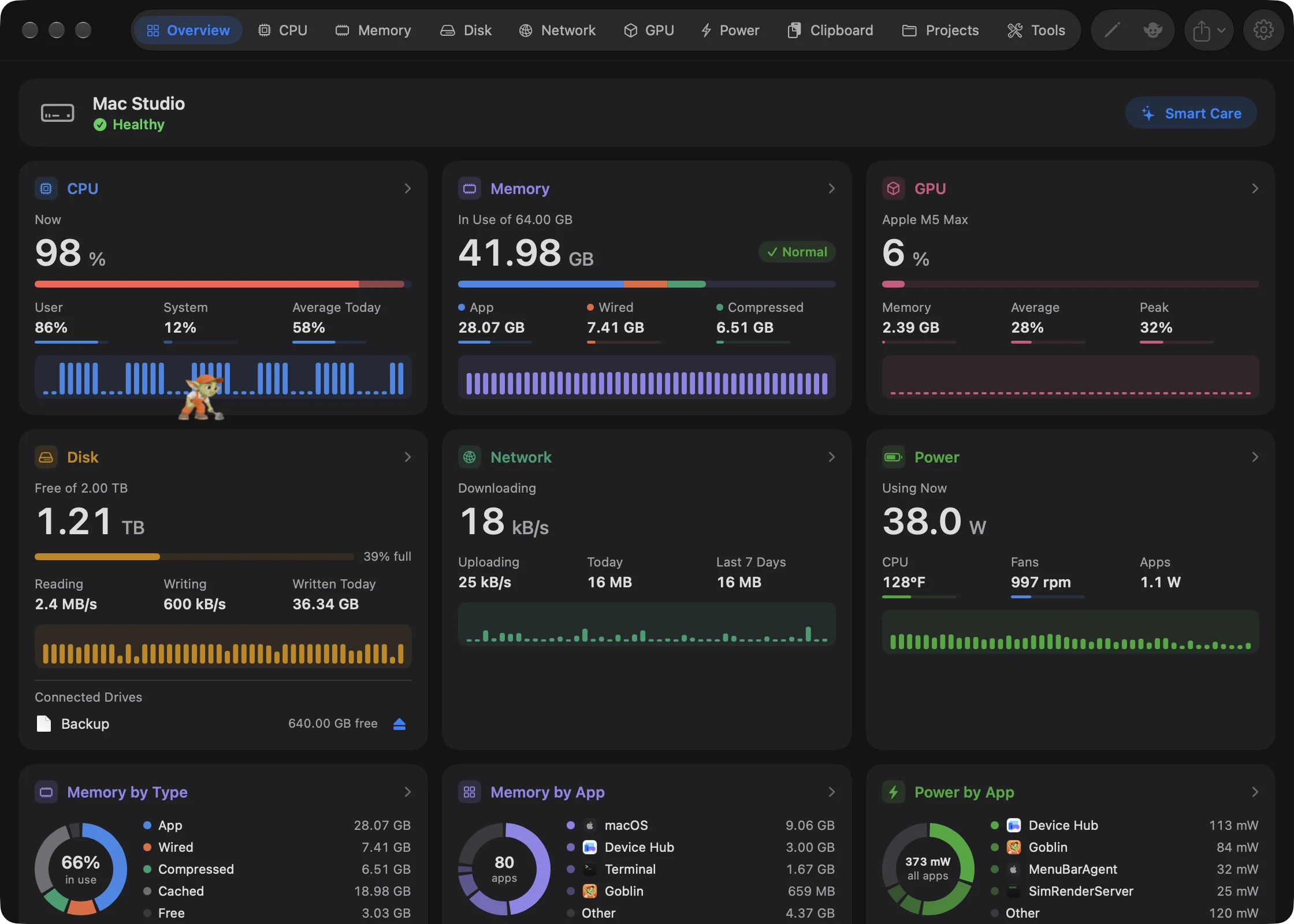
The Goblin is a small mechanic who lives on the Overview. He walks along the gaps between the cards, climbs up and slides down between them, checks on them, and makes playful repairs with a wrench or a hammer, and sometimes stops to cook a pot of stew. He's there for company and a hint of where to look: he hurries to whatever is busiest. All of that is animation. His conversation panel is the useful part: you can ask what is using your Mac's memory, quit an app from the chat, open a screen or change a supported setting.
If you only want to use the chat, go to Ask what's using your Mac.
Meet and set up your goblin#
To set up your goblin:
- Open Overview in Goblin's window once Welcome and permission setup are finished.
- Click Set up your goblin in the sign that reads Hey, I'm your goblin, or click his Let's meet! board.
- Type a name (or leave it blank to use Goblin) and choose a personality.
- Adjust Swearing, Roasting and Chattiness if you like. The preview text changes as you choose.
- Click Done. Your name and style are saved.
The setup is also behind the toolbar's goblin button while the invitation is showing.
After Welcome, the Capture tour and permission setup are finished, your goblin offers a quiet Hey, I'm your goblin sign on Overview. It explains that he can help you find screens, understand settings and spot what is using your Mac. Choose Set up your goblin, or click his Let's meet! board when he is standing, to begin. The toolbar also opens setup while this invitation is showing. Urgent health findings take priority and the invitation waits.
The setup lets you enter a name, choose one of eight personalities, and adjust swearing, roasting and chattiness. A text preview changes as you choose; Another preview gives another authored greeting without using AI or audio. Names allow up to 60 characters; leave the name blank to use Goblin. Choose Done to save the name and style. Edits stay in the setup until Done. Apple Intelligence, speech, remembered facts and conversation saving have separate choices and this setup keeps their existing settings.
Not now closes the invitation for this Mac and keeps your existing name and style. You can reopen the setup from Settings›GoblinAI›Your goblin›Set up your goblin…, even with the animated mascot turned off. Canceling a reopened, completed setup keeps its saved choices. Setup progress is local to this Mac; it does not sync between Macs.
The invitation waits while Welcome or another setup sheet is open, while chat or the app inspector is open, on other tabs, while the window is hidden or covered, and while the mascot is turned off. It adds no timer, flashing, model request, automatic speech or permission request. Reduce Motion keeps the sprite still; the accessible invitation remains available.
Where he appears#
Only in the main window, on the Overview tab. He isn't in the menu bar panel, on other tabs, in Settings, or in dashboard images you export. A small version of him stands on the Your goblin card in Settings › GoblinAI.
He stands on the seams between cards and keeps off your figures, so he doesn't cover a reading. When the page scrolls, he scrolls with it.
What he does#
- Arriving. When the Overview opens he pops up out of a gap and waves or looks around, slides down from the top, walks in from the side, or, if everything is calm, is already napping.
- Resting. After he arrives somewhere he stands for a while, glancing up and down, blinking and looking around.
- Keeping busy. Then he picks something to do, never the same thing twice in a row: he visits a card, wanders somewhere else and looks around, keeps a lookout with his hand over his eyes, or, when every card is calm, takes a nap or cooks.
- Cooking. When every card is calm he sometimes puts his wrench away, leans over a pot, stirs the stew for several turns, then stands back up. It's a rest, like a nap: he cooks at most once every few minutes, and when a card suddenly needs attention he drops the spoon and goes. The stew is green, so a different outfit color doesn't change it.
- Visiting a card. He's more likely to visit a busy card. When he gets there he either inspects it or repairs it with a few strokes of his wrench or hammer. The busier the card, the more likely a repair.
- Raising the alarm. When a card suddenly needs attention, he drops whatever he's doing (he wakes with a start if he was napping), raises the alarm and hurries over. If it's far away he ducks into a gap and pops up beside it. Then he fixes it.
What makes a card need attention#
He reacts to the same things Goblin watches for: a busy processor or GPU, memory pressure, heavy disk or network use, a hot or throttling Mac, a startup disk with less than 10 GB free, a battery below 20% that isn't charging, a shaky internet connection, and any issue the health check finds. See Health and alerts.
When cards move#
If you rearrange or resize the Overview and a card moves where he was standing, he dives into a gap and pops up where he's heading next.
Make him cook#
You can ask for the stew yourself:
- Open Overview in Goblin's window.
- Right-click the Goblin (or Control-click him).
- Choose Cook Something.
He puts the wrench away, stirs the pot for five to eight turns, and stands back up. A new spike on a card ends it early, as with a nap.
Playing with him#
Your pointer turns into an open hand over him. Clicks reach his drawn body or a visible finding board; other places go to the dashboard as usual. Clicking a finding board opens the conversation. Dragging the board does not pick him up.
| Do this | He does this |
|---|---|
| Click him | Jumps, startled. |
| Click twice quickly | Waves. |
| Click three or more times quickly | Dives into a gap and pops up somewhere else, then looks around. |
| Click him while he's climbing | Lets go and falls to the floor below. |
| Rest the pointer near him | Waves, at most once a minute. |
| Drag him | Dangles from your pointer, kicking and swinging. Let go and he drops to the floor below. |
His menu#
Right-click or Control-click him for this menu. Its top line is his name.
- Talk to [Name]… — opens his conversation panel.
- Rename… — opens the name field. Leave it blank to use Goblin.
- Outfit Color — a submenu of the outfit colors, with a check beside the current one. Saved Custom Color appears in place of Custom.
- Wave
- Take a Nap — naps where he stands, or walks to the nearest spot first.
- Cook Something — stirs a pot of stew, then stands back up.
- Keep a Lookout
- Hide for an Hour — waves goodbye and dives out of sight. He comes back by himself an hour later, even if you quit and reopen Goblin.
- Turn Off Goblin — waves goodbye, dives out of sight and turns the Animated Goblin setting off.
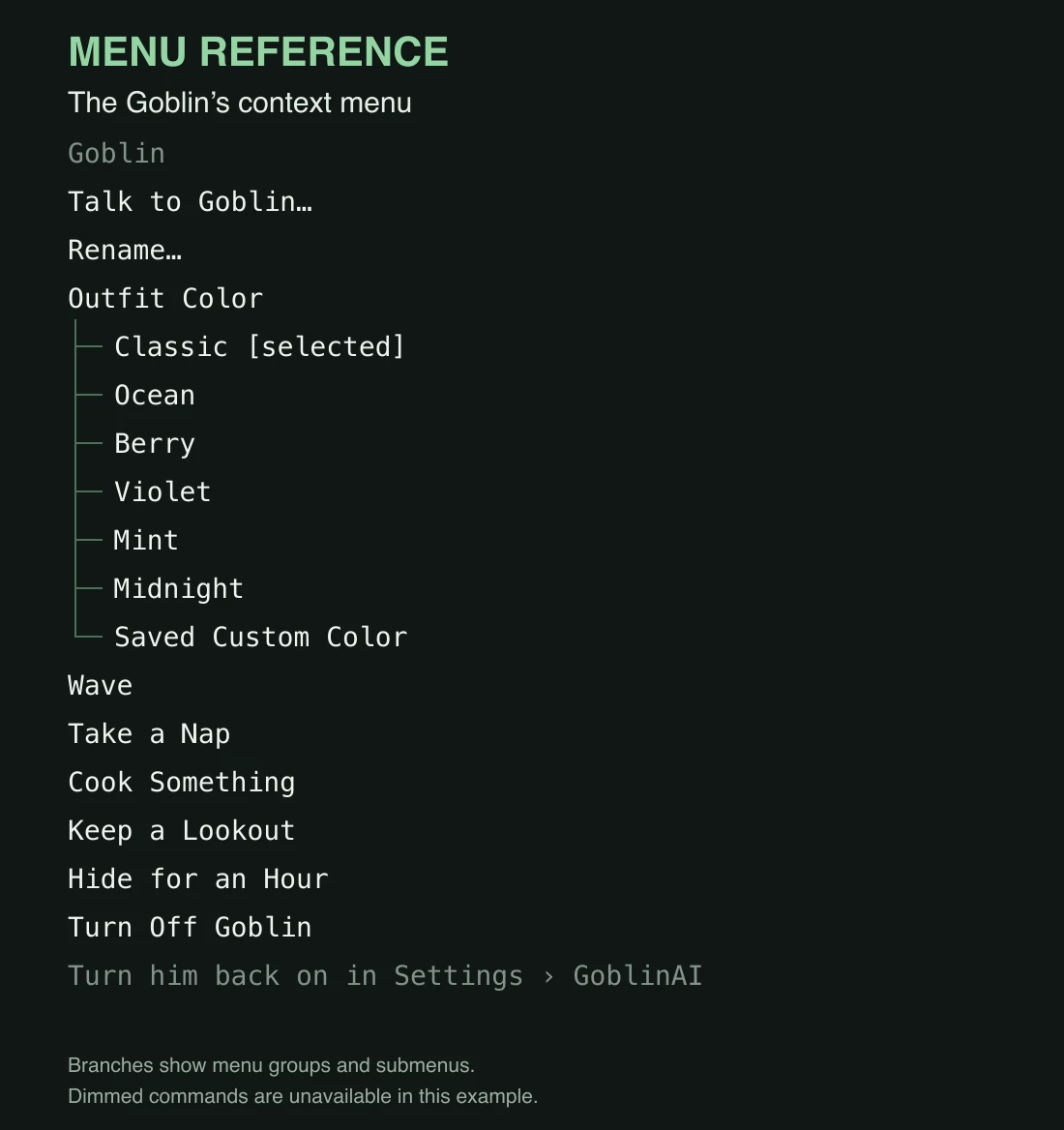
The greyed line under these says "Turn him back on in Settings › GoblinAI".
Turn him off or back on#
To turn him off, right-click him and choose Turn Off Goblin. Or:
- Open Settings with ⌘,.
- Choose GoblinAI in the sidebar.
- In the Your goblin card, turn Animated Goblin off.
Turn the same switch on to bring him back. His chat keeps working either way.
| Setting | What it does | Default |
|---|---|---|
| Animated Goblin | Shows the Goblin on the Overview. Off removes him and his animation entirely, for a quiet dashboard. | On |
Turn Off Goblin in his menu flips the same switch.
Change his name or outfit#
- Open Settings›GoblinAI and find the Your goblin card.
- Type a new name in Name. Leave it blank to use Goblin. (You can also right-click him and choose Rename….)
- Under Clothes and color, click a tile to change his outfit. Or right-click him and use Outfit Color.
Choose Classic, Ocean, Berry, Violet, Mint, Midnight or Custom. Custom color changes his cap and overalls and selects Custom. His size, animation and skin stay the same. Classic is the default.
New: Coming in the next update. Naming and outfit colors.
Talk to him#
New: Coming in the next update. Live answers about your Mac, quitting apps from the chat, local app help, personality, speech and remembered facts.
To open the conversation, do any one of these:
- Click Talk to [Name] in the main window's toolbar (the goblin face). It works with Animated Goblin off.
- Right-click the Goblin on the Overview and choose Talk to [Name]….
- Click the Goblin at the bottom right of the menu bar panel. He only appears there if Goblin in the menu-bar panel is on in Settings›GoblinAI; it's off by default.
Then type a question or request and press Return, or click the arrow button. The conversation stays beside the app while you switch tabs. Click the toolbar button again (it now reads Close conversation) to close it.
Under the field, Undo reverses the last setting he changed, and Clear asks first, then removes the conversation and its open guide. Conversations are kept in memory during this app session, with up to 100 messages; saving starts off. Save conversations on this Mac can keep message text for relaunch; see Saved conversations.
Ask what's using your Mac#
He reads Goblin's live figures and answers in plain words. This doesn't need Apple Intelligence, and nothing leaves your Mac. To see it work:
- Open the conversation (see above).
- Type What's using my memory? and press Return.
- He answers with the totals and a card of the five apps using the most. A card row shows the app's name, its amount, a bar for its share, and a short note such as which process inside it is heaviest. A small colored dot after the name means you're using that app right now.
Other things to ask:
| Ask | You get |
|---|---|
| "What's taking up memory?", "Which app is hogging my CPU?", "What's draining my battery?" | The totals and a card of the top apps. Works for memory, CPU, battery, disk, network, GPU and heat. |
| "How much memory is free?", "How full is my disk?", "How much battery is left?" | The current reading and a short card of the busiest apps. |
| "Why is my Mac slow?", "Everything is laggy" | What Goblin's health check currently flags, with the apps behind it. If nothing is flagged, he says nothing is straining the Mac and shows the busiest apps. |
| "Is my Mac okay?", "Check my Mac" | "All clear" with a few vital figures, or a short list of what needs a look. |
| "Hi", "Thanks", "Who are you?" | A short reply. |
If Goblin hasn't collected a reading yet, he says so and asks you to try again in a few seconds. A note such as "(app figures from a moment ago)" means the per-app figures are slightly old.
Show an app on its tab#
Each card row has two small buttons on the right.
- Click the target button (its tooltip reads Show in Memory, or whichever tab applies) on an app's row, or type "show Safari" or "show the second one".
- Goblin's window opens the matching tab (Memory, CPU, Power, Disk, Network or GPU), scrolls to the app and rings its row for a few seconds.
Quit an app from the chat#
- Ask a usage question so the card appears, then click the x button (its tooltip reads Quit [App]…) on the app's row. Or type "quit Slack", "close the second one" or "quit it". Typing "force quit" in front of the name makes him say so; Force Quit is always offered in the dialog.
- Goblin's window shows Quit [App]? with Quit, Force Quit and Cancel.
- Click Quit to ask the app to close and save first. Click Force Quit to end it at once. Click Cancel to change your mind.
- He reports whether the app quit, or what went wrong.
Warning: Force Quit ends the app immediately and unsaved work is lost. Nothing is ever quit until you click a button in that dialog, whatever you type.
The card has no x for macOS's own processes, and he refuses to quit Goblin itself (use Quit in the menu bar panel for that). Apps are matched by name even with a typo, and if two apps match he asks which one you meant. An ordinal such as "the second one" counts from the card you were last shown, for ten minutes.
If you type something while he is still working on a slow answer, quick answers like these appear right away and the slow one keeps going. When a new slow request replaces an earlier one, the earlier message is marked Not answered.
Local app help#
Anything else is answered from 112 bundled guide topics, without sending your question to a server. Try "How does Keep Awake work?", "Open Displays" or "What's wrong with my Mac?". Read links open the complete bundled topic inside the panel. Open links take you to an app screen or Settings pane where one is available. Hidden tabs and unavailable features explain what needs to change before they can open.
When your wording is unusual and Apple Intelligence is available, he asks Apple's on-device model to work out what you meant. It only turns your words into a request. Goblin checks the request, and the numbers always come from the live readings, not from the model. The first request after you open the conversation can take a few seconds while the model loads; the thinking dots say Loading Apple Intelligence… while they wait. Cancel beside the dots stops a pending answer.
Health signs#
With the main window visible on Overview, Animated Goblin on and the conversation closed, the resting goblin can show one compact speech bubble for a current health finding. It points toward his face and stays out of readings and graphs. If no clear space fits, it stays hidden; the toolbar conversation button still provides access. It stays hidden while he travels, climbs, naps or is dragged. Earlier findings say Earlier reading; long titles may end in an ellipsis. Click the bubble to open the full conversation. Its close button dismisses that notice.
VoiceOver uses one accessible finding card instead of the sprite bubble. The two presentations are mutually exclusive. Quiet suppresses informational findings. These notices use the same native readings and do not perform additional background checks.
When health findings exist, the toolbar conversation icon changes to a warning bubble. It remains available on other tabs and with animation off. These findings use Goblin's existing readings; they do not start a new background check.
Supported setting changes#
Use a direct request such as "Turn off sound effects" or "Set text size to larger". Ask about a setting to get an explanation. The companion currently has 46 registered mutable settings, one at a time. These seven core settings are supported:
| Setting | Accepted choices |
|---|---|
| Animated Goblin | On or off |
| Sound effects | On or off |
| Low battery alert | On or off |
| Low battery threshold | 5% to 50%, in steps of 5% |
| Alert notifications | On or off |
| Health alerts | On or off |
| Text Size | Standard, Larger or Largest |
Additional registered settings cover:
| Group | Supported changes |
|---|---|
| Appearance | Appearance Mode (Light/Dark/System), Color Style and Panel Color Style (Standard/Mono/Inverted/Color/Glass), Theme Tint and Panel Theme Tint, Separate Panel Theme. |
| Units | Temperature Unit (Celsius/Fahrenheit), Network Unit (Bytes/Bits), CPU Scale (Per Mac/Per Core). |
| Menu bar | Menu Bar Style, Menu Bar Metric, Strain Warning, Menu Bar Icon Display, Compact Menu Bar, Menu Bar Memory Pressure and Menu Bar Upload. |
| Alerts | CPU, Memory, Disk Write, Network Usage, Disk Full, Hot Mac, Other Disk, Connection, Trash, IP Change, Drive Connected and Server Leak alert switches. |
| Thresholds | CPU Alert Threshold (20–800%, steps of 10), CPU Alert Duration (2–60 minutes), Memory Alert Growth Threshold (0.5–16 GB, steps of 0.5), Disk Write and Network Usage thresholds (1–100 GB), Hot Mac threshold (70–105°C, steps of 5), Trash threshold (1–100 GB). |
| Projects | Server Leak Threshold (0.5–32 GB, steps of 0.5), Server Growth Threshold (100–4,000 MB, steps of 100), Server Idle Time (15/30/60/120/1,440 minutes) and Server Warning Snooze (15/60/240 minutes). |
Use an exact setting name and value, such as "Set temperature unit to celsius" or "Set CPU alert threshold to 80 percent". For the additional settings, status requests such as "What is my temperature unit?" read the current native value. Public IP Display, Connection Measurement and Automatic Updates are read-only through the companion. Use their normal Settings controls to start the external lookup/pings or change automatic installation behavior.
Other setting changes need the app's normal controls. The reply verifies a supported change or explains why it could not be made. Undo restores the last companion setting change while that setting still has the value he applied. If you change it yourself afterward, he preserves your newer value.
Keep Awake commands#
Try "Keep my Mac awake for 30 minutes", "Keep my Mac awake for two hours", "Start Keep Awake indefinitely", "Stop Keep Awake" or "Is Keep Awake on?". Durations range from one second to 30 days; an indefinite session needs an explicit request. Missing or ambiguous durations ask for clarification. The request uses the same native session start and setup rules as the menu, then verifies what started. Starting a new session replaces the current one. See Keep Awake basics for its default options and automatic stop rules.
Native app commands#
The companion also recognizes 66 registered native command descriptors, plus exact names of your configured Window Tiling commands. These cover a focused set of app operations and readings; they do not make every app control available through chat. They work without Apple Intelligence and use the same native permission and setup checks as their normal app controls. Use one direct command with its exact supported wording. Questions and ambiguous or combined actions stay explanatory or ask for clarification.
| Try this | Native behavior |
|---|---|
| "Start measuring" or "Restore measurements" | Opens Measure using its current settings. |
| "Record an area", "Record the full screen" or "Record a GIF" | Starts the native recording flow; complete its selection or permission steps. |
| "Stop recording" or "Toggle recording pause" | Requests stopping or toggling pause/resume. "Pause recording" alone asks you to confirm toggle wording. |
| "Take a timed screenshot in 5 seconds" | Starts a timed area screenshot; accepted whole seconds range from 1 to 60. |
| "Annotate last screenshot" or "Open capture history" | Opens the existing capture flow. |
| "Hide desktop icons" or "Show desktop icons" | Uses the existing desktop-icon control. |
| "Pause clipboard history" or "Resume clipboard history" | Changes history collection through its native controller. |
| "Enable Clipbar", "Disable window dimming" or "Enable window tiling" | Changes that feature's registered enable switch. Measure, Display Controls and Clipboard History also have enable/disable commands. |
| "Tile window [exact layout name]" | Applies one currently registered layout, including a custom layout, subject to Window Tiling and Accessibility requirements. |
| "Refresh displays" or "Set display brightness to 50 percent" | Uses configured display targets. Brightness, volume and contrast accept 0–100%; increase/decrease and explicit toggle-mute commands are also registered. |
| "Set window dimming intensity to 30 percent" | Accepts 0–90% through the existing dimming settings. |
| "Scan files", "Scan duplicates" or "Scan smart care" | Opens the matching Storage section and requests its scan. Other registered scans include cleanup, Trash, applications, app updates, startup items, maintenance, app permissions and privacy. |
| "Cancel disk scans" | Requests cancellation of active supported Storage scans. |
| "Read CPU usage", "Read memory pressure" or "Find busiest app by memory" | Reads native current metrics or app rankings. Other registered metrics include memory, download/upload speed, battery and CPU temperature; busiest-app rankings also cover CPU, power, disk, network and GPU. |
| "Check Mac health" or "Check firewall status" | Reads the current native status. It does not enable or disable the firewall. |
A reply can say Requested or explain that a native selection, setup or permission flow still needs completion. That does not mean the final operation has already finished. Native commands do not use the settings Undo button; use the app's normal controls to stop or change an operation.
Personality and Apple Intelligence#
Use the sliders button in the conversation, or Settings›GoblinAI›Personality.
| Setting | Choices | Default |
|---|---|---|
| Personality | Friendly, Mean, Funny, Cozy, Chaotic, Grumpy, Dramatic, Straightforward | Friendly |
| Swearing | Off, Occasional, Full sailor | Off |
| Roasting | None, Gentle, Ruthless | None |
| Chattiness | Quiet, Conversational, Very chatty | Conversational |
| Use Apple Intelligence | Lets Apple's on-device model word answers from the bundled guide, when available. | On (used only when Apple Intelligence is available) |
The controls show a sample greeting that updates as you change the style. Authored greeting, local-guide and setting remarks work without a model. Quiet leaves out optional interjections and roast tags. A character remark appears in its own paragraph before the guide passage or verified action result; those facts and live evidence stay plain.
Generated answers need macOS 26 or later, a Mac that supports Apple Intelligence, and Apple Intelligence turned on with its model ready. The panel explains when it is unavailable. Local guide help and supported setting changes still work without it. Everything runs on your Mac, using Apple's on-device model. There is no companion account or cloud model. A message is limited to 8,000 UTF-8 bytes. Cancel stops a pending answer and marks the submitted message Cancelled.
Reading replies aloud#
Read aloud uses an installed macOS voice. In the personality controls, choose Voice, turn on Speak replies automatically if you want replies spoken as they arrive, set Speaking rate (80–360 words/min) and Voice volume, use Preview voice, or Stop speaking. Automatic speech starts off. Speech reads up to the first 800 characters of a reply; the complete text stays in the panel. If Capture is already speaking, wait for it to finish before reading a companion reply. A missing selected voice needs another choice, such as System auto. The panel reports speech errors and tells you when speech is shortened.
Remembered facts#
Remember facts on this Mac starts off. Turn it on and choose Manage memory to inspect saved facts. Enter a fact and choose Remember to save it. Edit changes a saved fact and Forget removes it. Turning memory off unloads the facts while leaving the saved file in place. Clear all memory… asks before removing them.
Memory holds up to 50 facts, with 500 characters per fact and a separate file-size limit. Limits and save failures are reported. Conversations, clipboard contents and live readings are not saved into memory automatically. The file stays in ~/Library/Application Support/Goblin/Companion on this Mac.
Saved conversations#
Save conversations on this Mac is a separate switch that starts off. With it on, new user messages and goblin replies are saved locally and restored after relaunch. This includes anything you type and any app readings quoted in replies. Native action buttons, executable requests and evidence objects are not saved or replayed.
Saved conversation text is bounded to 100 messages, 8,000 UTF-8 bytes per message and 150,000 bytes of total text, plus a file-size limit. Older messages leave the saved history as it fills. Turning saving off stops new saves and leaves the existing file in place. Saved text is data, not permission to perform an action.
Manage memory includes Saved conversation and Clear saved conversation…. This removal has its own confirmation and keeps remembered facts. The current open conversation remains in the panel; future messages will be saved again if saving stays on. The panel's Clear clears both the current messages and saved transcript. Failures are reported rather than claiming deletion succeeded.
When he pauses#
He only moves while you can see him. He stops and stands on the nearest floor while:
- the main window is minimised, hidden, on another Space or fully covered by other windows
- the Welcome window, or the dev server Clean Up… window from Projects, is open
- you're looking at an app's details in the inspector
With Reduce Motion on (System Settings › Accessibility › Display), he doesn't walk around.
He's drawn from pictures made in advance and moved by macOS's own animation system, so the rest of the dashboard isn't redrawn for every step he takes.