 Goblin
When you delete an app by dragging it to the Trash, its files in your Library stay behind: caches, settings, saved state, support folders. Leftovers finds files named for apps that are no longer installed, so you can clear them out. A file's name is all Goblin has to go on, so each one comes with a confidence level, and only the surest can be ticked.
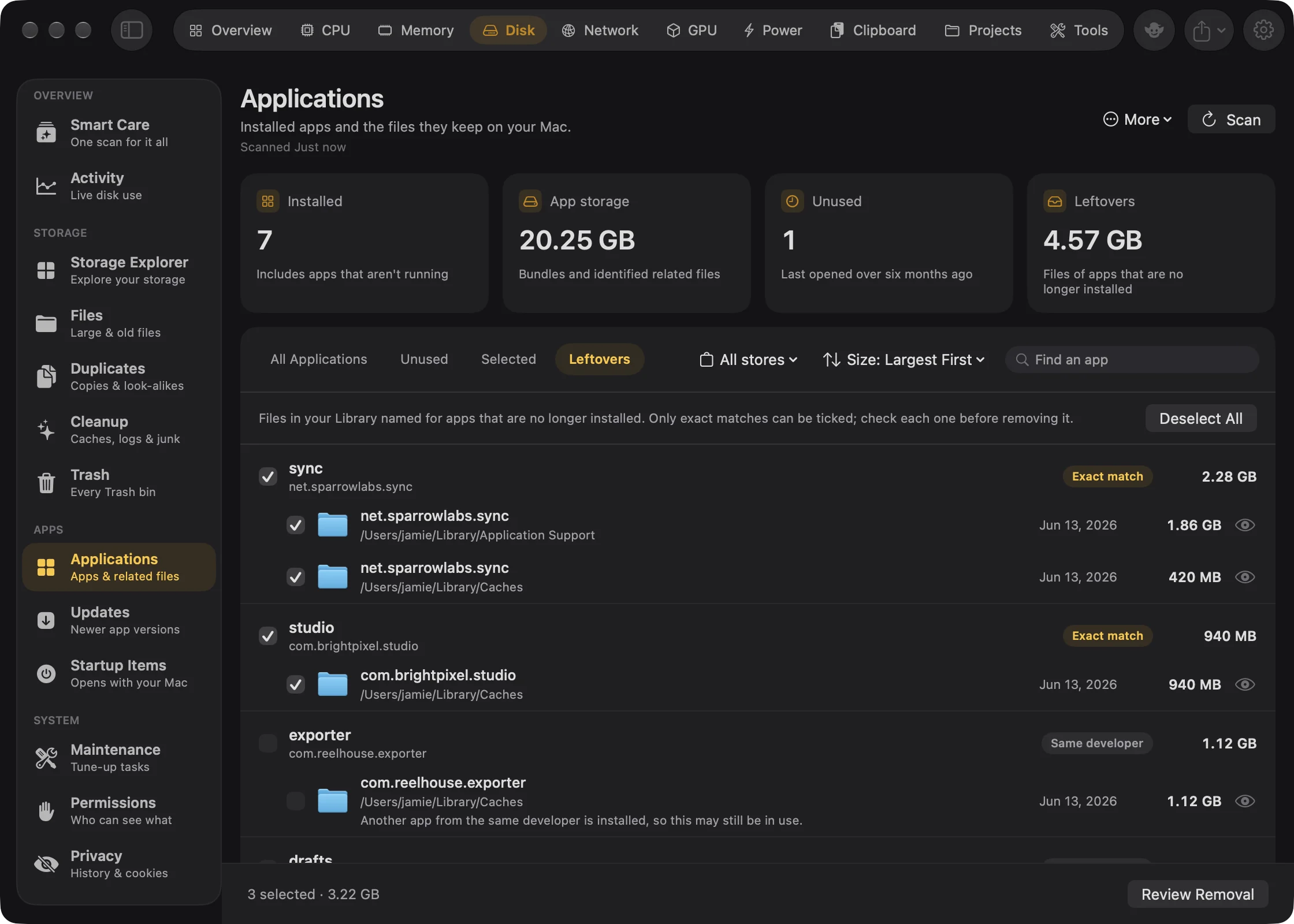
Find leftovers of deleted apps#
- Open the Disk tab in the main window.
- In the sidebar, under Apps, choose Applications. The first time you open it, Goblin scans on its own. To look again later, press Scan.
- Above the list, choose the Leftovers filter.
The Leftovers card at the top shows how much space they use. Each group is one deleted app, with a badge for how sure Goblin is (see Confidence levels). If the list is empty, you'll see "No leftovers found".
Remove leftovers#
- Open Disk›Applications and choose the Leftovers filter.
- Press Select Exact Matches to tick every Exact match. Or tick single rows, or a whole group with the box beside its name.
- Look at what's ticked. Click the eye on a row, or right-click it and choose Quick Look, to preview a file. Right-click and choose Show in Finder to see where it lives.
- Press Review Removal in the footer.
- Check the list in Remove app leftovers and confirm. The files go to the Trash like any other removal (see Reviewing a removal).
Select Exact Matches turns into Deselect All once everything it can tick is ticked.
Tip: When you arrive from Goblin's farewell card or notification after deleting an app, that app's exact matches are already ticked. You only need to check them and press Review Removal. See Uninstall from Finder.
Ignore a leftover#
If a file is listed but you want to keep it, right-click its row and choose Ignore Item. It goes on the Applications ignore list and stops showing up. To bring it back, open More (⋯) › Ignored Items…, choose Applications, select it and press −. See Ignore lists.
Where Goblin looks#
Goblin uses two ways to find leftovers:
- Apps it saw before. Goblin remembers the apps it found in earlier scans. When one of them is gone, its files named for its identifier, and the folders named after the app in Application Support, Caches and Logs, are listed with "Goblin saw <app> installed before it was removed." Goblin only does this after a complete scan, so an app it couldn't read isn't mistaken for a deleted one.
- Files with no owner. Goblin looks through these folders in your
~/Libraryfor names that look like an app identifier (such ascom.vendor.App): Application Support, Caches, Preferences, Saved Application State, HTTPStorages, WebKit and Logs, plus LaunchAgents whose program is missing. With Full Disk Access it also checks Containers and Group Containers.
It leaves out anything from Apple, Goblin's own files, and any identifier an installed app, one of its helpers, a running process, or macOS itself still knows about. Apps on the Applications ignore list are left out too.
Confidence levels#
Files are grouped by identifier. A group's title is the last part of the identifier ("com.vendor.App" shows as "App"), with the full identifier underneath, a badge, and the group's total size. The surest groups come first, then the largest.
| Badge | What it means | Can you tick it? |
|---|---|---|
| Exact match | No installed app, helper or running process uses this identifier. | Yes |
| Same developer | Its name builds on the identifier of an app that's installed or running, or another app from the same developer is installed, so it may still be in use. | No |
| Inferred | A shared group container. Goblin can't tell which app it belonged to, so it lists one only when no app from that developer is installed. | No |
A row that can't be ticked tells you why underneath its name. They're there for you to look at. If you're sure a file is no longer needed, remove it in Finder.
App containers and group containers are review only, even when they're exact matches. Goblin doesn't remove them.
Without Full Disk Access#
Without Full Disk Access, Goblin skips app containers, because macOS would ask about each app's data one by one. The Leftovers list says "App containers weren't checked" and offers Open Settings, which opens the Full Disk Access pane of System Settings. See Full Disk Access.
Nothing found?#
"No leftovers found" means Goblin found no files named for missing apps. Apps that are running, or from a developer whose other apps you still have, are left out on purpose.