 Goblin
Your browsers and macOS keep records of what you've done: the pages you visited, the sites you're signed in to, the files you opened recently, the Wi-Fi networks you joined. Privacy gathers them in one list so you can clear what you'd rather not keep. Nothing is ticked to start with, and you review everything before it goes.
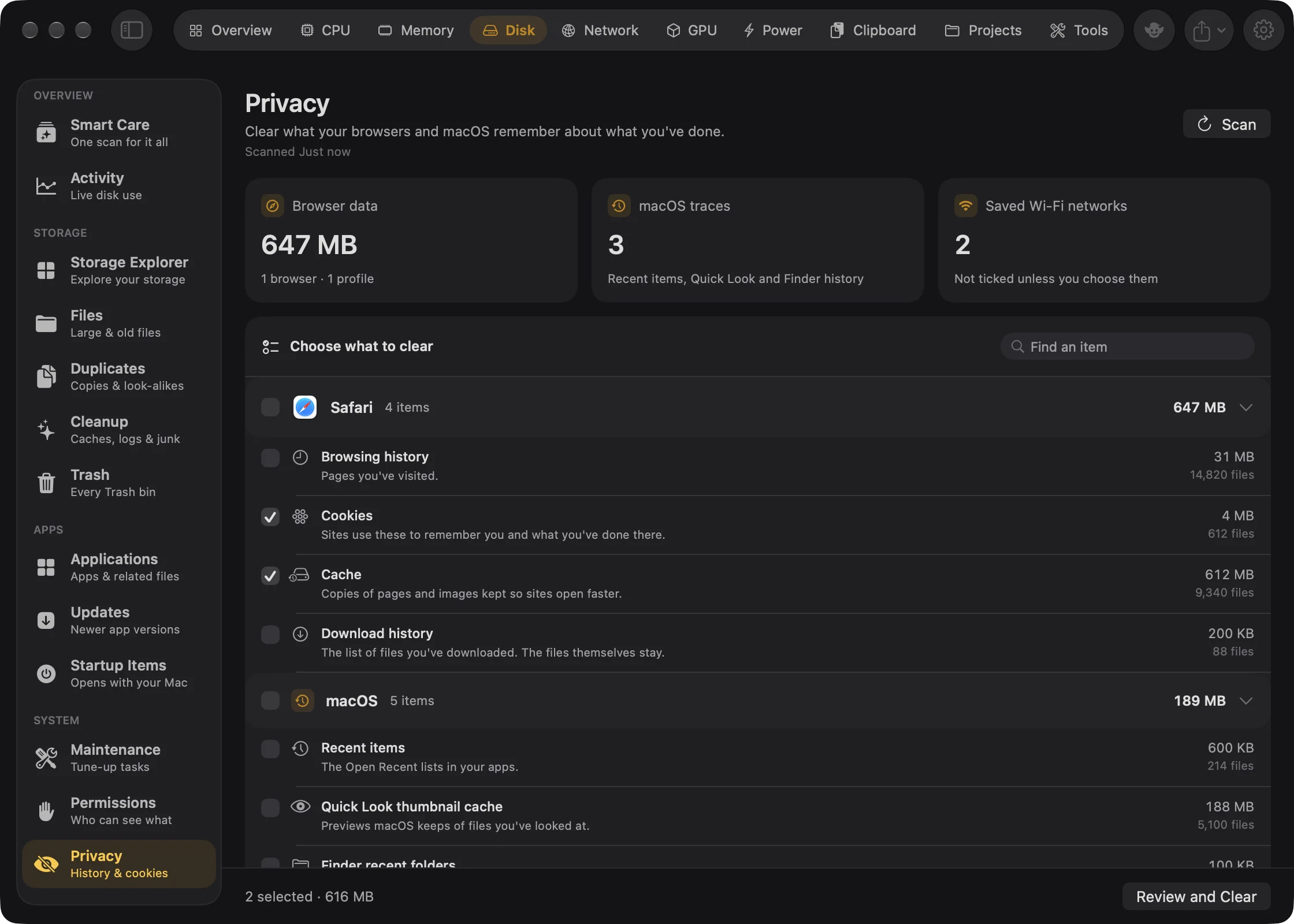
Clear browser history, cookies and cache#
- Open the Disk tab in the main window.
- In the sidebar, under System, choose Privacy. The first time you open it, Goblin scans on its own. Press Scan to read it again.
- Find your browser's group. If it says "<Browser> is open", press Quit <Browser> (see Quit the browser first).
- Tick what you want to clear. Tick a single item, or the checkbox beside the browser's name to choose everything in the group. Browsers with several profiles list each profile under its own heading.
- Check the footer: it shows how many you chose and their size.
- Press Review and Clear.
- In Review privacy files, look over the list and confirm. The files go to the Trash. To delete them at once instead, tick the box that says Delete immediately instead of moving to Trash first.
Find an item filters the list, and right-clicking a row offers Show in Finder.
Note: History and cookies synced through iCloud or a browser account come back from the cloud. Turn sync off in the browser first if you want them gone for good.
The summary cards#
- Browser data: the size of the browser data you can clear, and how many browsers and profiles Goblin found.
- macOS traces: how many recent-item lists, previews and histories macOS keeps.
- Saved Wi-Fi networks: how many are saved. They're never ticked unless you choose them.
Browsers#
Goblin supports Safari, Google Chrome, Brave, Microsoft Edge, Arc, Vivaldi, Opera and Firefox, with every profile.
| Category | Safari | Chrome, Brave, Edge, Arc, Vivaldi, Opera | Firefox | What clearing it means |
|---|---|---|---|---|
| History | Browsing history | Browsing and download history | Not offered | Pages you visited (and, in Safari, your frequently visited sites). Chromium browsers keep downloads in the same file as history, so they go together. |
| Downloads | Download history | Included in history | Not offered | The list of files you downloaded. The files themselves stay in your Downloads folder. |
| Cookies | Yes | Yes | Yes | Sites you're signed in to will ask you to sign in again. |
| Cache | Yes | Yes | Yes | Saved copies of pages and images. Sites load a little slower once while the cache fills again. |
| Autofill form data | Yes | Yes | Yes | Saved form entries, and in Chromium browsers your saved names and addresses. That Chromium file also holds your custom search engines, so those reset too. |
| Open tabs and session data | Yes | Yes | Yes | The tabs and windows the browser reopens after it restarts. They can't be restored afterwards. |
| Saved passwords | Locked | Locked | Locked | Never offered. Manage passwords in the browser, or in your keychain for Safari. |
Firefox stores history, downloads and bookmarks in one file, so removing it would delete your bookmarks. Goblin lists it as History and downloads (kept with your bookmarks) but leaves it alone. To clear Firefox history, use History›Clear Recent History in Firefox.
Quit the browser first#
A browser that's open is using its files, so its items can't be ticked while it runs: "<Browser> is open. Quit it first so its files aren't in use."
- Look for the amber bar on the browser's group: "<Browser> is open. Quit it to clear its files."
- Press Quit <Browser>. Goblin quits it normally, as you would, and waits up to 10 seconds.
- If the browser doesn't close, Goblin says "<Browser> is still open. Close any window asking to save, then try again." Save or close the window it's asking about, then press Quit <Browser> again.
Goblin notices within a couple of seconds when a browser opens or quits, so you can also quit it yourself.
Clear recent items and other macOS traces#
Under macOS traces:
| Item | What it is | How it's cleared |
|---|---|---|
| Recent documents | The files listed under Apple menu›Recent Items. macOS starts the list again as you open files. | The list file is removed |
| Recent applications | The apps listed under Apple menu›Recent Items. | The list file is removed |
| Recent servers | Servers you connected to, shown in Finder's Connect to Server. | The list file is removed |
| Recent hosts | Network hosts you connected to. | The list file is removed |
| Recent documents of individual apps | The File›Open Recent lists that each app keeps. | The list files are removed |
| Quick Look thumbnails | Previews macOS saved for files and folders. They're made again when you look at the files. | Runs qlmanage -r cache |
| Finder recent folders and Go to Folder history | The folders in Finder's Go›Recent Folders and the Go to Folder box. | Clears them from Finder's settings, then restarts Finder, so its windows close and reopen |
To clear them:
- Open Disk›Privacy and tick the items under macOS traces.
- Press Review and Clear.
- If you chose Quick Look thumbnails or Finder history, Goblin asks "Run these actions?" and lists them. Press Run. These run straight away and can't be undone. (Cancel backs out.)
- Goblin reports what happened, for example "Cleared Quick Look thumbnails." Recent-item lists go through the review sheet like browser files do.
Forget saved Wi-Fi networks#
Each saved network is listed as a row under macOS traces. Your Mac forgets the network and its password, and won't join it again until you do.
- Open Disk›Privacy and tick the networks to forget.
- Press Review and Clear.
- In "Run these actions?", press Run. Goblin asks for your password once for all of them.
- Goblin reports "Forgot 2 saved Wi-Fi networks."
The network you're connected to isn't listed, so you can't cut yourself off. If macOS won't tell Goblin which network you're on, none can be removed: turn Wi-Fi off, then scan again. Networks saved through iCloud Keychain come back from your other Macs.
New in 1.1: With Goblin's helper allowed under System Tasks in Settings › General, forgetting Wi-Fi networks doesn't ask for your password, though the confirmation still says it does.
What happens when you press Review and Clear#
- Only browser files chosen: the review sheet opens, titled Review privacy files.
- Quick Look, Finder history or Wi-Fi networks chosen: Goblin first asks "Run these actions?" and lists them. These run straight away and can't be undone. Then any browser files you chose open in the review sheet as usual.
If a ticked browser is still open, Goblin leaves its items alone and says so afterwards ("Left <item> alone."). The footer also shows how many "can't be cleared yet".
Allow Full Disk Access for Safari data#
macOS protects Safari's data, and sometimes other browsers' data, until Goblin has Full Disk Access. Until then the browser's group shows a lock line, such as "Safari's history, cookies and downloads are protected. Give Goblin Full Disk Access to include them.", and a card explains how to turn it on.
- On the card, press the button that opens Full Disk Access, and turn Goblin on (the card has a tile to drag into the list).
- Press Scan again after changing access.
See Full Disk Access.