 Goblin
Apps often add helpers that open when you log in or keep running in the background. Startup Items lists all of them in one place: login items, launch agents and launch daemons. You can turn one off without deleting anything, remove the launch files of ones you don't want, and spot items whose app is already gone.
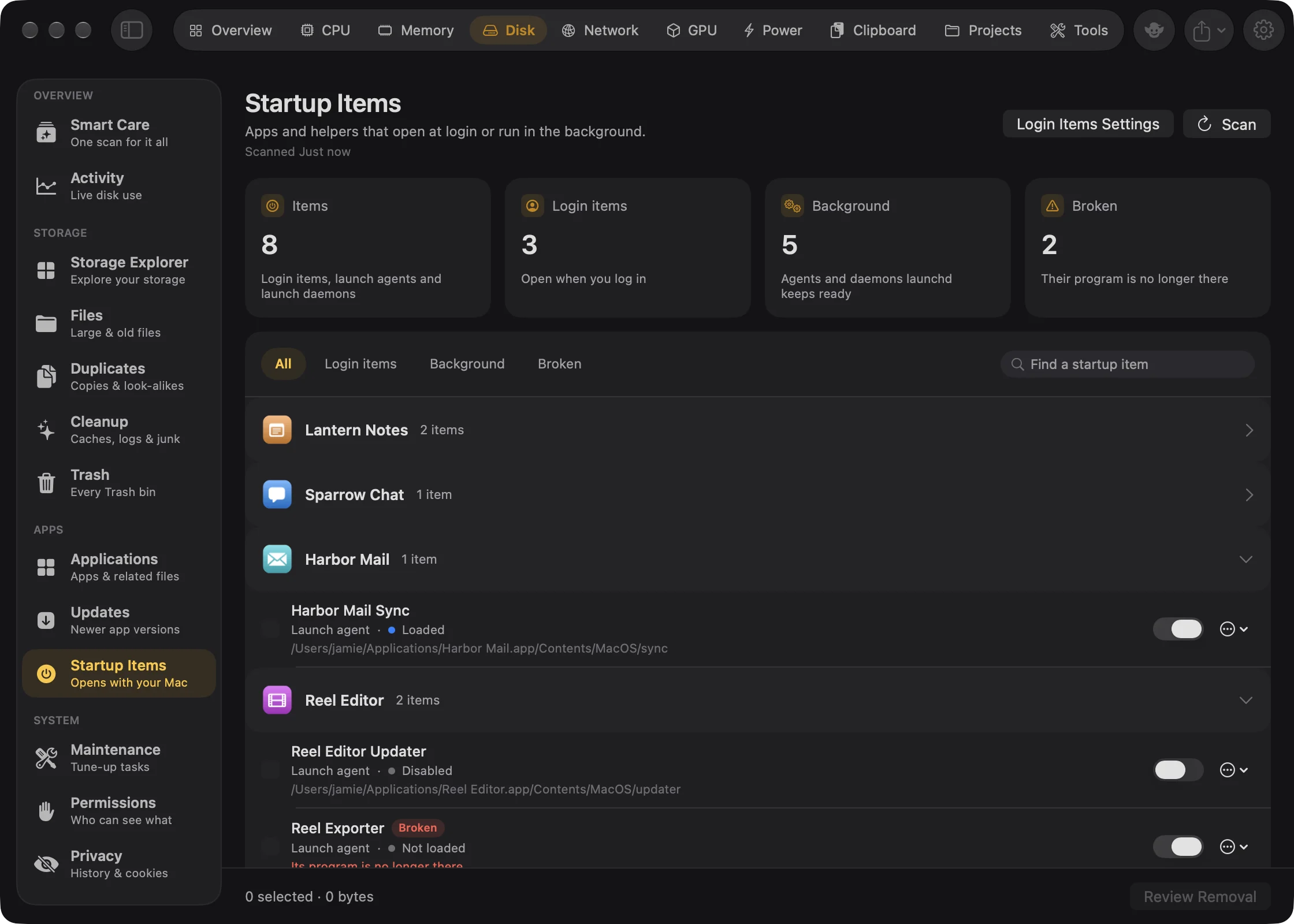
See what starts with your Mac#
- Open the Disk tab in the main window.
- In the sidebar, under Apps, choose Startup Items. The first time you open it, Goblin reads the list on its own. Press Scan to read it again.
- Look through the groups. Each group is one app, with its icon and how many items it has. Click the chevron on a group to fold it.
- To narrow the list, pick a filter (All, Login items, Background, Broken) or type in Find a startup item. Search matches the name, label, owner and program.
The four cards at the top count what Goblin found:
- Items: every login item, launch agent and launch daemon.
- Login items: the ones that open when you log in.
- Background: agents and daemons macOS keeps ready.
- Broken: items whose program is no longer there.
What's listed#
| Kind | What it is | Where Goblin looks |
|---|---|---|
| Login item | An app or helper that opens when you log in. | Inside apps in /Applications and ~/Applications (and one folder down), plus System Settings' full list once you load it |
| Launch agent | A background program that runs while you're logged in. | ~/Library/LaunchAgents and /Library/LaunchAgents |
| Launch daemon | A background program that runs for every user, even before anyone logs in. | /Library/LaunchDaemons |
Goblin works out which app an item belongs to from the evidence: a program inside the app, the app the item names, an identifier that starts with the app's, the same developer's signature, or the app's name in the item's label. Programs installed by Homebrew are grouped under Homebrew, Apple's items under Apple, and anything Goblin can't place under Other items.
Each row shows the item's name, its kind, and its state: Running, Loaded, Disabled, Not loaded or Unknown. "Off in Settings" means you've switched it off under Allow in the Background in System Settings. Under that, the program's path, or in red why it's broken. If macOS's launchctl tool doesn't answer, a line says so and the states are marked unknown.
Show all login items#
macOS keeps a full list of login and background items, the one System Settings shows. To add it to Goblin's list:
- Press Show all login items at the top. The button goes away once the list is loaded.
- Goblin first tries to read the list as you. If that doesn't work, it asks for your administrator password ("Goblin needs your password to read the full list of login items that macOS keeps."). Enter it.
- The list reloads with items apps registered themselves, and whether each is allowed in the background.
If you cancel the password prompt, the list keeps showing what Goblin can read without a password. Items belonging to other users on the Mac are left out.
New in 1.1: With Goblin's helper allowed under System Tasks in Settings › General, the full list loads without a password prompt.
Open Login Items settings#
Press Login Items Settings at the top, or choose Open Login Items Settings from any row's ⋯ menu. Either opens System Settings›General›Login Items & Extensions.
Turning an item off or on#
Turning an item off keeps its file and stops it from starting. Turning it on lets it start again.
- Find the item. Use the search box or a filter if the list is long.
- Flip the switch at the right end of its row. Goblin disables the item and stops it now.
- Look for the confirmation under the cards: "<name> won't start at login anymore." To undo it, flip the switch back on. Goblin enables the item and starts it again: "<name> will start again."
Launch agents change without a password. Launch daemons run for every user, so changing one asks for your password ("Goblin needs your password to change a background item that runs for every user."). Cancel and nothing changes.
New in 1.1: With the System Tasks helper allowed, launch daemons change without the prompt.
Not every item has a switch:
- App-controlled items show Manage instead. The app manages these itself, so press Manage (it opens Login Items settings) and change them there.
- Items from macOS and from Goblin show a lock. They're listed so you can see them, but can't be changed here.
Removing an item#
Removing deletes only the item's launch file. The app it belongs to isn't touched.
- Tick the box at the left of each item you want to remove. Items that can't be removed have a faded box.
- Press Review Removal in the footer.
- In Remove startup items, check the list and confirm.
Goblin stops the item first. Your own launch agents go to the Trash. Launch files in the shared /Library folders belong to the system, so they're deleted for good in one step that asks for your password once, or uses the System Tasks helper if you allowed it.
Login items an app bundles inside itself have no launch file of their own. To get rid of one, remove the app (see Uninstalling apps) or turn it off in Login Items settings.
Find and remove broken items#
An item is broken when it can't run. Goblin tells you why, in red under its name:
- "<program> is no longer at <path>." Usually the app was deleted and its helper's launch file stayed behind. Goblin follows items that open an app or run a script through to the real program.
- "It has no job label, so launchd ignores it."
- "Its property list can't be read, so it can't run."
- "Its launch file is gone, but macOS still lists it." (from the full list)
Broken items are safe to remove.
- Choose the Broken filter. If nothing is broken, it says "Nothing is broken".
- Tick the items, or all of them.
- Press Review Removal and confirm.
Smart Care offers to clear them too.
Hide an item from the list#
If you want Goblin to stop listing an item, click ⋯ on its row and choose Ignore. It goes on the Startup Items ignore list. To bring it back, open Ignored Items… from the More (⋯) menu of Cleanup, Applications, Files or Storage Explorer, choose Startup Items, select it and press −. See Ignore lists.
Only items with a launch file can be ignored. The ⋯ menu also has Show in Finder and, for locked items, the reason they're locked.