 Goblin
Every time an app connects to a website or service by name, your Mac first looks the name up with a DNS server, usually your network's. Those lookups normally travel unencrypted, so anyone on the network, the network's owner and your internet provider can read them, and could change the answers. Encrypted DNS has macOS send every lookup encrypted to a server you pick instead.
macOS does the encrypting. Goblin saves the setting in macOS, picks the server, and checks that it works.
You find it in Settings›Firewall›DNS. Like the other Firewall panes, it's there while the firewall is on. If you've turned off Allow Settings Editing in Firewall settings › Security, the pane is greyed out until you unlock.
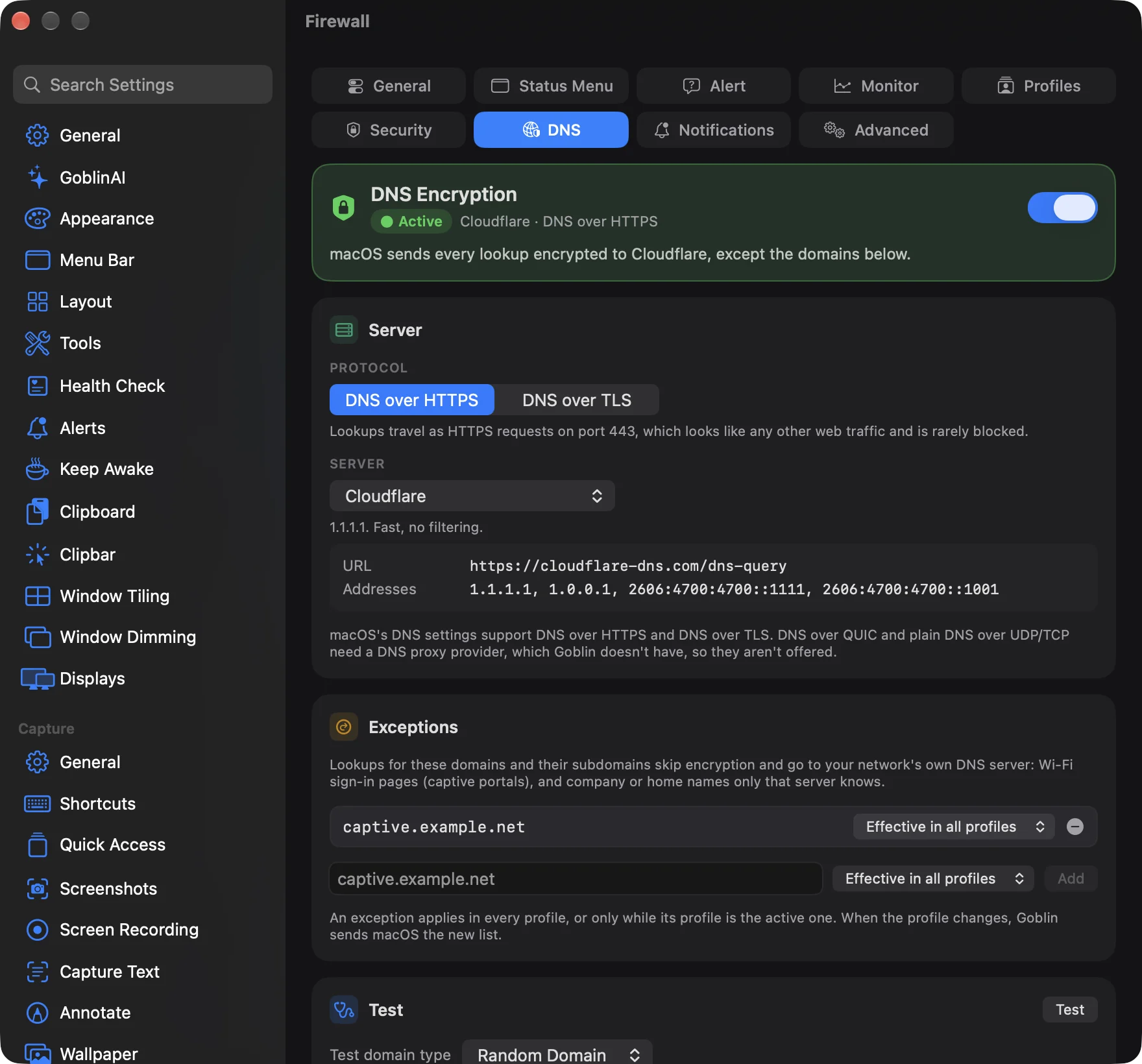
Turning it on#
- Open Settings with ⌘,, click Firewall, then click DNS in the strip along the top.
- Choose a protocol and server (see below), or leave the defaults: Cloudflare over DNS over HTTPS.
- Switch on DNS Encryption at the top. It applies straight away.
- The first time, macOS may ask you to allow Goblin's DNS settings. Allow it.
- If the chip says Needs enabling, click Open System Settings, go to Network›Filters & Proxies (called VPN & Filters on older macOS), and switch on Goblin's DNS settings.
- Back in Goblin, click Test in the Test card to check it (see Testing it).
When it worked, the chip says Active, and the card names the server: "macOS sends every lookup encrypted to Cloudflare".
| Chip | Meaning |
|---|---|
| Off | Lookups go to your network's DNS server unencrypted, as usual. |
| Needs enabling | Saved, but still off in System Settings. Only one app's DNS settings can be on at a time, so another app's may be on instead. |
| Active | macOS sends every lookup encrypted to your server, except the exceptions. |
| Unavailable | This copy of Goblin can't change how macOS sends lookups. You can still choose a server and test it. |
Unavailable means your copy of Goblin wasn't built with the DNS settings permission Apple requires. Goblin's download that includes the network extension has it.
If the server settings have a problem, the switch won't turn on until you fix it ("Fix the server below to turn it on.").
Turning it off#
- Open Settings›Firewall›DNS.
- Switch off DNS Encryption at the top.
Goblin removes its DNS settings from macOS, the chip reads Off, and lookups go to your network's DNS server again.
Encrypted DNS is separate from the firewall's filter: turning the firewall off doesn't turn it off, and it hides this pane. Switch it off here first, or later in System Settings›Network›Filters & Proxies. Uninstalling Goblin removes it too.
The server#
Choose a DNS server#
- Open Settings›Firewall›DNS.
- In the Server card, choose a Protocol: DNS over HTTPS or DNS over TLS.
- Choose a Server from the menu, such as Quad9 or AdGuard DNS.
- Click Apply in the bar that appears at the bottom ("Apply to send these changes to macOS."). While encryption is off, the button is Save instead.
Click Revert to go back to what was saved. Then test it.
Protocol#
| Protocol | How it travels |
|---|---|
| DNS over HTTPS (default) | As HTTPS requests on port 443. It looks like any other web traffic and is rarely blocked. |
| DNS over TLS | Over TLS on port 853. Simpler, but some networks block that port. |
macOS supports these two. DNS over QUIC and plain DNS over UDP or TCP aren't offered, because they need a kind of helper Goblin doesn't have.
Server#
| Server | What it does |
|---|---|
| Cloudflare (default) | 1.1.1.1. Fast, no filtering. |
| Cloudflare Malware Blocking | 1.1.1.2. Blocks known malware domains. |
| Google Public DNS | 8.8.8.8. No filtering. |
| Quad9 | 9.9.9.9. Blocks known malicious domains. |
| AdGuard DNS | Blocks ads and trackers. |
| Mullvad DNS | No filtering, no logging. |
| Custom | A server you enter yourself. |
Each server shows the URL (DNS over HTTPS) or server name (DNS over TLS) Goblin will use, and its addresses.
The server you choose sees every name you look up, so pick one you trust.
A custom server#
- In the Server card, choose Custom from the Server menu.
- For DNS over HTTPS, enter the URL and, if it isn't 443, the Server Port. For DNS over TLS, enter the Server name.
- Optionally enter Addresses, separated by commas.
- Click Apply (or Save).
Details of each field:
- DNS over HTTPS: enter the full URL, path included, such as
https://dns.example.net/dns-query. The Server Port field (443 if empty) is written into the URL, since macOS has no separate port setting. - DNS over TLS: enter the Server name, the name on the server's certificate. macOS always uses port 853 for DNS over TLS.
- Addresses (optional, separated by commas): with addresses, macOS connects to them directly. Without, it looks the server's name up first.
Mistakes are pointed out as you type: "Enter a valid URL.", "Enter a valid hostname.", "Enter a valid port number.", or that an entry isn't an IPv4 or IPv6 address.
Exceptions#
Some names only work with your network's own DNS server: Wi-Fi sign-in pages at hotels and airports (captive portals), and company or home names that only that server knows. Add those domains here. Lookups for them, and for their subdomains, skip encryption and go to your network's DNS server.
Add an exception#
- In the Exceptions card, type the domain, such as
captive.example.net, into the field. - Optionally choose whether it applies in Effective in all profiles or only in one profile.
- Click Add.
- Click Apply (or Save) in the bar at the bottom.
To remove an exception, click the ⊖ beside it, then Apply.
- Type a domain, such as
captive.example.net, and click Add. The ⊖ button removes one. - Each exception applies Effective in all profiles, or only while one of your profiles is active. When the active profile changes, Goblin sends macOS the new list. An exception whose profile was deleted shows "Deleted profile" and does nothing until you change it.
An exception always goes to your network's own DNS server. macOS can't send one to a different server of your choosing.
Applying changes#
When you change the server or the exceptions, a bar appears: "Apply to send these changes to macOS." Click Apply (or press Return), or Revert to go back. While encryption is off, the button is Save and the changes wait for when you turn it on.
Testing it#
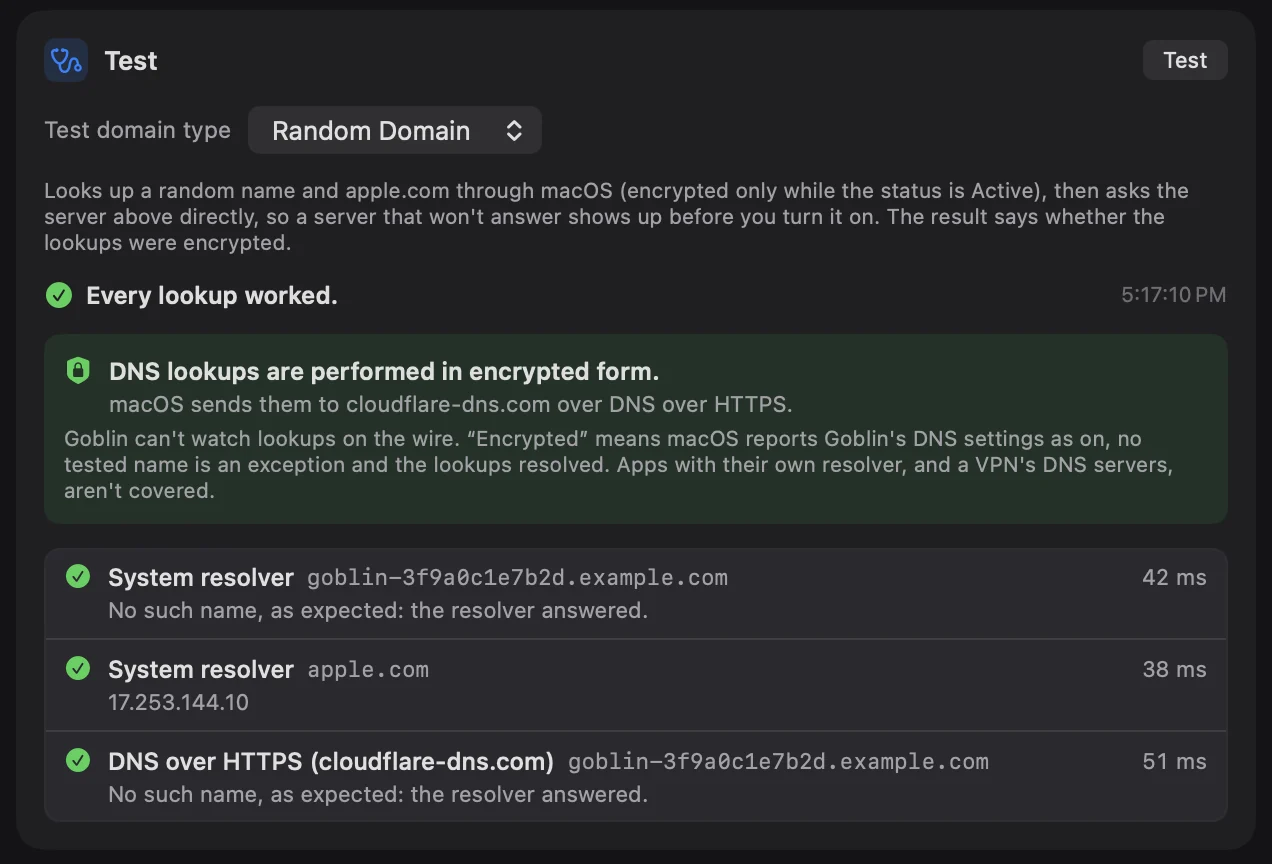
- Open Settings›Firewall›DNS and find the Test card.
- Choose a Test domain type: Random Domain, or Custom Domain and type a name.
- Click Test.
- Read the result under the button: "Every lookup worked." or "Some lookups failed.", and the verdict line.
If it goes wrong, the card Recent DNS Lookup Errors lists the failures; Copy All copies them and Clear empties the list.
The Test card checks two things: that your lookups go through macOS as expected, and that the server you chose answers. That way a server that won't answer shows up before you turn encryption on.
- Test domain type: Random Domain looks up a made-up name nobody has asked for, plus apple.com. Custom Domain looks up a name you type.
- Click Test. Goblin looks the names up through macOS, then asks your server directly.
The result says "Every lookup worked." or "Some lookups failed.", followed by a verdict such as:
| Verdict | Meaning |
|---|---|
| DNS lookups are performed in encrypted form. | macOS sends them to your server over the chosen protocol. |
| DNS lookups are not encrypted yet. | The settings are saved, but still off in System Settings. |
| DNS lookups are not encrypted. | Encryption is off, or not available in this copy. |
| This lookup is not encrypted. | The name you tested is an exception. |
| DNS lookups may not get through. | macOS is set to use your server, but it didn't answer when asked directly. |
| Couldn't tell whether lookups are encrypted. | A system lookup failed, so there was nothing to check. |
Each lookup gets its own row with the answer and how long it took.
Goblin can't watch lookups on the wire. "Encrypted" means macOS reports Goblin's DNS settings as on, the tested name isn't an exception, and the lookups worked.
Recent DNS Lookup Errors#
This card lists the latest 8 failures: lookups the test found failing, and saves macOS refused, since Goblin started. Copy All copies them, for example to send to support, and Clear empties the list. With nothing to show, it says "No recent errors".
What encryption hides, and what it doesn't#
It hides:
- The names your Mac looks up. Your Wi-Fi, the network's owner and your internet provider can no longer read them or quietly change the answers.
It doesn't hide:
- Anything from the server you chose. It sees every lookup.
- Where you then connect. The sites' addresses stay visible, and so do their names in most secure connections.
- Lookups by apps with their own resolver, such as browsers with Secure DNS turned on. While a VPN is connected, its DNS servers take precedence.
Prepare DNS settings with Goblin#
Ask “List DNS Presets”, then “Review DNS Preset cloudflare” with an exact preset ID or name. Goblin prepares the native DNS draft. For custom settings use “Review DNS Configuration {"enabled":true,"protocol":"https","presetID":"custom","serverURL":"https://dns.example.com/dns-query","serverAddresses":["203.0.113.1"],"exceptions":["internal.example.com"]}”. tls uses serverName for the certificate hostname. All server addresses and exception domains must validate before the draft changes.
Review the draft and press Apply or Save in DNS settings. macOS may require approval and separate activation; preparing or saving a configuration does not mean encrypted DNS is active. “Check DNS Encryption Status” reads the native configuration status.
DNS exception entries may also be objects such as {"domain":"internal.example.com","profileID":"UUID"}. The profile UUID must exist when the request prepares the draft. Plain domain strings apply in every profile. The existing native Apply flow remains required.