 Goblin
New: Coming in the next update. A compact menu offers actions for the files you drag onto Goblin.
You can hand files to Goblin from Finder or another app. The menu shows only tools that accept your whole selection. Dropping files onto Goblin keeps the originals where they are. It does not open the main menu bar panel or switch it to the Tools tab.
Drop files on the menu bar#
- Select one or more files in Finder and start dragging them.
- Move over Goblin’s menu bar icon or the small Drop on Goblin target underneath it. Pause briefly to expand the target into a menu of file actions. You can also shake the pointer from side to side while dragging.
- Drop directly on a tool tile to choose that action. Or release on the target or menu header first; the menu stays open with Choose an action, and you can click a tile when you’re ready.
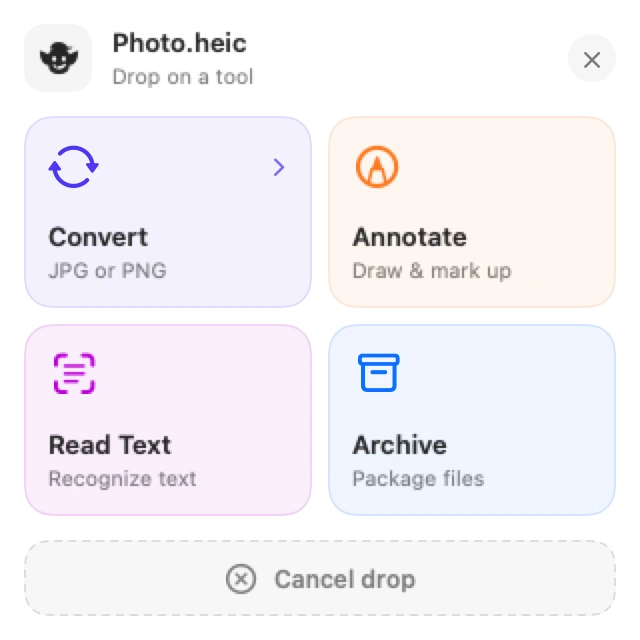
While you’re still dragging, the menu says Drop on a tool and has a Cancel drop area at the bottom. You can keep holding the files as you move between tools. Only dropping on an action chooses it.
Choose an action for your files#
| Selection | Tiles you see | What happens |
|---|---|---|
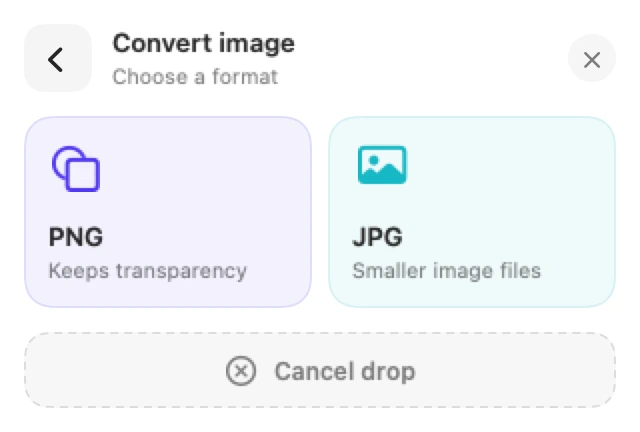
| One PDF | Split, Compress, Combine, Read Text | Open PDF Tools, choose where to save a smaller copy, or open text recognition. |
| Several PDFs | Split, Compress, Combine | Work with the whole PDF selection; Read Text is available only for one file. |
| One supported image | Convert, Annotate, Read Text, Archive | Choose PNG or JPG, open the annotation editor, read its text, or prepare an archive. |
| Several supported images | Convert, Annotate, Archive | Convert the selection, open each image for annotation, or prepare an archive. |
| MOV, MP4 or M4V videos | Edit Video, Archive | Open each video in the editor or prepare an archive. |
| Archives | Open, Extract, Archive | Browse each archive, choose where to extract it, or put the selection into a new archive. |
| Folders, other files or mixed file types | Archive | Prepare an archive of the whole selection. |
For example, dragging a PDF and a photo together offers Archive, rather than applying a PDF tool to only part of the selection. Tools can still report a file they cannot read, such as a locked PDF or a file that is not available locally.
Convert an image to JPG or PNG#
- Drag one or more supported images to Goblin’s menu bar target.
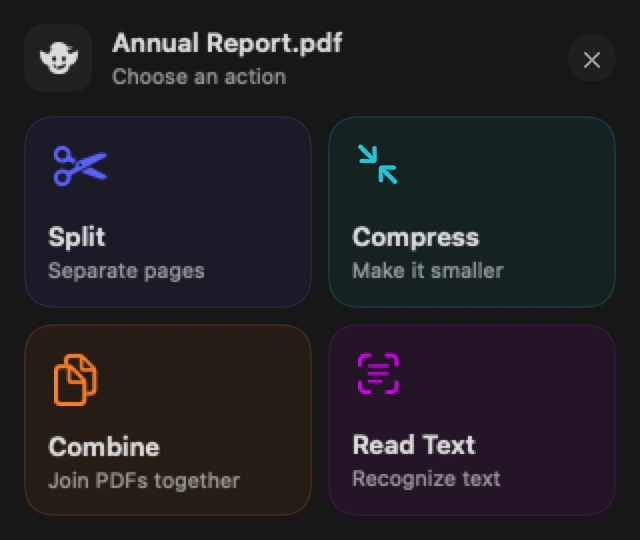
- Hold the drag over Convert. Two format tiles appear: PNG (Keeps transparency) and JPG (Smaller image files). If you already released the files onto the target, click Convert instead.
- Drop on a format, or click it after dropping. The image converter opens with your files and that format selected.
- Review the destination and options, then click Convert in the converter to save the new files.
The back arrow returns to the file actions. If another image conversion is already running, the menu asks you to wait until it finishes. The converter keeps your original images; see Convert images.
Split, combine or compress PDFs#
Split and Combine open PDF Tools with the dropped PDFs loaded. Split starts with separate pages selected as the output mode; Combine starts with one combined PDF. Review the pages, their order and where to save them before saving. Starting from this menu replaces the PDF Tools window’s current selection.
Compress asks where to save smaller copies. Click Compress in that folder chooser to start. Image quality may be reduced, while text stays selectable. Goblin opens Finder to the smaller copies when it finishes. If a PDF is already optimized and no smaller copy can be saved, Goblin tells you. The original PDFs stay unchanged.
Cancel a drop#
- While holding the files, drop them on Cancel drop or the × in the menu’s top corner. Goblin rejects the drop and leaves the files where they are. Moving over Cancel does not cancel until you let go, so you can move back to a tool.
- If you let go away from Goblin’s target, its menu closes without choosing a Goblin action. Another app under the pointer may still accept that drop normally.
- After dropping on Goblin but before choosing an action, click ×, press Esc, or click outside the menu to close it.
Change when the drop target appears#
Open Settings›Tools›Dropping files. Both options start on:
| Setting | What it changes |
|---|---|
| Show “Drop on Goblin” under the icon while dragging files | Shows the small target below the menu bar so you do not have to push against the screen’s top edge. The small target is not shown while the main panel is already open. |
| Shake while dragging to show the drop target | Opens the file-action menu when you move the pointer quickly from side to side during a file drag. |
Turning both off does not disable dropping directly onto Goblin’s menu bar icon. Hover over the icon to open the file menu. The Tools tab does not need to be enabled in your panel layout. See Tools settings.