 Goblin
Smart Care is the quickest way to look after your Mac. One scan asks several Disk sections what they'd recommend: memory and busy apps, cleanup, the Trash, broken startup items, app updates, unused apps and leftovers, and tune-up tasks. You see everything on one page, tick what you want, and press Run. A scan changes nothing. Run does only what's ticked, and any files go through the usual review sheet first.
You find it at the top of the Disk tab's sidebar, under Overview.
Check and tidy your Mac with Smart Care#
- Click Disk in the main window's tab bar, then Smart Care in the sidebar.
- Press Scan at the top right. The progress card shows each area as it's checked.
- When the scan ends, read the suggestion cards and the What Smart Care found list. A ticked card is something Run will do. Untick any you want to skip, or press Select Recommended to go back to the defaults.
- Press Run at the bottom right. The footer above the button lists what it will do.
- If a review sheet opens (Review Smart Care files), look through the files and press Move to Trash. If you ticked the Trash, confirm Empty Trash and Run first.
- When it worked, a summary card at the top says what was done, step by step. Press Dismiss to close it.
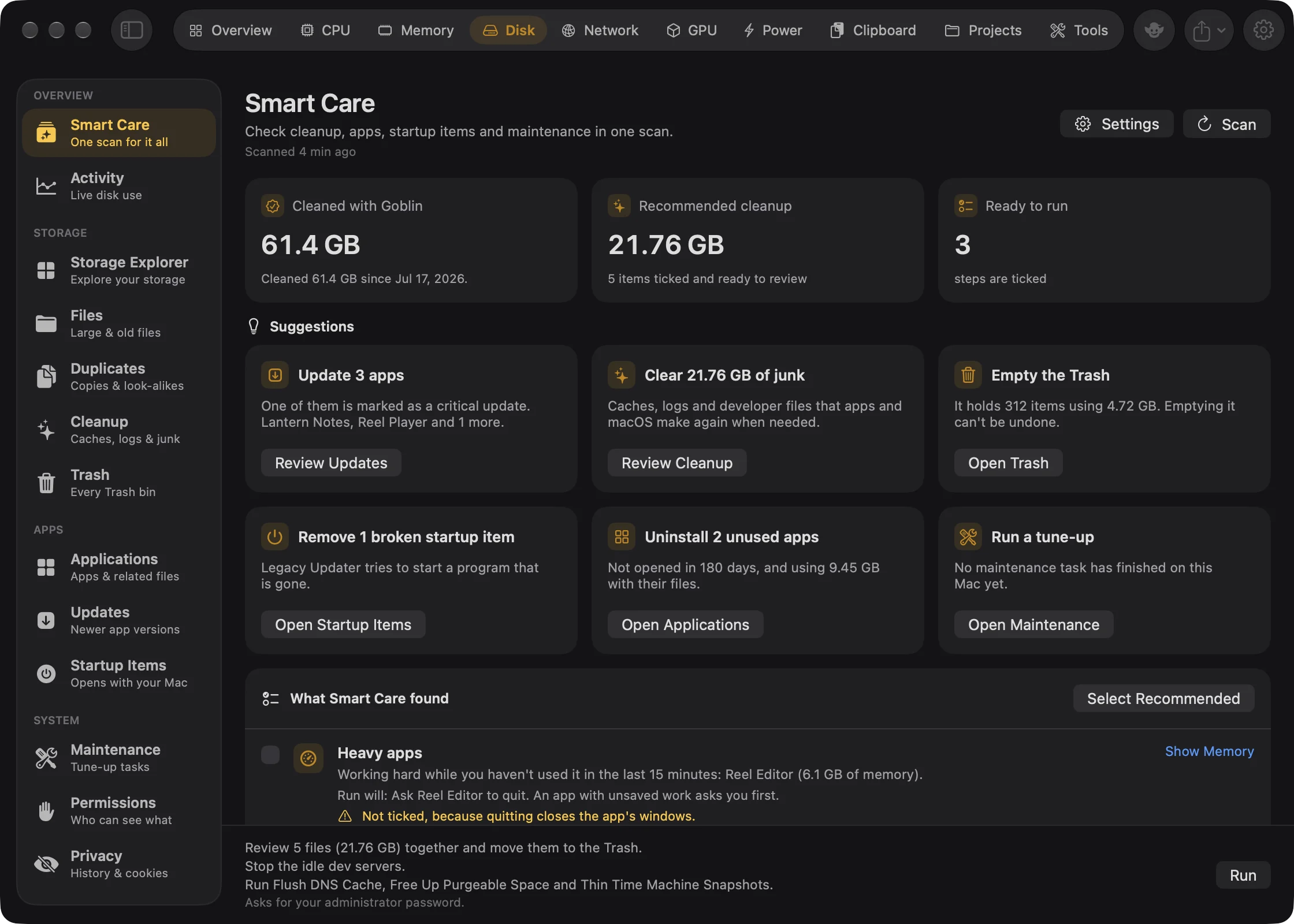
The sections below explain each part of the page.
Scan#
Press Scan at the top right. The progress card shows each area as it's checked, with "Step 2 of 7" and the same progress details other Disk scans show. To stop it, press Cancel Scan; the previous results stay. Under the title, "Scanned …" says when the last scan finished; Goblin remembers it between launches.
A scan checks, in this order, every area that's switched on in Smart Care Settings:
- Performance: memory and busy apps, from Goblin's live readings. Nothing is scanned.
- Cleanup: a full Cleanup scan.
- Trash: every Trash bin Goblin can find.
- Startup items.
- Applications: a full scan of your apps and the files left by apps you removed.
- App updates: checks online for newer versions, using the app list from the step before.
- Maintenance: purgeable space, Time Machine snapshots, Mail's index and when each task last ran.
Each step is the same scan that section runs on its own page, so the results there are refreshed too. If an area can't finish, a note under the findings says "Couldn't check …" with the reason, and that area has no card.
Scan doesn't start while another Disk scan, a removal, Maintenance, the Trash or an app update is busy; it says what's in the way instead. If every area is switched off, it asks you to choose at least one.
When a scan finishes, every tick goes back to its default.
In short, from Apple Intelligence#
New: Coming in the next update. Apple Intelligence sums up a scan and says what unfamiliar items are.
On a Mac with Apple Intelligence turned on, an In short card appears above the suggestions after a scan: two or three sentences on what's most worth doing first and what can wait. While it's being written the card says "Apple Intelligence is reading the results…". Goblin throws the summary away if it mentions a size or count the scan didn't find, so you see no card rather than a wrong one.
Under the Startup items, Unused apps and App leftovers cards, What are these? opens a list of the items (up to 8 per card, biggest first), each with one line on what it is or was for and which app or company it belongs to, for example a broken launch agent named after an app you removed long ago. Apple Intelligence only has what Goblin read about each item (its name, label, program, path and bundle identifier). When it doesn't recognize an item, the line says "Apple Intelligence couldn't tell what this is." rather than guessing.
Everything runs on your Mac; nothing is sent anywhere. Apple Intelligence only explains: it never ticks or unticks a card, and Run does exactly what it did before. Its words can be wrong, so check the card and the section before you remove anything. You can turn it off with Use Apple Intelligence in Smart Care Settings. On a Mac without Apple Intelligence, Smart Care looks just as it did.
The summary tiles#
| Tile | What it shows |
|---|---|
| Cleaned with Goblin | Everything Goblin has removed since you started using it, and since when. |
| Recommended cleanup | The size of the Cleanup items ticked by default, and how many there are. |
| Ready to run | How many steps Run would do with the current ticks. |
Cleaned with Goblin grows with every removal you confirm in any Disk section (moved to the Trash, deleted, moved to a cloud service's trash) and every time you empty the Trash in Goblin.
Suggestions#
Above the findings, up to six cards point out what's most worth doing, most important first. Each has a button that opens the right section. They use whatever each section already knows, including scans you ran on its own page.
| Card | When it appears | Button |
|---|---|---|
| Update N apps | Any app has an update. A critical update puts it first. | Review Updates |
| Clear … of junk | Recommended cleanup comes to 500 MB or more. | Review Cleanup |
| Empty the Trash | Goblin can read the Trash and it holds 1 GB or more. | Open Trash |
| Remove N broken startup items | A startup item points to a program that's gone. | Open Startup Items |
| Uninstall N unused apps | Apps you haven't opened in 180 days. | Open Applications |
| Run a tune-up | No maintenance task has ever finished on this Mac. | Open Maintenance |
| Run Smart Care | You've never run a Smart Care scan. | Scan |
What Smart Care found#
After a scan, each area has a card. A card that Run can act on has a checkbox. Cards that only inform you show an ⓘ, and areas with nothing to do show a ✓. Each card says what was found and, after "Run will:", exactly what Run would do. An amber line explains anything to be careful about, such as why it isn't ticked. The link on the right (Open Cleanup, Open Trash, Open Applications and so on) opens the section, so you can look closer or choose items one by one.
To put every tick back to its default, press Select Recommended above the list. If you untick a card and then visit another section, it stays unticked when you come back; new cards get their default.
Here is every card, whether it's ticked to start with, and why.
Performance#
New in 1.1: Smart Care also checks memory, heavy apps you aren't using, and idle dev servers.
| Card | Appears when | Run will | Ticked |
|---|---|---|---|
| Free Up RAM | macOS reports memory pressure that isn't normal: it's compressing memory and moving some to disk. | Release memory macOS keeps for recently used files. Nothing is quit. | Yes |
| Heavy apps | Up to 3 apps you haven't used in the last 15 minutes are using 8% or more of your memory, or at least one full CPU core, on average. | Ask them to quit. An app with unsaved work asks you first. | No |
| Idle dev servers | Projects has flagged dev servers that have done nothing for a while. The card says how much memory they hold. | Stop them. Their Terminal tabs stay open. | Yes |
Heavy apps never include Goblin, the app you're using, or macOS's own processes. They aren't ticked because quitting closes their windows. Quitting is a normal quit, never a force quit. Free Up RAM is Maintenance's task of the same name and needs administrator rights. Their buttons are Show Memory (the Memory tab) and Show Projects.
When all is well the card says "Memory, apps and dev servers look fine right now."
Cleanup#
Counts the items Cleanup ticks by default: app caches, system caches, app logs, system logs and crash reports, Xcode junk, iOS and iPadOS updates, broken preferences, deleted users and downloaded installers. These are files apps and macOS make again when they need them. Groups you choose yourself, such as Xcode archives, iPhone backups, Mail attachments and document versions, are mentioned but not included. Anything on the Every Section ignore list is left out. See Cleanup.
Ticked. Run opens the review sheet with these files, to move them to the Trash. Files in system folders can't go to the Trash: the card warns that Goblin deletes them for good after your administrator password.
Trash#
Says how many items your Trash holds and how much space they use. Without Full Disk Access Goblin can't read the Trash, and the card says so; its link reads Allow Full Disk Access….
Not ticked, because emptying the Trash can't be undone. To empty it from Smart Care, tick the card and press Run. Run empties every Trash bin Goblin found, including those on other drives, and asks you to confirm first.
Warning: Emptying the Trash deletes what's in it for good.
Startup items#
Lists startup items that point to a program that no longer exists. Not ticked. Run opens the review to move their property lists to the Trash. If none of them can be removed, the card only informs you. See Startup Items.
App updates#
Lists apps with a newer version. Not ticked, because an update replaces the app. Run installs only updates Goblin can install itself after checking each one's signature; open apps are asked to quit first. Updates Goblin can't install open their download page from Updates instead.
Unused apps and leftovers#
- Unused apps lists apps you haven't opened in 180 days, with the space they and their files use. It only informs you: uninstall them from Applications. Apps whose last-opened date is unknown never count as unused.
- App leftovers counts files left behind by apps you removed, where the match is exact. Not ticked. Run opens the review to move them to the Trash. See Leftovers.
Maintenance#
One card for each tune-up task that looks worth running. Each is ticked.
| Task | Suggested when | What it does |
|---|---|---|
| Flush DNS Cache | Goblin has never flushed it on this Mac. | Clears the DNS cache. Takes a few seconds. |
| Free Up Purgeable Space | macOS reports more than 10 GB purgeable. | Asks macOS to give that space back. Your files aren't touched. |
| Speed Up Mail | Mail's search index is larger than 500 MB. | Compacts the index. Mail has to be quit first; messages aren't changed. |
| Thin Time Machine Snapshots | Any local Time Machine snapshots exist. | Deletes the local snapshots. Backups on your Time Machine disk aren't affected. |
All but Speed Up Mail need administrator rights. Thinning snapshots means you can't restore versions from before now until your backup disk is connected again. See Maintenance.
Run#
The footer lists what Run will do, one line per step, and says when your administrator password will be needed. Run is greyed out until something it can act on is ticked, and while a scan or removal is going.
If the Trash card is ticked, Goblin first asks Empty every Trash? with how many items and how much space will be deleted permanently. Choose Empty Trash and Run or Cancel.
Run then works through the ticked steps in this order, showing "Step 1 of 4" and so on:
- Emptying the Trash, first, so what you confirmed is what goes.
- Waiting for your review: one review sheet, Review Smart Care files, with the Cleanup files, broken startup items and leftovers together. Nothing moves until you confirm it; cancel and those files stay.
- Installing updates, one app at a time.
- Quitting apps.
- Stopping idle dev servers.
- Running maintenance. Apps and servers are stopped before this, so Free Up RAM can release the memory they let go.
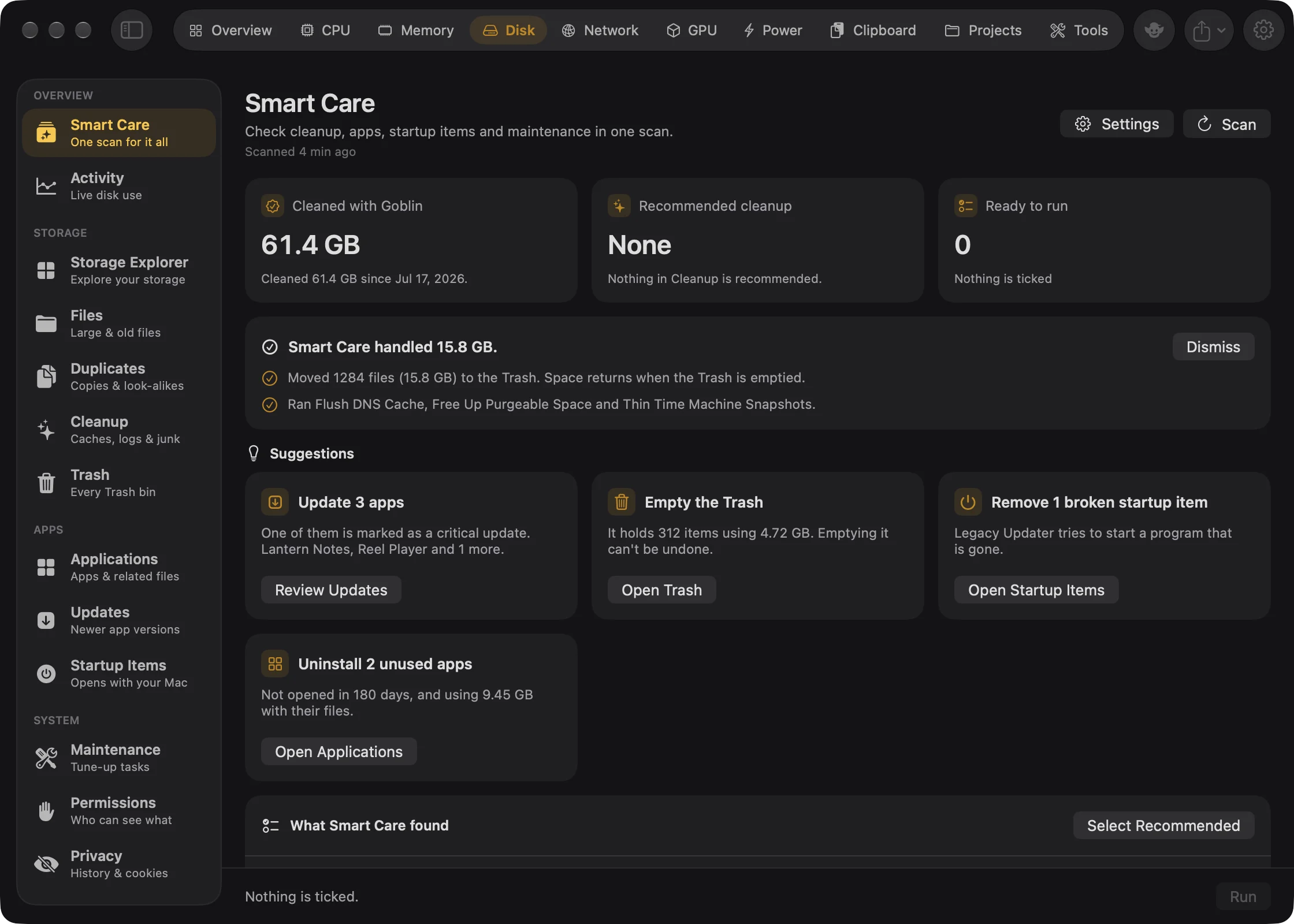
Afterwards a summary card gives a headline, such as "Smart Care handled 3.2 GB.", and one line per step marked done, partly done, skipped or failed, with what went wrong. "Handled" counts the space freed by emptying the Trash and the files you moved in the review, not updates or maintenance. Press Dismiss to close it. Ticks reset and the cards refresh.
Run takes administrator steps (maintenance tasks, files in system folders) behind your password.
New in 1.1: If you allow Goblin's system helper under System Tasks in Settings › General, those steps run without a password prompt.
Smart Care Settings#
Smart Care has no pane in Goblin's Settings window; its choices live in a sheet on the page itself.
Choose what Smart Care checks#
- In Disk›Smart Care, click Settings (the gear) at the top right.
- Under Include in a scan, untick the areas you don't want checked. Its cards and suggestions disappear at once, with no rescan.
- Press Done.
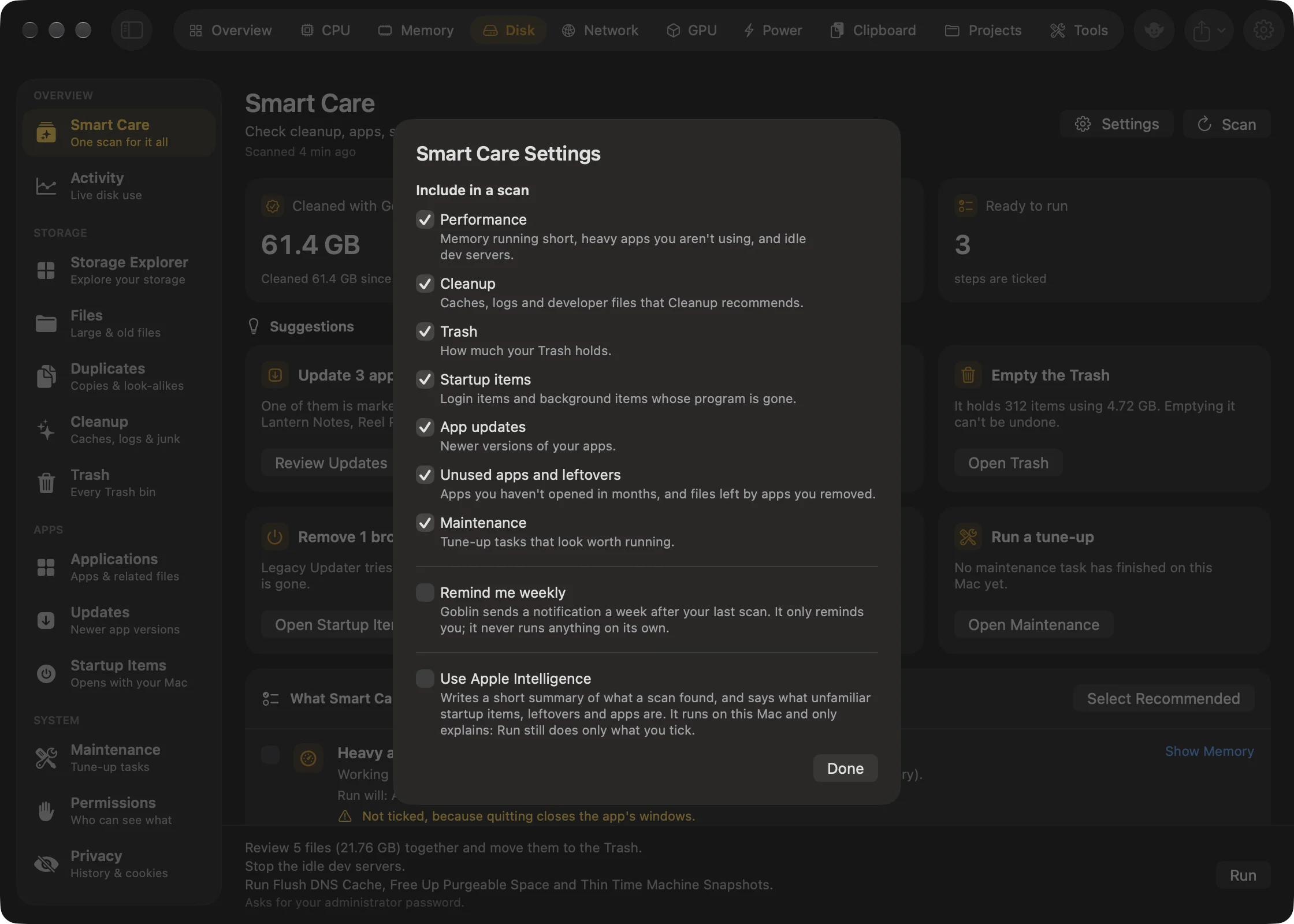
| Setting | What it covers | Default |
|---|---|---|
| Performance | Memory running short, heavy apps you aren't using, and idle dev servers. | On |
| Cleanup | Caches, logs and developer files that Cleanup recommends. | On |
| Trash | How much your Trash holds. | On |
| Startup items | Login items and background items whose program is gone. | On |
| App updates | Newer versions of your apps. | On |
| Unused apps and leftovers | Apps you haven't opened in months, and files left by apps you removed. | On |
| Maintenance | Tune-up tasks that look worth running. | On |
| Remind me weekly | Sends a notification a week after your last scan. | Off |
| Use Apple Intelligence | The In short card and What are these? notes. Greyed out on a Mac without Apple Intelligence. | On |
The Performance area is new; it's switched on once for everyone when it arrives, and you can switch it off here.
Turn on the weekly reminder#
- Click Settings at the top of Disk›Smart Care.
- Tick Remind me weekly, then press Done.
Goblin needs permission to send notifications. When the reminder is due, a "Time for a Smart Care check" notification appears. Clicking it opens Smart Care. The reminder only reminds you; it never runs anything. It comes 7 days after the latest of your last scan or run, the last reminder, or the moment you switched it on. Goblin checks 30 seconds after it starts and then every hour.
Turn off Apple Intelligence in Smart Care#
- Click Settings at the top of Disk›Smart Care.
- Untick Use Apple Intelligence, then press Done.
The In short card and the What are these? notes go away.
From the health line#
New in 1.1: The Mac health line opens Smart Care.
At the top of the Overview and of the menu bar panel, the health line shows your Mac's name and "Healthy", "Worth a look" or "Needs attention". Its Smart Care button (tinted amber or red when something's off) opens Disk › Smart Care; from the panel it closes the panel and opens Goblin's window. If your Mac isn't healthy, or you've never run Smart Care, the scan starts straight away, unless something else is busy. See Health and alerts.
Why it's safe#
- A scan only reads.
- Files never leave without the review sheet and its safety checks.
- Emptying the Trash needs its own confirmation.
- Updates and quitting apps are never ticked for you, and quitting is always a normal quit.