 Goblin
A snippet is a clip you paste often, set up to save you typing. Goblin gives clips two powers for this. A template is a text clip with fill-in fields, such as {first name} or {date}: pasting it asks for the blanks and fills in the rest. A trigger is a short code, such as ;addr, stored on a clip: with Text expansion on, typing the trigger in any app replaces it with the clip. Use them together or apart. Both work on any clip in your history or pinboards, so a pinboard of snippets keeps them safe from history clean-up.
Templates#
Any text clip becomes a template as soon as its text contains a field in braces.
Make a template#
- Open the strip with ⇧⌘V.
- Select a text card and press ⌘E to open the clip editor. To start from nothing, choose New Text Item from the strip's ⋯ menu (⌘N).
- Type the text, with each blank written as a field in braces, such as
{first name}. - Click Save. The card now wears a pill reading 1 field (or however many it has).
You can also copy text that already contains fields. For example:
Hi {first name},

Thanks for your order. It ships {date+2d:EEEE d MMMM} from our {warehouse:Leeds} warehouse.
{choice:Best wishes|Kind regards|Cheers},
{cursor}
Pasting it asks for a first name, offers Leeds as the warehouse, lets you pick the sign-off, fills in the date two days from today, and leaves the caret on the last line.
Field reference#
| Field | What it does | Example |
|---|---|---|
{name} | A blank you fill in, shown as a text field labelled with the name. | Hi {first name}, |
{name:default} | A blank with a default already filled in. Everything after the first colon is the default, so it can contain colons. | {city:Paris}, {url:https://example.com} |
{date} | Today's date in your Mac's medium date style. | 3 Oct 2026 or Oct 3, 2026, depending on your region |
{date:pattern} | Today in a date pattern of your own. | {date:yyyy-MM-dd} gives 2026-10-03; {date:EEEE d MMM} gives Saturday 3 Oct |
{date+Nd} {date-Nd} | A date before or after today. d is days, w weeks, m months, y years; N is 1 to 4 digits. | {date+1d} tomorrow, {date-2w} two weeks ago, {date+1m} next month, {date+1y} a year from today |
{date+Nd:pattern} | An offset and a pattern together. | {date+1d:EEEE} gives Sunday |
{time} | The time now in your Mac's short time style. | 14:05 or 2:05 PM |
{time:pattern} | The time in a pattern of your own. Offsets don't work on the time. | {time:HH:mm} gives 14:05 |
{choice:A|B|C} | A pop-up menu of options. The first is chosen to begin with. | {choice:Mr|Ms|Dr} |
{clipboard} | Whatever text is on the clipboard at the moment you paste. Empty if the clipboard holds no text. | Re: {clipboard} |
{cursor} | Where the caret ends up after pasting. Only the first one counts. | Dear {cursor}, |
{{ and }} | A literal { or }. | {{not a field}} pastes {not a field} |
Date and time are worked out when you press Paste, in your Mac's language and region.
Date patterns#
Patterns are the standard Unicode date patterns macOS uses. The letters you'll reach for most:
| Letters | Gives |
|---|---|
yyyy | Year, 2026 |
MM / MMM / MMMM | Month as 10 / Oct / October |
d / dd | Day as 3 / 03 |
EEE / EEEE | Weekday as Sat / Saturday |
HH:mm | 24-hour time, 14:05 |
h:mm a | 12-hour time, 2:05 PM |
Put plain words in single quotes so they aren't read as letters, for example {date:'Week' w}. An empty pattern, such as {date:}, uses the normal style.
Rules worth knowing#
- Keywords are lower case.
{date}is today's date, while{Date}is a blank called "Date". The wordscursor,clipboard,date,timeandchoicecan't be blank names. - A blank's name starts with a letter or
_, then uses letters, digits, spaces,_,-and., up to 40 characters, and doesn't end with a space. - Anything else in braces stays as typed, braces included:
{},{a+b},{choice}with no options, or a pair that spans two lines. So most text with stray braces pastes as it is. - The same blank twice is asked once.
{name}and{name:Sam}are the same blank, and the first default wins. Two pop-ups with exactly the same options are one question too. - Pop-ups are labelled "Choice", "Choice 2", "Choice 3" in the order they appear.
- Code and JSON are never templates. When Goblin recognises a clip as source code or JSON, its braces are left alone. Secret clips and clips in a locked pinboard aren't templates either, and nor are links, images, files and colors.
The "N fields" pill#
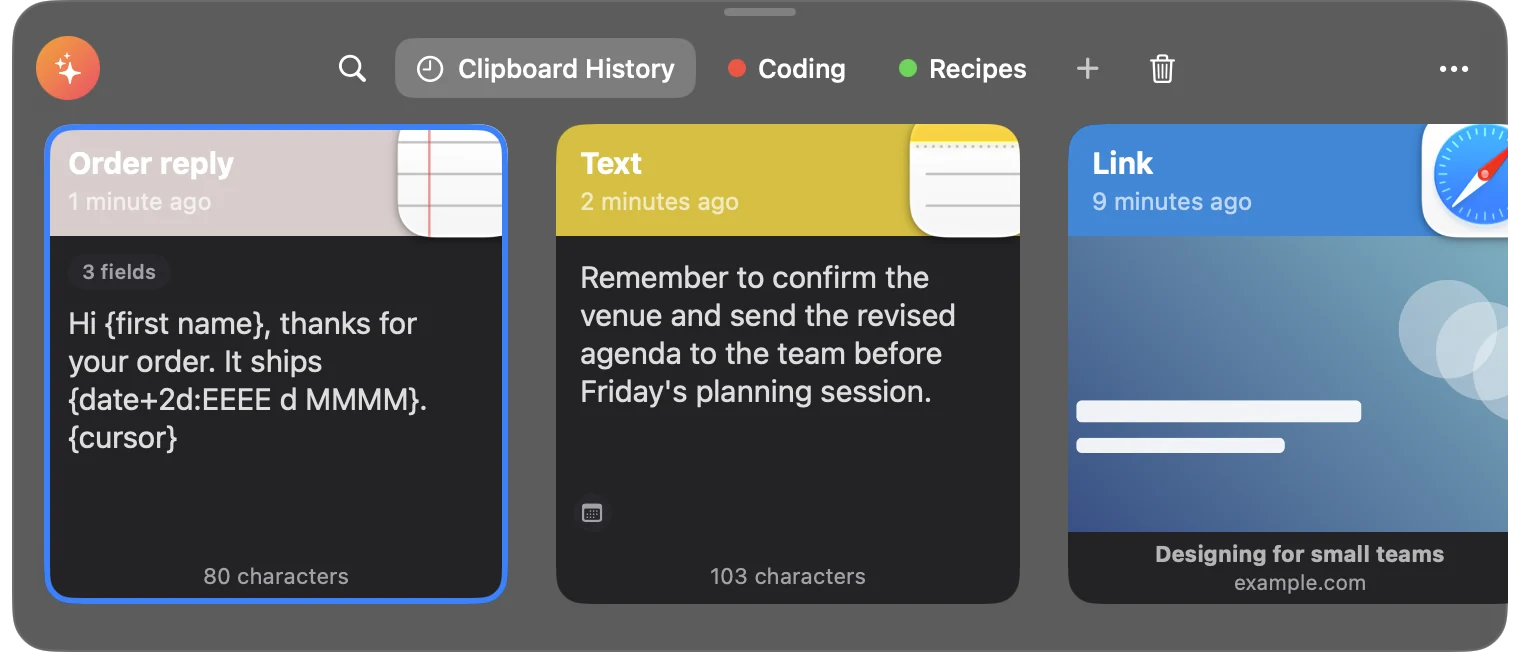
A template wears a small grey pill, such as 1 field or 3 fields. It sits at the top left of the card in the strip and in Goblin's window, at the right of the row in the menu bar panel's Clipboard tab, and next to the trigger in Settings. The count includes each blank, each different date or time field, {clipboard}, and the cursor, each once. To find all your templates, search for is:template (see Search).
Pasting a template#
- Put the cursor where the text should go, in any app.
- Open the strip with ⇧⌘V and select the template.
- Press Return. A double-click, Paste to your app, Quick Paste, or a click on a Copy Queue row work too.
- If a small panel asks for blanks, type in the first field, press Tab for the next, and press Return or click Paste.
When it only has automatic fields (dates, times, {clipboard}, {cursor}), it pastes straight away. When it has blanks, the strip closes and a small panel asks for them first.
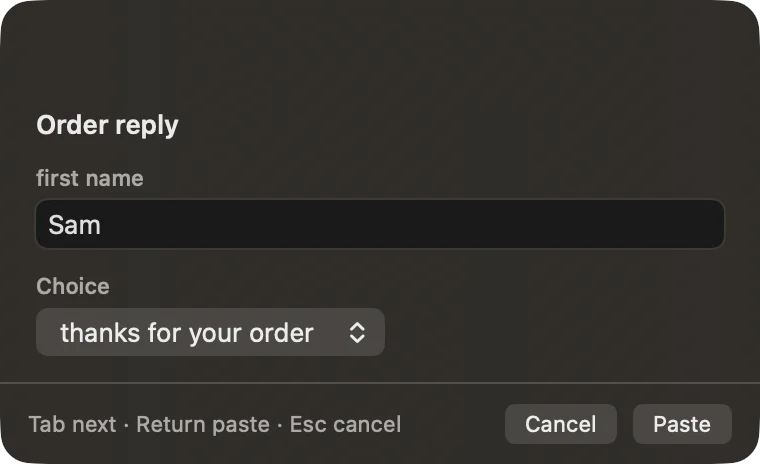
The panel appears a little above the middle of the screen your pointer is on, floating over every Space and over full-screen apps. It doesn't take over from the app you're pasting into. It shows:
- the clip's name as its title, or "Template" if it has none;
- one row per blank, in the order they first appear: a text field with any default filled in, or a pop-up for a choice;
- the hint "Tab next · Return paste · Esc cancel", with Cancel and Paste buttons.
Type in the first field, Tab to the next, and press Return or Paste. Esc or Cancel pastes nothing. You can drag the panel by its background. Opening a second fill-in panel cancels the first.
On Paste, Goblin fills in the text, puts it on the clipboard as plain text (it doesn't become a new clip in your history) and pastes it into your app. If there's a {cursor}, Goblin then moves the caret back to that spot with ← presses.
Pasting into the app and placing the cursor both need Paste Items set to To active app and Accessibility allowed (see Clipboard basics). Otherwise the filled-in text is left on the clipboard for you to paste.
Note: A few ways of pasting use a template's raw text with its braces: copying it with ⌘C, pasting several clips at once, and the Copy Queue's ⌘V (click the row in the Copy Queue panel to fill it in instead). Templates always paste as plain text.
Triggers#
A trigger is a short code stored on one clip. With the default settings it starts with ;, such as ;addr, ;sig or ;thx, so ordinary words never expand by accident.
Set a trigger#
- Right-click the card in the strip, in Goblin's window or in the menu bar panel.
- Choose Set Trigger…. If the clip has one already, it reads Change Trigger….
- In the Set Trigger box, type the trigger, such as
;addr. - Click Set.
If the trigger breaks a rule (below), Goblin says why in red and asks again.
Other places to set one:
- In the editor. Edit a text clip with ⌘E. The Trigger field under the text shows any problem as you type, and Save stays greyed out until the trigger is allowed.
- In the inspector on the Clipboard tab of Goblin's window. The Trigger row shows the clip's trigger, or "Not set" for text clips, with a Set… or Change… button.
- In Settings›Clipboard›Triggers. Each trigger's ⋯ menu has Change Trigger… and Remove Trigger.
Remove a trigger#
- Right-click the clip and choose Change Trigger….
- Clear the field and click Set. The clip stays; only the trigger goes.
Or in Settings›Clipboard, find the trigger in the Triggers list, open its ⋯ menu and choose Remove Trigger. That also clears the trigger's own settings.
The card menu offers Set Trigger… on images, files and links too. Expanding one of those pastes the clip with all its formats, as a normal paste would.
What a trigger can be#
| Rule | Detail |
|---|---|
| Starts with the prefix | ; unless you change it. |
| Length | 2 to 32 characters, and more than the prefix alone. |
| No spaces | Spaces and line breaks aren't allowed inside it. |
| Unique | Two clips can't share a trigger. If either one ignores case, ;Sig and ;sig count as the same. |
| No early firing | If one trigger is the start of another, such as ;sig and ;sign, the shorter one can't expand Immediately, since it would fire before you finish typing the longer. Triggers that wait for a space can overlap. |
| Clips that can't have one | Secret clips and clips in a locked pinboard. |
When a trigger breaks a rule, Goblin says why in red and asks again. With no prefix, it also warns in orange about a trigger that's a common word ("thanks", "note", "today"…), or that would fire in the middle of longer words. You can keep it anyway with Use Anyway.
Clips in the Trash and clips in a locked pinboard keep their trigger, but it doesn't fire until they're back. To list every clip with a trigger, search for has:trigger.
Text expansion#
Text expansion is what makes a trigger do something.
Turn on text expansion#
- Make sure Clipboard is on in Settings›Clipboard.
- Scroll to Snippets and turn on Text expansion.
- If a red note says "Watching what you type needs Accessibility access. Until you allow it, nothing expands.", click Allow Accessibility… and allow Goblin in System Settings›Privacy & Security›Accessibility.
- Open a text field in any app, such as Notes, and type a trigger, for example
;addr. It is replaced by the clip.
Once you allow Accessibility, expansion starts within a few seconds; you don't need to restart Goblin. To turn it off, switch Text expansion off.
What Goblin sees while it's on#
To notice a trigger, Goblin has to see the keys you press. With Text expansion on, it watches key presses in every app through a macOS keyboard event tap, which is why macOS makes it ask for Accessibility. Here's what it does with them:
- It keeps only the last 48 characters typed in the app in front, in memory. They're never written to disk, logged or sent anywhere, and they're gone when Goblin quits.
- It forgets them constantly: on any mouse click, when you switch apps, and on Esc, Return, Tab, the arrow keys, Home, End, Page Up, Page Down, forward delete, the function keys and any ⌘ or ⌃ shortcut. ⌫ takes back the last character.
- Where it never expands, it keeps nothing. In password fields, in Goblin, in the apps listed below and while the clipboard is paused or in presentation mode, each key empties the memory instead of adding to it.
- It only holds back one key: a Tab or Return that ends a trigger set to expand after it, so your app doesn't jump to the next field or send the message. Every other key reaches your app untouched.
- Turning Text expansion off stops the watching. (The Copy Queue uses the same tap while it's open, but only to notice ⌘V.)
When a trigger fires#
A trigger fires only at the start of a word: the character before it can't be a letter or digit, so a;thx never expands. If several triggers match what you typed, the longest wins; if they're the same length, the clip you used most recently wins. Only triggers that start with the current prefix are live.
When it fires depends on Expand:
- Immediately: the moment you type its last character.
- After a space, Tab or Return: when you type one of those after it. A space always works. Tab and Return work when Goblin can hold the key back, which needs Accessibility.
With Keep the space, Tab or Return that ends a trigger on, that key still appears after the pasted clip; with it off, it's dropped.
What happens when it expands#
- Goblin remembers what's on the clipboard.
- It deletes the trigger you typed with ⌫ presses.
- It puts the clip on the clipboard and presses ⌘V. A template asks for its blanks first, while the trigger is still on screen; Cancel leaves the trigger as you typed it.
- It types back the space, Tab or Return if you keep it, and moves the caret to
{cursor}if the template has one. - About a second later it puts your previous clipboard back, unless you copied something else meanwhile. A clipboard larger than 32 MB isn't put back.
Expansion always pastes into the app, whatever Paste Items is set to, and the clip counts as used. If you turn on Play a sound when a snippet expands, you hear the macOS "Tink" sound, quietly; it doesn't follow the clipboard's own sound settings.
Where it never expands#
New: Coming in the next update. Presentation mode stops text expansion, like Pause.
- In password fields, or whenever macOS has Secure Event Input on. Some apps turn it on outside password fields, such as Terminal's Secure Keyboard Entry; while any app holds it, nothing expands anywhere.
- In Goblin itself.
- In apps whose copies are set to Don't save under Settings›Clipboard›Apps. Out of the box that includes Keychain Access, Passwords, 1Password and Bitwarden. See Clipboard privacy.
- In apps you exclude in the Snippets Apps list, or, with Only in these apps, in every app not on it.
- In Terminal, iTerm2, Warp, Alacritty, kitty, WezTerm, Hyper, Ghostty, Tabby and Rio, unless you allow them.
- While the clipboard is paused or in presentation mode, while Clipboard is off, and without Accessibility.
Snippets settings#
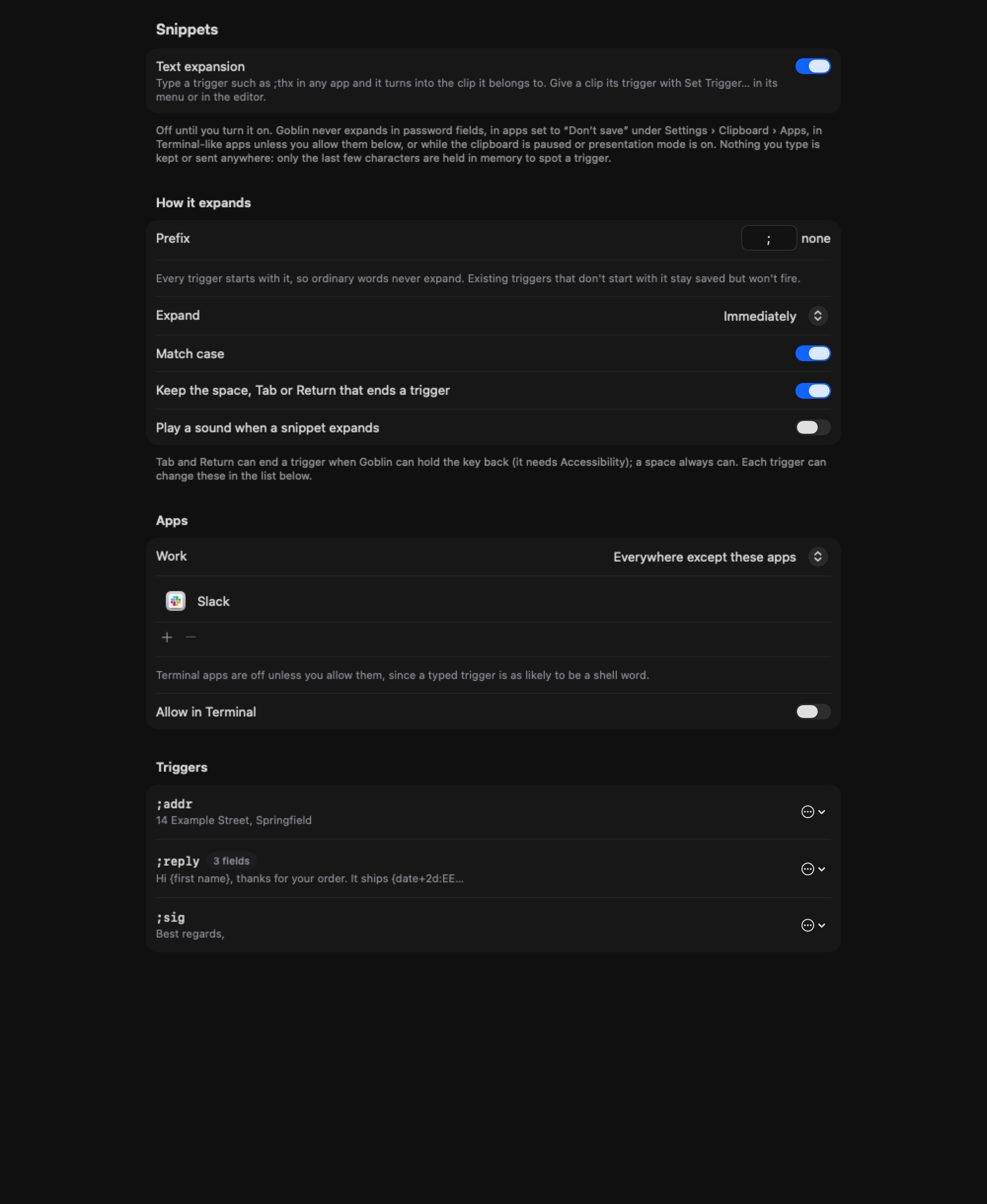
These are the last sections of Settings›Clipboard. Everything except the Text expansion switch syncs with iCloud settings sync; triggers travel with their clips when you sync clips, but are left off clips in shared pinboards.
Snippets#
| Setting | What it does | Default |
|---|---|---|
| Text expansion | Turns triggers on. While Accessibility is missing, a red note and Allow Accessibility… appear under it. | Off |
How it expands#
Change the prefix#
- In Settings›Clipboard›Snippets, find Prefix in the How it expands section.
- Type what every trigger should start with (up to 8 characters, no spaces), or clear it for none.
Change when triggers expand#
Open Expand in the same section and choose Immediately or After a space, Tab or Return. Choose the second if your triggers are short words that could appear inside longer ones.
| Setting | What it does | Default |
|---|---|---|
| Prefix | What every trigger starts with, up to 8 characters with no spaces. Leave it empty for none. | ; |
| Expand | Immediately, or After a space, Tab or Return. | Immediately |
| Match case | Typing ;SIG doesn't expand ;sig. Off, case doesn't matter. | On |
| Keep the space, Tab or Return that ends a trigger | Keeps the key that ended the trigger after the clip. Only matters with After a space, Tab or Return. | On |
| Play a sound when a snippet expands | Plays "Tink" each time. | Off |
Changing the prefix doesn't change your triggers. Ones that don't start with the new prefix stay saved but stop firing, and Settings and the inspector mark them "Doesn't start with ;, so it won't expand" (with your prefix). With no prefix, a trigger can be any word of at least 2 characters; choose After a space, Tab or Return so it doesn't fire in the middle of longer words.
Apps#
Choose the apps where snippets expand#
- In Settings›Clipboard›Snippets, find the Apps section.
- Choose Work: Everywhere except these apps (the list is where expansion is off) or Only in these apps (the list is the only place it's on).
- Click + under the list and pick one or more apps in Choose Applications. Select a row and click − to remove it.
- To use snippets in Terminal, iTerm2 or another terminal app, turn on its Allow in switch (shown with Everywhere except these apps).
| Setting | What it does | Default |
|---|---|---|
| Work | Everywhere except these apps: the list is where expansion is off. Only in these apps: the list is the only place it's on. | Everywhere except these apps |
| App list | Add apps with + (pick one or more in Choose Applications), remove the selected one with −. An app that's been deleted shows "Not installed". | Empty |
| Allow in Terminal app | One switch for each Terminal-like app you have installed, shown with Everywhere except these apps. A typed trigger there is as likely to be a shell word, so they're off until you allow them. | Off |
With Only in these apps and an empty list, nothing expands.
Triggers#
Every clip with a live trigger, in alphabetical order: the trigger, a fields pill for templates, a slider icon when it has settings of its own, and the clip's name or first line. "No clip has a trigger yet" appears until you set one.
Give one trigger its own settings#
- In Settings›Clipboard›Snippets, find the trigger in the Triggers list.
- Open the ⋯ menu on its row.
- Choose a value for Expand, Match case or Delimiter. A slider icon appears on the row when it has settings of its own.
Each choice lets one trigger behave differently from the settings above:
| Option | Choices |
|---|---|
| Expand | Same as above, Immediately, After a space, Tab or Return |
| Match case | Same as above, Match case, Ignore case |
| Delimiter | Same as above, Keep the delimiter, Remove the delimiter |
Change Trigger… opens the Set Trigger box. Remove Trigger takes the trigger off the clip and clears its own settings; the clip itself stays.
Ask the Goblin about snippets#
Click Talk to Goblin in the main window toolbar and type one of these:
| Request | What it does |
|---|---|
Set Clipboard Item Trigger <item ID> | <trigger> | Sets a trigger on a clip. Use none as the trigger to remove it. It follows the same rules as the Set Trigger box. |
Review Clipboard Snippet Permissions followed by the choices | Prepares Text expansion, the Work mode and the app list. Example: {"enabled":true,"appMode":"allowList","apps":["com.apple.TextEdit"]}. |
Request Clipboard Snippet Accessibility | Opens the macOS Accessibility permission flow, once Clipboard and Text expansion are on. You still allow it yourself. |
Review Clipboard Template Paste <template ID> | <app bundle ID> | <process ID> | Prepares pasting a template into a running app. Get the app's bundle ID and process ID from List Clipboard Paste Apps. After you confirm, the fill-in form opens. The original template is untouched. |
Read Clipboard Snippet Override <item ID> | Shows a trigger's own Expand, Match case and Delimiter choices. |
Set Clipboard Snippet Override <item ID> | {"expand":"afterDelimiter","caseSensitive":false,"keepDelimiter":null} | Changes them. null means "same as above". expand is immediately, afterDelimiter or null. Three nulls remove the override. |
Undo Clipboard Snippet Override | Puts back the clip's previous choices, if nothing changed since. |
Item IDs come from Find Clipboard Items. Requests that start with Review open a window in Goblin that lists what will change, and nothing happens until you confirm it. Saving a trigger or permissions doesn't give Goblin the Accessibility permission it needs to expand text. Read Clipboard Settings Review Result says how the last review ended, and Cancel Clipboard Settings Review closes it. Keys, passwords and clip contents are never part of these requests.