 Goblin
Settings›Projects is about dev servers: the web servers, databases and other programs you start from a project folder. It decides when Goblin suggests stopping one, when it warns that one is leaking memory, which ports count, and how stopping works. It also holds the goblin terminal command and, at the bottom, the AI Assistants card. The Projects tab itself is covered in Projects and dev servers.
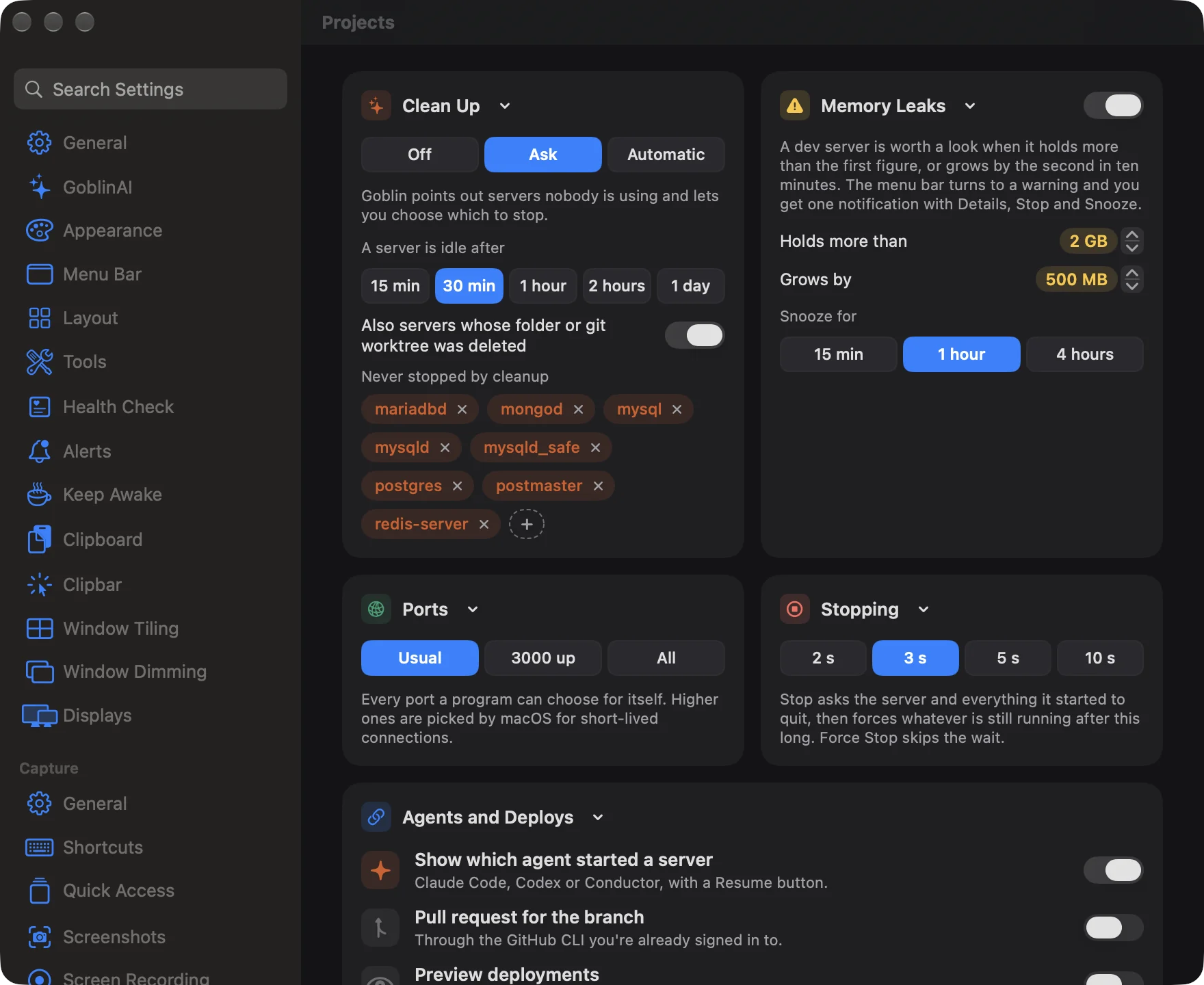
Choose how idle servers are cleaned up#
- Open Settings›Projects.
- In the Clean Up card, choose a value for Clean up servers: Off, Ask or Automatic.
- Choose how long a server must do nothing before it counts as idle with A server is idle after.
| Setting | What it does | Default |
|---|---|---|
| Clean up servers | Off: Goblin won't suggest stopping servers. Ask: Goblin points out servers nobody is using and lets you choose which to stop. Automatic: Goblin stops them itself and tells you. | Ask |
| A server is idle after | How long a server has to do nothing before it counts as idle: 15 min, 30 min, 1 hour, 2 hours or 1 day. | 30 min |
| Also servers whose folder or git worktree was deleted | Also counts servers still running from a folder or git worktree that no longer exists. | On |
| Never stopped by cleanup | Program names that cleanup always leaves alone, shown as chips. | postgres, postmaster, redis-server, mongod, mysqld, mysqld_safe, mariadbd, mysql |
With Off chosen, the other settings in the card are greyed out, and no server counts as idle anywhere in Goblin, including the Idle dev servers check in Health Check.
With Automatic, a server that is leaking memory is left for you to look at. When Goblin stops servers, it shows a short message in its window and sends a "Cleaned up" notification, if Send a notification is on in Alerts.
Keep a program from being stopped#
- In the Clean Up card, find Never stopped by cleanup.
- Click +, type one or more program names separated by commas or spaces (for example
postgres, redis-server), and click Add. Capitals don't matter. - To take a name off the list, click the × on its chip.
The default list covers common databases, which you usually want running even when they're quiet.
Change when Goblin warns about a leak#
- In the Memory Leaks card, make sure Warn about leaking dev servers is on.
- Set Holds more than (0.5–32 GB, steps of 0.5) and Grows by (100–4000 MB, steps of 100).
- Choose how long the Snooze button silences a warning with Snooze for.
| Setting | What it does | Default |
|---|---|---|
| Warn about leaking dev servers (switch in the header) | Warns when a dev server holds or gains too much memory. | On |
| Holds more than | A server using more memory than this is worth a look. | 2 GB |
| Grows by | A server that grows by this much in ten minutes is worth a look. | 500 MB |
| Snooze for | How long the Snooze button on a leak warning silences it: 15 min, 1 hour or 4 hours. | 1 hour |
When a server crosses either figure, Goblin's menu bar item turns to a warning and you get one notification with Details, Stop and Snooze buttons.
Note: Leak warnings only run while Watch for apps that misbehave is on in Alerts. Muted projects get no leak warnings either.
Change which ports count#
- In the Ports card, choose a value for Ports that count as a dev server's: Usual, 3000 up or All.
A project counts as a dev server when one of its programs listens on a port in the range you choose.
| Choice | Range | What it's for |
|---|---|---|
| Usual | 1–49151 | Every port a program can choose for itself. This is the default. |
| 3000 up | 3000–49151 | Where dev servers usually are. Hides 80, 443 and the like. |
| All | 1–65535 | Every listening port, including the short-lived ports macOS picks. |
Change how long a server gets to shut down#
- In the Stopping card, choose 2 s, 3 s, 5 s or 10 s for Seconds a server gets to shut down.
Stop asks the server and everything it started to quit, then forces whatever is still running after this long. Force Stop skips the wait. The default is 3 s.
Show pull requests and preview deployments#
In the Agents and Deploys card:
- To see which tool started a server, leave Show which agent started a server on. It shows when Claude Code, Codex or Conductor started one, with a button to resume that session. This is on by default.
- To see the GitHub pull request for each project's branch, switch on Pull request for the branch.
- To see preview deployments, switch on Preview deployments. They come from Railway, Netlify, Cloudflare, Heroku or Vercel, as GitHub reports them.
Both GitHub settings start off. They use the GitHub CLI (gh) you're already signed in to, so Goblin never asks for your GitHub password. A line under them says where things stand:
- GitHub isn't asked about anything while both are off.
- The GitHub CLI isn't installed. Install it with
brew install gh, then rungh auth login. - The GitHub CLI isn't signed in. Run
gh auth loginin a terminal. - Each project's branch is looked up every couple of minutes while Projects is open.
Where a project deploys (Railway, Heroku, Cloudflare, Fly.io, Netlify or Vercel) is read from the files in its folder, and its dashboard is one click away. Nothing is sent online for that.
Install the goblin command#
goblin is Goblin's terminal command. Type goblin to browse, open, stop and restart the same servers with the arrow keys; goblin list --json is for scripts.
- In the Command Line card, click Install goblin Command.
- When it says Installed in ~/.local/bin, open a new terminal window and type
goblin. - If your shell can't find it, add
~/.local/binto yourPATH.
To take it away, click Remove. The command keeps working if you move Goblin, because it finds the app again by itself. Every subcommand is described in The goblin command.
Let AI assistants ask about this Mac#
AI apps such as Claude, Claude Code, Cursor and Codex can ask Goblin about your Mac through MCP, the way these apps talk to other programs. The AI Assistants card turns that on and adds Goblin to the apps it finds.
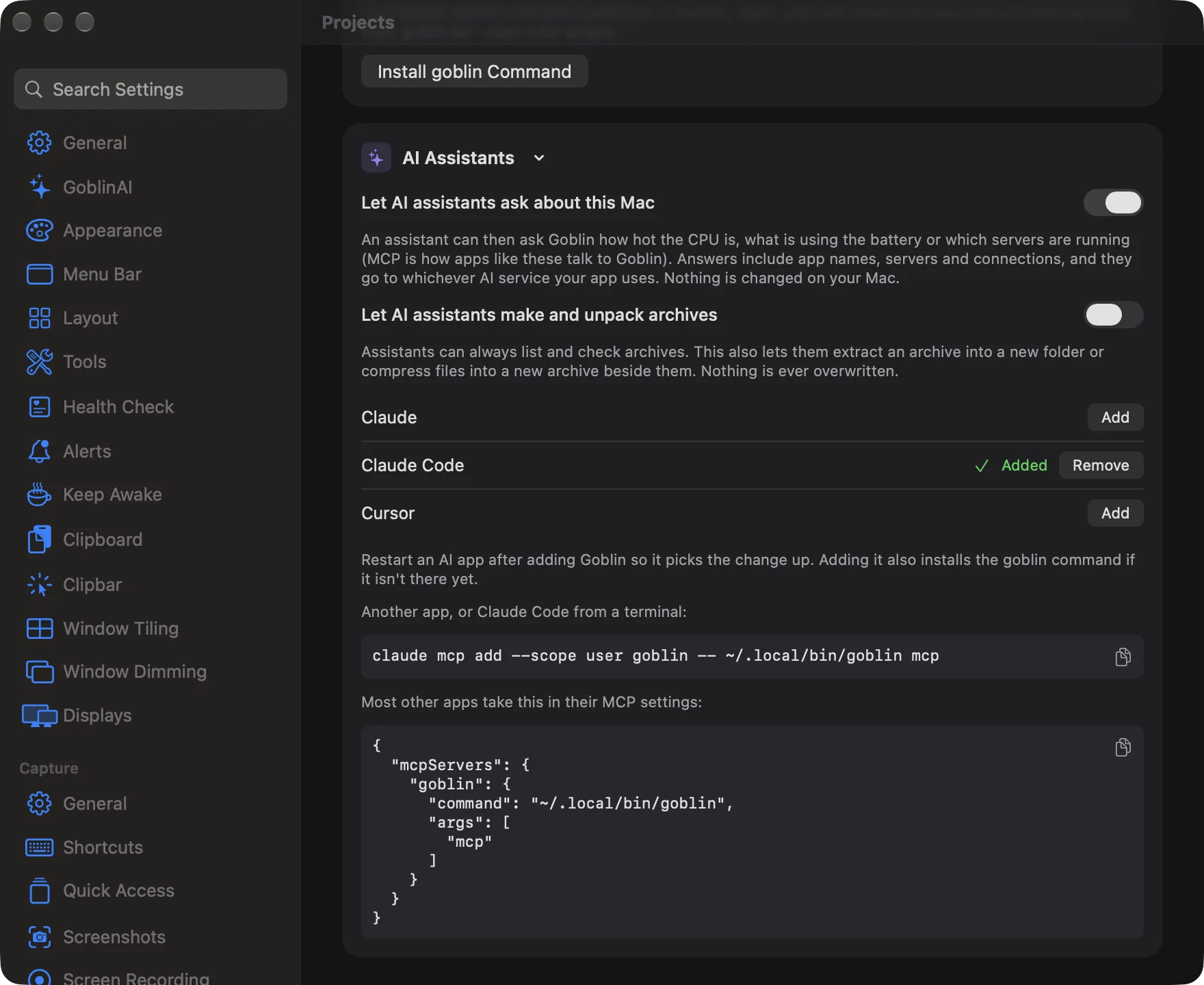
- In the AI Assistants card, switch on Let AI assistants ask about this Mac.
- Find your AI app in the list under the switches and click Add.
- Restart the AI app so it picks up the change.
Adding installs the goblin command if it isn't there yet, then adds Goblin to the app. It doesn't turn on the switch above; do that too. The switch takes effect on the next question, so you don't need to restart the AI app after turning it on or off.
| Setting | What it does | Default |
|---|---|---|
| Let AI assistants ask about this Mac | Lets an assistant ask Goblin things like how hot the CPU is, what's using the battery or which servers are running. Off, every question gets a reply that access is off. | Off |
| Let AI assistants make and unpack archives | Assistants can always list and check archives. This also lets them extract an archive into a new folder or compress files into a new archive beside them. Nothing is ever overwritten. | Off |
Warning: Answers include app names, servers and connections, and they go to whichever AI service your app uses.
Below the switches is a row for each supported AI app found on your Mac: Claude, Claude Code, Cursor and Codex. If none is found, the card says No supported AI app was found. Use the command or settings below.
| Row shows | Buttons | Meaning |
|---|---|---|
| Added | Remove | Goblin is set up in that app. |
| Set up differently | Update, Remove | The app lists an entry called goblin, but it runs something else. Update points it at this Goblin. |
| Settings file can't be edited here | none | Goblin can't safely change that app's settings. Use the command or settings below. |
| (nothing) | Add | Goblin isn't set up in that app yet. |
For Claude Code, Add runs Claude Code's own claude mcp add command; for the others it edits only Goblin's entry in the app's settings file, keeping everything else as it was, and saves a one-time backup of the file first.
For any other app, or for Claude Code from a terminal, the card shows a command and a block of settings with copy buttons:
claude mcp add --scope user goblin -- ~/.local/bin/goblin mcp- Settings that most other apps take in their MCP settings.
Every question an assistant can ask, and how to set Goblin up in each app, is in AI assistants.
New in 1.1: Assistants can also check, start and stop Keep Awake sessions. Starting and stopping needs a second switch, Let AI assistants start and stop sessions, in Keep Awake settings.
New in 1.1: Assistants can also search your clipboard history and pinboards, and add or pin items. That needs Enable MCP in Settings › Clipboard as well as the switch above.