 Goblin
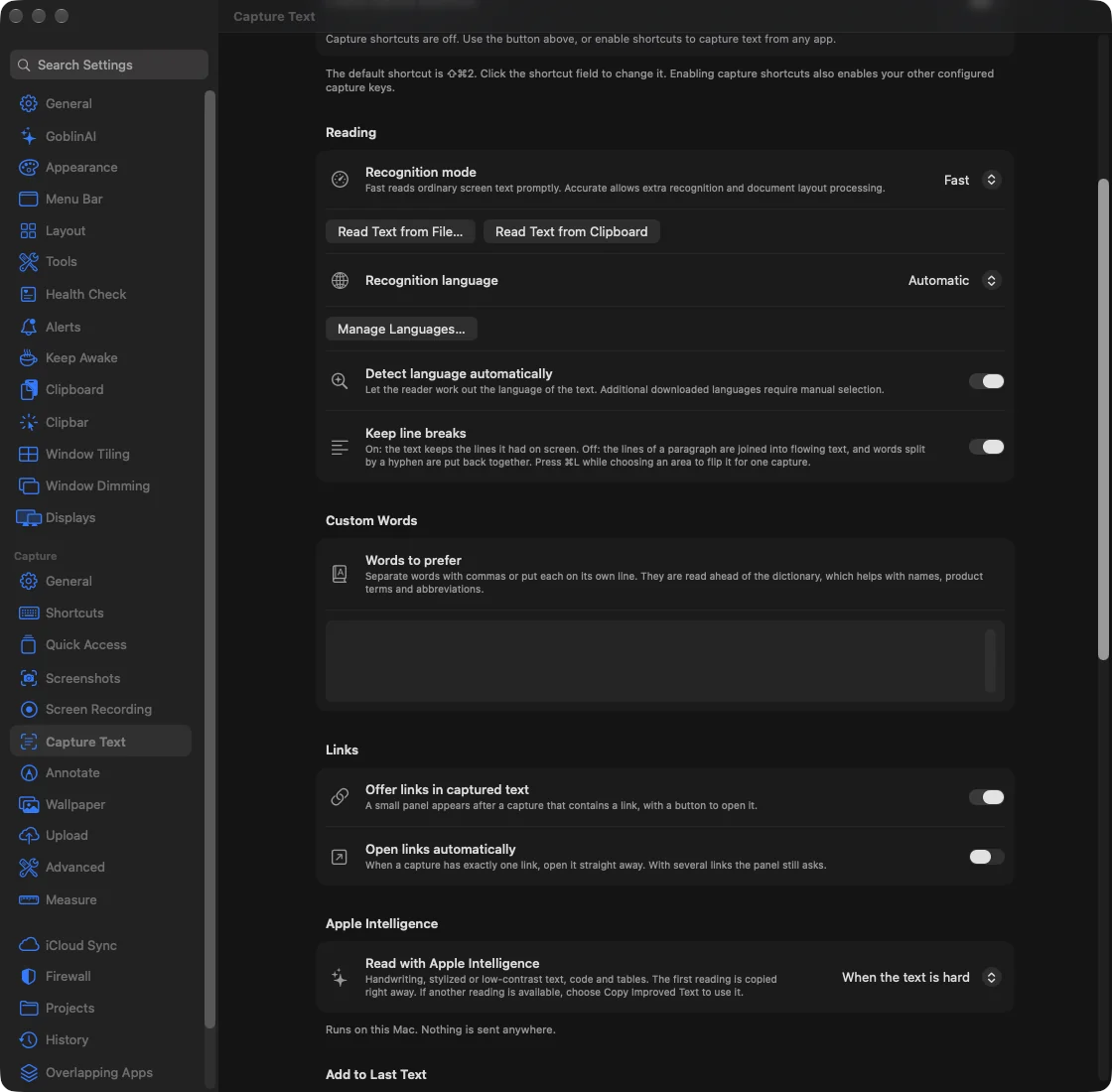
Capture Text reads words from a screen area and copies them. Use it for text you can't select: a screenshot, a video, an image in a web page. Settings›Capture›Capture Text controls how it reads and what happens afterward. Screen Recording permission lets Goblin read the selected pixels; see Capture permissions.
Copy text from the screen#
- Right-click Goblin's menu bar item and choose Text & Codes›Capture Text. Or press ⌘⇧2 (see Keyboard shortcuts), or press Capture Text… on the settings page.
- Drag around the text. Press Esc to cancel.
- Let go. Goblin reads the text and copies it. A notification shows what it read.
- Paste with ⌘V.
While you are dragging, ⌘L flips line breaks for this capture only, ⌘H flips Add to last text and ⌘S flips reading aloud.
Read text from an image or PDF#
- Right-click Goblin's menu bar item and choose Text & Codes›Read Text from File…. (It is also a button in Settings›Capture›Capture Text.)
- Choose an image or a PDF and confirm with Read Text.
- For a PDF, leave Pages blank for the whole document, enter one page (
3) or a range (2-5). Enter a password only if the PDF requires one; it isn't saved. - Press Read Text. Progress and Cancel stay available while reading.
- Press Copy Text when it finishes, or paste: the text is already copied.
Pages keep their order. Selectable text in a PDF is used directly and scanned pages are recognized. Pages with no readable text are listed in the result.
Read text from the clipboard#
Choose Text & Codes›Read Text from Clipboard. It accepts a copied image or an image/PDF file copied in Finder (the item is dimmed when the clipboard has neither). A completed read copies the text and adds it to the normal capture history. If the clipboard changed while reading, Goblin offers Copy Text instead of replacing your newer copy. Reading a file or the clipboard doesn't need Screen Recording.
Reading and custom words#
| Setting | What it does | Default |
|---|---|---|
| Recognition mode | Fast prioritizes prompt capture; Accurate allows extra recognition and layout processing. Unsupported fast-model languages use accurate recognition. | Fast |
| Recognition language | Chooses Automatic or a language supported by Apple's reader or the additional-language download catalog. A saved language remains listed if support changes. | Automatic |
| Detect language automatically | Detects native-supported languages, starting from the choice above. Additional languages require manual selection. | On |
| Keep line breaks | Preserves screen lines. Off joins paragraph lines and reconnects hyphenated words. | On |
| Words to prefer | Supplies names, product terms and abbreviations ahead of the reader's dictionary. Separate them with commas or new lines. | Empty |
Links#
| Setting | What it does | Default |
|---|---|---|
| Offer links in captured text | Offers a panel with a button to open a recognized link. The same switch is Detect Links in Settings›Capture›Advanced. | On |
| Open links automatically | Opens a single recognized link immediately. Several links still need your choice. Disabled when link detection is off. | Off |
Apple Intelligence#
Read with Apple Intelligence offers Off, When the text is hard or Always, defaulting to When the text is hard. Apple's on-device model can reread handwriting, stylized or low-contrast text, code and tables after the first recognition. The text is copied immediately. Another reading is offered in a preview with Copy Improved Text; background recognition never replaces your clipboard. This reader runs on your Mac. The control is disabled with an explanation when the model is unavailable.
The separate OCR Model provider list is in Advanced. Choosing a custom endpoint there has different data-sharing behavior from on-device Apple Intelligence.
Collect several captures into one text#
- Turn on Add to last text in Settings›Capture›Capture Text (or press ⌘H while selecting to turn it on for one capture).
- Capture text as often as you like. Each capture adds to the one before. The page shows how many captures are collected.
- Press ⌘V to paste everything collected so far.
- To start over, press Start a New Text. It is dimmed when nothing is collected.
With Start a new text after pasting on, the next capture after a ⌘V starts fresh. Goblin needs Accessibility or Input Monitoring to see the paste shortcut. The joined text appears as one clip in clipboard history, using Collect joins clips with from Clipbar.
| Setting | What it does | Default |
|---|---|---|
| Add to last text | Joins each capture to the previous captured text so ⌘V pastes the collection. | Off |
| Start a new text after pasting | Starts fresh on the next capture after ⌘V. | Off |
Read captured text aloud#
- Turn on Read text aloud in Settings›Capture›Capture Text (or press ⌘S while selecting for one capture).
- Set Speed.
- Press Test under Try it to hear a sample, and Stop to stop it.
| Setting | What it does | Default |
|---|---|---|
| Read text aloud | Speaks recognized text after it is copied, using a system voice for its language. | Off |
| Speed | Sets reading speed from 80–360 words per minute in steps of 10. Reset to 180 appears after changing it. | 180 words per minute |
This is Capture speech; companion voice controls are separate.
More Capture Text shortcuts#
Record any of these extra global shortcuts at the bottom of the page: Capture Text from Previous Area, Read QR or Barcode, Capture Text with Apple Intelligence, Capture Text with Line Breaks, Capture Text without Line Breaks, Capture Text and Read Aloud, Stop Reading Aloud, Turn Add to Last Text On or Off and Start a New Text. They stay off until you record them. Conflicts are shown beside the recorder. The main Capture Text shortcut is at the top of the page and in Capture›Shortcuts. Read QR or Barcode is also in the Text & Codes menu.
Automation#
goblin://capture/textstarts screen OCR.goblin://capture/text-clipboardreads a copied image or PDF.goblin://capture/text-file?file=%2FUsers%2Fme%2FScan.pdf&pages=2-5reads selected pages.goblin://capture/text-cancelcancels a file read.
A launcher or a script can run open 'goblin://capture/text-clipboard'. The CLI equivalents are goblin capture text-file /path/to/scan.pdf 2-5, goblin capture text-clipboard, and goblin capture text-cancel. File and clipboard CLI reads print the result to stdout without changing the clipboard; failures print an actionable error to stderr and return a nonzero status. Ctrl-C stops a CLI read; text-cancel stops a read in the app. Screen capture remains interactive. Paths in URLs must be URL encoded.
Capture text in another language#
Goblin includes English and the languages macOS can read. For others, it offers a download from the catalog.
- Open Settings›Capture›Capture Text and set Recognition language.
- A language supported by this Mac selects immediately. For another language choose Download & Use. It shows the size and keeps your previous choice active until the download succeeds.
- To manage the downloads, press Manage Languages…. From there you can download optional packs, cancel a download, retry a failed one and Remove packs. Remove Older Downloads clears old model revisions. English can't be removed.
- Removing the selected pack offers Remove and Use Automatic. A missing selected pack offers to download it or choose Automatic, and your clipboard stays intact when recognition can't proceed.
Downloads need the internet and fetch model files from macgoblin.com only when you ask. Starting Goblin, enabling text capture and capturing text never download packs. Recognition stays on your Mac; installed packs work offline and survive ordinary app updates. Downloads are local to each Mac, even when language settings sync. A build without the additional-language reader offers the native choices and explains the limitation in Manage Languages. See Privacy and your data for what a download request sends.
Languages beyond Apple's automatic recognition range must be selected explicitly. Native languages use Apple's reader first; other installed languages use the local Tesseract reader directly. Apple Intelligence remains an optional local reader.
New: Coming in the next update. Optional language downloads. If an older build included your saved non-native language, the next release needs a one-time explicit download for it.
Ask Goblin to manage languages and speech#
These work by typing or saying them to Goblin (see GoblinAI settings). Each opens a native review you confirm; nothing is sent to an OCR service.
| Say or type | What it does |
|---|---|
| List OCR Language Packs | Lists native language codes, downloadable model codes, availability, transfer state and sizes. |
Review Select OCR Recognition Language CODE | Prepares choosing a language. Use automatic for automatic recognition. |
Review Download And Use OCR Language CODE | Reviews the pack and size, then selects the language after a successful download. |
Review Download OCR Language Pack MODEL | Prepares a download or retry without changing the selected language. |
Cancel OCR Language Pack Download MODEL | Cancels an active download. |
Review Remove OCR Language Pack MODEL | Prepares removal. If the selected language needs that pack, the review changes the selection to Automatic first. Bundled data can't be removed. |
| Review Remove Older OCR Language Downloads | Confirms the old revisions and bytes to remove; keeps the current revision. |
| Read OCR Language Review Result, Cancel OCR Language Review | Report or cancel the pending review. |
| Review Test OCR Read Aloud Sample | Confirms playing Settings' sample at the saved speed. Stop active speech first. |
| Stop OCR Read Aloud Sample, Cancel OCR Speech Sample Review, Read OCR Speech Sample Review Result | Stop the sample, cancel the review, or read its result. |
Completed downloads and removals remain; there is no Undo. A changed pack list or saved language needs a fresh review.