 Goblin
Settings›Layout decides what Goblin shows and in what order. It has three parts: the tiles on the menu bar panel's Overview, the tabs along the top of the window (and the panel), and the cards on the window's Overview. Use it to hide what you never look at or move what you use most to the front.
At the top, Layout for switches between Menu Bar Panel and Main Window. It always opens on Menu Bar Panel. The panel's tiles and the window's Overview cards are separate: hiding a card on the Overview doesn't touch the panel, and the other way round. The tab order is shared by the window and the panel.
Choose the tiles in the menu bar panel#
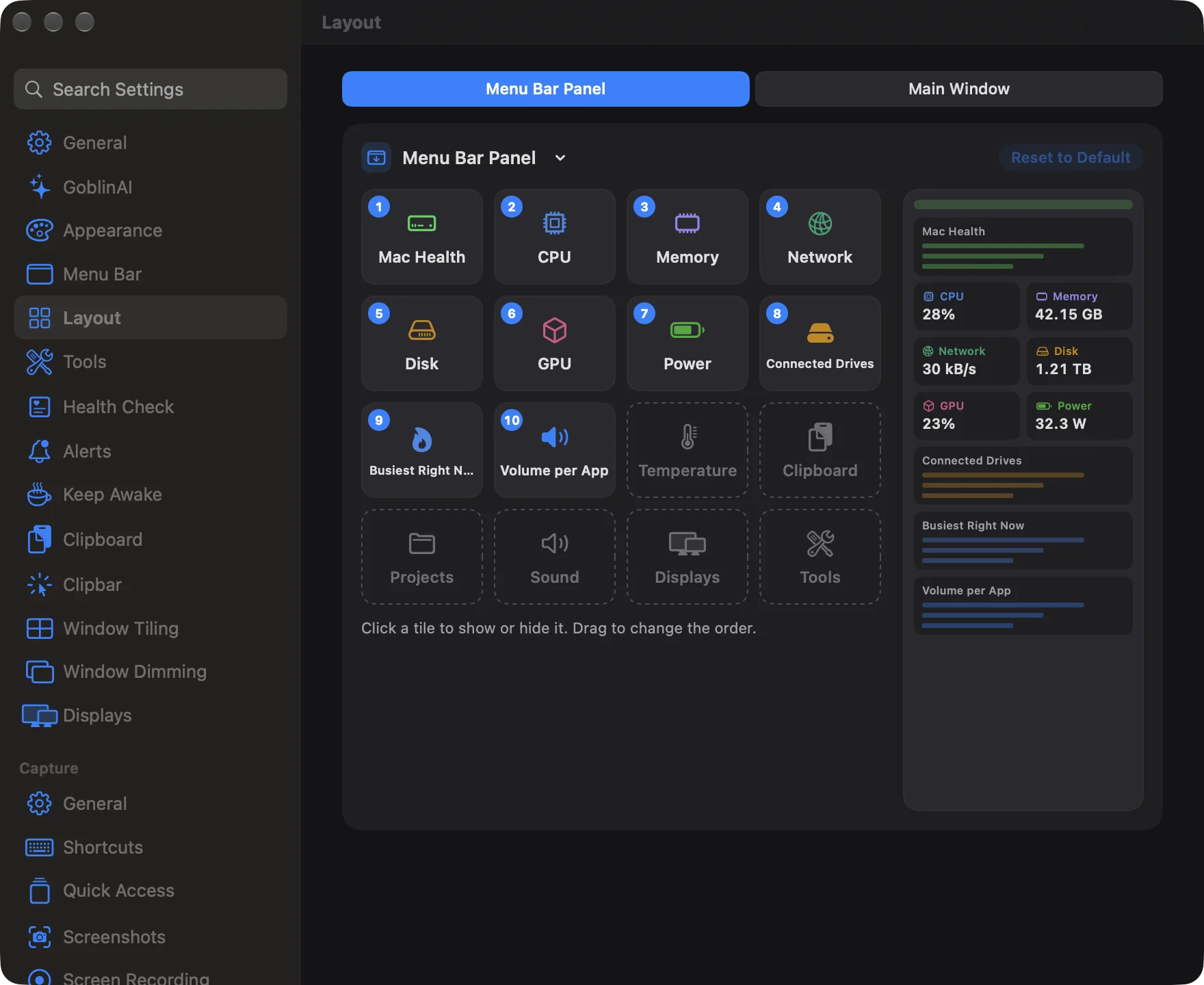
- Open Settings›Layout.
- Next to Layout for, choose Menu Bar Panel.
- Click a square to show or hide that tile. Shown squares carry a number, which is their place in the panel. Hidden squares are dashed and grey.
- To change the order, drag a square to a new spot. The others make room as you drag. Dropping a hidden square onto a shown one puts it in at that spot.
- Watch the preview on the right. It shows the panel with your Mac's real figures, tiles two to a row and boxes across the full width. Changes take effect straight away.
The grid has one square for each tile the panel can have, then three boxes that span the panel's full width.
| Item | What it is | Default |
|---|---|---|
| Mac Health | The health line at the top of the panel. Only listed while the health check is on in Health Check. | Shown, 1st |
| CPU | The CPU tile. | Shown, 2nd |
| Memory | The Memory tile. | Shown, 3rd |
| Network | The Network tile. | Shown, 4th |
| Disk | The Disk tile. | Shown, 5th |
| GPU | The GPU tile. | Shown, 6th |
| Battery | The Battery tile. On a Mac without a battery it's called Power. | Shown, 7th |
| Temperature | A temperature and fan tile that opens the Power tab's temperatures. | Hidden |
| Clipboard | The Clipboard tile. It shows how many clips are in your history, or Off while Clipboard is off. | Hidden |
| Projects | How many dev servers are running. | Hidden |
| Containers | How many Docker containers are running. Only listed when Docker is installed. | Hidden |
| Sound | How many apps are playing sound. Opens the Tools tab's Sound page. | Hidden |
| Displays | How many displays can be controlled. Opens the Tools tab's Displays page. | Hidden |
| Tools | How many tools you've pinned. | Hidden |
| Connected Drives | A box listing connected drives with their free space and an eject button. It only appears while a drive is plugged in. | Shown, 8th |
| Busiest Right Now | A box with the apps working hardest at the moment. | Shown, 9th |
| Volume per App | A box with a volume control for each app playing sound. It only appears while an app is playing sound. | Shown, 10th |
New in 1.1: The Connected Drives box. It's added to your layout once, after the tiles, when you update.
New in 1.1: The Clipboard square.
Hide or reorder the tabs#
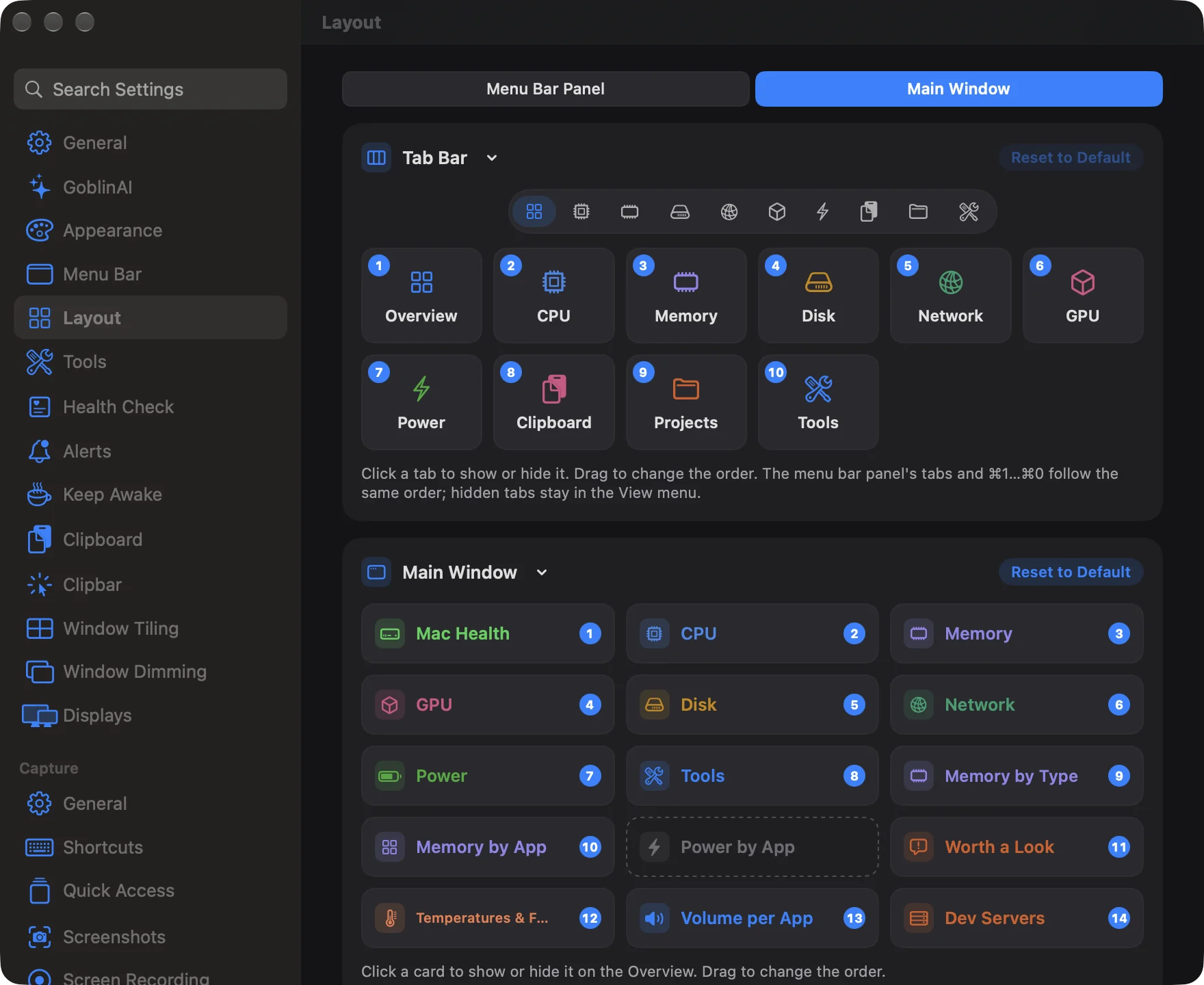
The Tab Bar card sets which tabs the window shows along its top. The menu bar panel's row of tabs and the ⌘1 to ⌘0 shortcuts follow the same order.
- Open Settings›Layout.
- Next to Layout for, choose Main Window.
- In the Tab Bar card, click a tab's square to hide it or show it again. A strip at the top of the card previews the tab bar as it will look.
- Drag a square to move that tab. Shown tabs are numbered in their order.
Overview can't be hidden. A tab you hide is still in the View menu, and if you hide the tab the panel has open, the panel goes back to the Overview. The ten tabs are Overview, CPU, Memory, Disk, Network, GPU, Power, Clipboard, Projects and Tools.
Hide or reorder the Overview cards#
The Main Window card, below the Tab Bar card, lists every card the Overview can show, three to a row, in the order they appear.
- Open Settings›Layout and choose Main Window next to Layout for.
- Click a card to show or hide it on the Overview.
- Drag a card to move it. The others make room as you drag.
In order, the cards are Mac Health, CPU, Memory, GPU, Disk, Network, Battery (Power on a Mac without a battery), Tools, Memory by Type, Memory by App, Power by App, Worth a Look, Temperatures & Fans, Volume per App and Dev Servers. All of them are shown by default. Mac Health is also tied to the health check switch in Health Check.
When a new version of Goblin adds a card, it's added to the end of your order. See The Overview.
Keyboard and mouse controls#
Every grid works the same way:
- Click a square, or select it and press Space, to show or hide it.
- Drag a square to move it.
- Select a shown square and press ⌘← or ⌘→ to move it one place earlier or later.
- Right-click a square for Show or Hide (the menu names the item, for example Hide CPU), Move Earlier and Move Later. The move items are greyed out at either end.
- With VoiceOver, use the Move earlier and Move later actions.
Put a layout back to the default#
Each card has a Reset to Default button: one for Menu Bar Panel, one for Tab Bar, and one for Main Window. It brings back the original order and shows everything that's shown by default. It's greyed out while that card already matches the default.