 Goblin
 measures your Mac on your Mac and keeps what it learns there. It has no account, no ads and no crash reporter of its own, and it contains no third-party tracking code. Nothing it measures is sent to Higher Bar. The one thing counted is anonymous: how many Macs check for updates each day. It goes online only for the specific reasons listed on this page, and most of them are off until you turn them on or happen only while you're looking at the result.
For the formal policy, see the Goblin privacy policy.
What stays on your Mac#
Everything Goblin shows you is read from macOS and stays local:
- CPU, memory, disk, network, GPU, battery, temperature and fan readings, and their history.
- The apps and processes it groups, and the alerts it raises about them.
- Disk scans: what Storage Explorer, Cleanup, Applications and the other Disk sections find, and the files you choose to remove.
- Network connections, firewall rules, profiles, known networks and blocklist subscriptions.
- Your clipboard history, pinboards and snippets, once you turn Clipboard on, unless you turn on iCloud Sync for them.
- Your conversations with the Goblin, and any facts you ask him to remember.
- Your settings, unless you turn on iCloud Sync for some of them.
New in 1.1: The clipboard, and iCloud Sync, the first feature that can send your own data off the Mac. Both are off until you turn them on.
Disk scan results are held in memory while Goblin runs. Storage Explorer remembers up to three scans so you can go back to them, and forgets them when Goblin quits. Goblin's settings keep a few things that help later scans, such as the apps it has seen installed (so it can find what they leave behind), your pinned folders and your ignore lists. None of it is sent anywhere.
Where Goblin keeps things#
| What | Where |
|---|---|
| Settings | ~/Library/Preferences/com.higherbarapps.Goblin.plist |
| History (readings, busiest apps, alerts) | ~/Library/Application Support/Goblin/History.sqlite |
| Firewall rules | ~/Library/Application Support/Goblin/NetworkRules.json |
| Clipboard history, pinboards and their files | ~/Library/Application Support/Goblin/Clipboard/: Clips.sqlite, with larger items in its Blobs folder |
| The key for encrypted clipboard history, if you turn it on | Your Keychain, under com.higherbarapps.Goblin.clipboard.history-key, on this Mac only |
| The keys for locked pinboards | Your Keychain, under com.higherbarapps.Goblin.clipboard.pinboard-keys |
| Per-app network traffic history (firewall on) | ~/Library/Application Support/Goblin/NetworkTraffic.json |
| Blocklist copies, rule-use counts, automatic firewall backups | Blocklists, BlocklistUsage.json, NetworkRuleUsage.json and Backups (the newest 10) in ~/Library/Application Support/Goblin/ |
| Additional OCR language packs (next release) | ~/Library/Application Support/Goblin/OCR/tessdata_fast/<revision>/, including verified models in tessdata/ |
| The map's country database | ~/Library/Application Support/Goblin/GeoIP/ |
| A downloaded Goblin update waiting to install, and app update results | ~/Library/Caches/com.higherbarapps.Goblin/ |
| Output of dev servers Goblin restarted | ~/Library/Logs/Goblin/ |
The goblin command, if you installed it | ~/.local/bin/goblin |
| Sign-in tokens for cloud storage accounts | Your Keychain, under com.higherbarapps.goblin.cloud |
| Goblin's entry in an AI app's settings, if you added it | That app's settings file, plus a one-time .goblin-backup copy beside it |
When the firewall is on, Goblin's network extension also keeps its own copy of your rule set, so your rules keep working while Goblin isn't running. The list of recent connections lives in the extension's memory, up to the Capacity you set in Settings › Firewall › Monitor, and is gone after a restart.
If you allow Location Services for the firewall's profiles or the map, macOS works out the location, and any network locations Goblin saves stay on this Mac.
Your clipboard#
Clipboard is off until you turn it on in Settings › Clipboard. Until then, Goblin doesn't read what you copy. Once it's on, everything it keeps is stored in the Clipboard folder above, and stays there unless you turn on iCloud sync. Clipboard history is separate from the 30-day history below: Keep history in Settings › Clipboard decides how long it lasts (a month by default), and pinboards keep their clips until you delete them.
On disk, Goblin encrypts the clips in locked pinboards. The rest of your history is encrypted only if you turn on Encrypt clipboard history on this Mac; otherwise it's protected the way the rest of your Mac's files are, for example by FileVault. By default, passwords that apps mark as confidential aren't kept at all, and codes, card numbers and keys Goblin recognises are deleted after a short time. See Clipboard privacy.
Apple Intelligence features, such as image descriptions and plain-language search, and Allow Screen Access run on your Mac and send nothing anywhere. See Apple Intelligence and suggestions.
Your conversations with the Goblin#
Questions about your Mac are answered on your Mac from Goblin's live readings, and nothing you type to the Goblin is sent to a server. When free-form wording needs it, Apple's on-device model helps, on your Mac. Conversations are kept in memory for the session and are gone when Goblin quits, unless you turn on Save conversations on this Mac. Remembered facts are saved only if you turn on Remember facts on this Mac. Both are off by default and live in ~/Library/Application Support/Goblin/Companion. See Meet the Goblin.
To delete what he has saved:
- Open the conversation with Talk to [Name] in the main window's toolbar.
- Click Clear under the field, and confirm, to remove the conversation and its saved transcript.
- For remembered facts, open Manage memory and click Clear all memory….
How long history lasts#
Goblin records history while it runs:
- Mac-wide figures once a minute: CPU, memory, memory pressure, swap, disk and network rates, GPU, battery, power, CPU and GPU temperatures, and fan speed.
- The busiest apps every quarter hour: each app's name and location, with its CPU, memory, energy, disk, network and GPU use.
- The alerts it raised, with their titles and details.
History is kept for 30 days. Goblin trims anything older once an hour. To start over, open Settings › History and click Clear History…, then Clear History. The charts for past days start again from now, and this can't be undone.
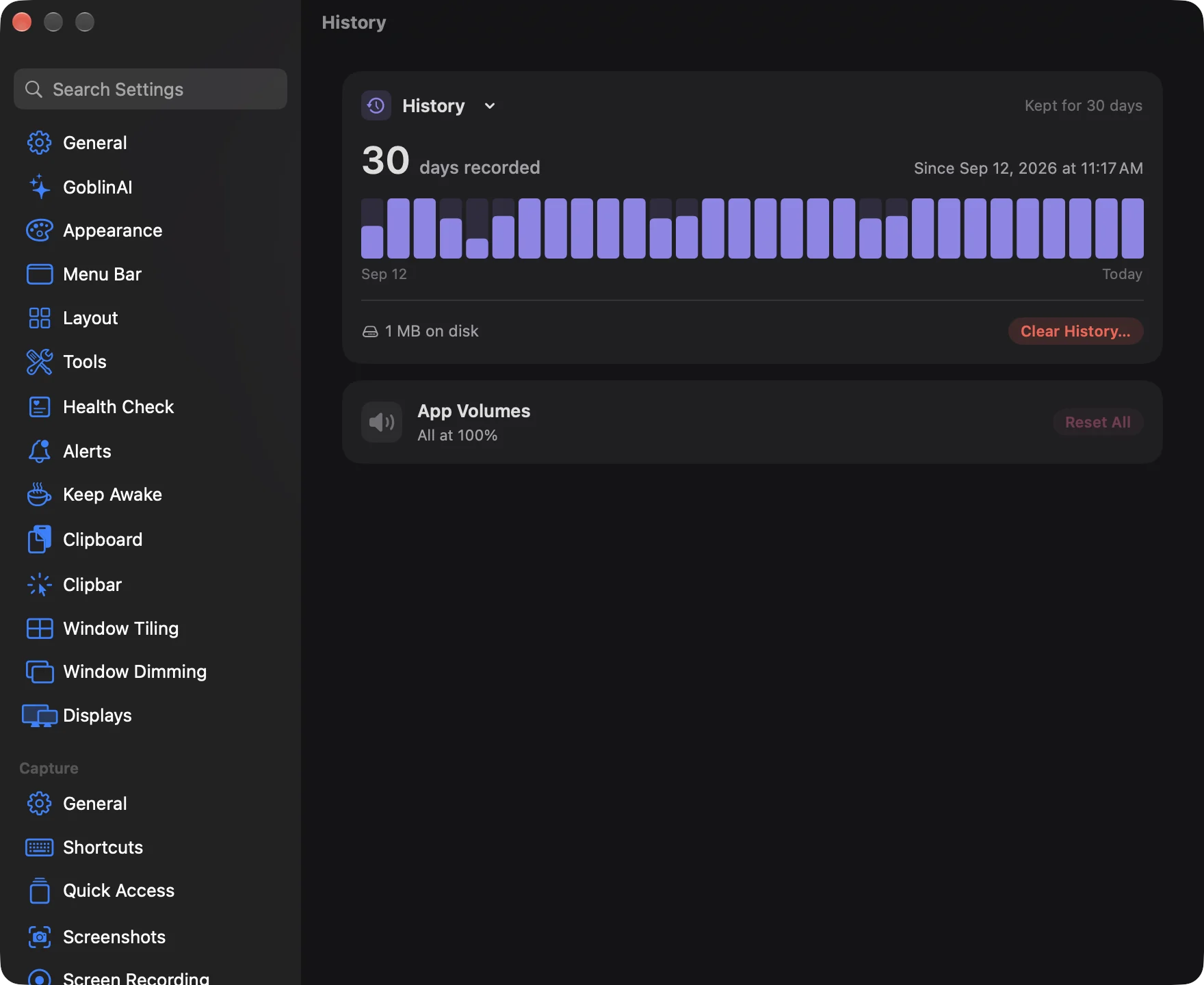
With the firewall on, per-app network traffic is kept separately in five-minute steps for 7, 30 or 90 days (30 by default). Reset Traffic History… in Settings › Firewall › Monitor clears it.
When Goblin goes online#
These are every reason Goblin connects to the internet, where to, and when.
| Why | Where to | When |
|---|---|---|
| Additional OCR language packs (next release) | macgoblin.com/ocr/tessdata_fast/<revision>/ | Only when you request Download & Use or a download in Manage Languages; never at launch or during capture |
| Checking for Goblin updates | macgoblin.com (update.json), then the download it names | 45 seconds after launch, every 6 hours, and when you click Check Now |
| What's New | macgoblin.com/whats-new/, with your Goblin version in the address | Once after each update, or when you open the window |
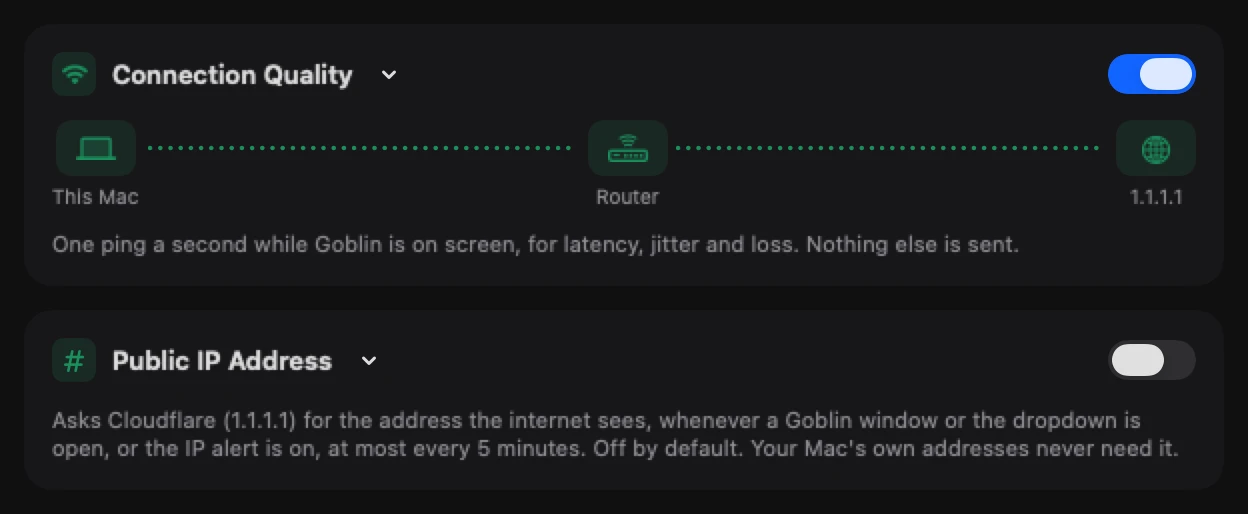
| Connection quality | Your router and 1.1.1.1, one small ping a second | Only while a Goblin window or the menu bar panel is on screen, and Check connection quality is on (it is by default) |
| Your public IP address | Cloudflare, https://1.1.1.1/cdn-cgi/trace | Only if you turn on Show my public IP address (off by default); at most every 5 minutes |
| Updates for your other apps | Each app's own update feed, and Apple's App Store lookup for App Store apps | When you open Disk › Updates or click Scan there, and when Smart Care checks app updates |
| The Connections map's country database | download.db-ip.com | The first time you show the map, then once the copy is more than 32 days old, unless you turn automatic updates off |
| Firewall blocklists and rule groups | The list's publisher (for example GitHub, Spamhaus or FireHOL), or the address you added | Only lists you subscribe to, on their update schedule |
| Encrypted DNS | The DNS server you choose | Only if you turn on Encrypted DNS |
| Cloud storage | Google Drive, Dropbox, Microsoft OneDrive or Box | Only accounts you connect in Storage Explorer |
| Pull requests and preview deployments | GitHub, through your own gh command | Only if you turn these on in Settings › Projects (both off by default) |
| Answers for AI assistants | Whichever AI service your AI app uses | Only if you turn on Let AI assistants ask about this Mac (off by default); clipboard items only if you also turn on Enable MCP in Settings › Clipboard (off by default) |
| iCloud Sync of clips, pinboards and settings | Apple's iCloud, in your own private iCloud database, end-to-end encrypted | Only if you turn on Sync clipboard history and pinboards or a settings category in Settings › iCloud Sync (all off by default) |
| Shared pinboards | Apple's iCloud, and the people you invite | Only pinboards you share, or accept from someone else |
| Link previews for copied links | The website the link points to | While Clipboard is on and Generate Link Previews is on in Settings › Clipboard, which it is by default |
| Map pictures for copied addresses | Apple Maps | Same as link previews: Clipboard on and Generate Link Previews on |
A few details are worth knowing:
- Goblin's update check is an ordinary web request. Like any website, macgoblin.com sees your internet address and Goblin's version. It counts each Mac once a day toward an anonymous total of active Macs, using a code that changes every day; it doesn't store your address and can't link the count to you. Turning off Update automatically in Settings › General stops downloads, but Goblin still checks whether a new version exists. A downloaded update is installed only if its checksum matches and it is signed by Higher Bar.
- OCR language downloads in the next release request model files only. macgoblin.com sees your internet address and the chosen language through the file name. No screenshots, recognized text or custom words are uploaded; requests send no cookies or app identifiers. Recognition stays on your Mac. English and the reader are included; optional packs work offline once installed, survive ordinary updates and do not sync between Macs.
- What's New loads with no cookies or website data kept between visits.
- Connection quality pings carry no personal data. They time the trip to your router and to the internet. Nothing else on your network is contacted.
- App update checks send an app's identifier to its developer's feed. App Store lookups include the app's identifier and your region. Results are reused for 6 hours. Apps from Homebrew are checked with your own
brewcommand, run with its auto-update and analytics turned off. - The map's database is a free list of which country each internet address belongs to. Looking addresses up happens on your Mac. Private and local addresses are never looked up.
- iCloud Sync keeps what it sends end-to-end encrypted: the contents of clips and pinboards, and your settings, can be read only by your Macs signed in to the same Apple ID, not by Apple or Higher Bar. A few routing details stay readable to Apple, such as when a record changed and how large it is. Passwords and keys Goblin detects never sync. It uses your own iCloud storage. See Syncing clips between Macs.
- Shared pinboards can be read by the people you share them with, as well as your own Macs.
- Link previews fetch the page a copied link points to, to show its title and picture. Like opening the link in a browser, this can count as a visit, so a one-time link (such as a sign-in or unsubscribe link) may be used up. Turn Generate Link Previews off in Settings › Clipboard if you copy links like that. Copied street addresses are looked up in Apple Maps for the same setting.
- AI assistants get app names, servers, connections and readings when they ask. Those answers go to whichever AI service your app uses, so turn this on only if you're comfortable with that. See AI assistants.
Some links open your browser rather than Goblin going online itself: Questions & Answers opens macgoblin.com's FAQ, a connection alert's Research Online… searches DuckDuckGo for the app and host, and the deploy buttons in Projects open that service's dashboard. Email Support and the other Help buttons open a draft in your mail app. You see and can edit everything in it, including the Goblin, macOS and Mac details, before you send it.
The firewall and your connections#
The firewall is optional and off until you turn it on. When it's on, Goblin's network extension decides each connection from its details: which app, which address and port, which protocol. It never reads or stores what an app sends or receives. Byte counts come from macOS's own statistics. The extension looks at DNS answers as they pass, to learn which name each address came from, without changing or delaying them.
The connections, hostnames and traffic totals it collects stay on your Mac. See Firewall.
Cloud storage accounts#
Connecting a Google Drive, Dropbox, OneDrive or Box account is optional. You sign in on the service's own website, so Goblin never sees your password. The service gives Goblin a token, which is kept in your Keychain. Goblin lists file names, sizes, folders and dates to draw the storage map, and doesn't download or open your files. The listing stays in memory on your Mac. Removing items moves them to that service's own trash, and only after you confirm.
Disconnect deletes the token from your Mac. You can also revoke Goblin's access in your account settings at the service. See Cloud storage.
Removing your data#
- Clear History… in Settings › History removes the readings, app history and alerts.
- Disconnect removes a cloud account's token.
- Erase History… in Settings › Clipboard moves every clip that isn't in a pinboard to the clipboard Trash; empty that Trash to delete them for good.
- Uninstall Goblin… (in the Goblin menu, or Uninstall… in Settings › General) removes the network extension, login item, System Tasks helper,
goblincommand, AI app entries, Finder extension and cloud tokens. Unless you tick Keep my settings and history, it also permanently deletes Goblin's settings, history, capture data, logs, caches and this Mac's clipboard keys and Clipbar sign-ins. Goblin removes its Spotlight entries even when you keep history. The confirmation explains this before you continue. Other items in your Trash are kept. See Uninstall Goblin.
Uninstalling leaves the .goblin-backup copies of AI app settings, anything Goblin synced to iCloud, and the permissions you gave Goblin in System Settings › Privacy & Security. Turning sync off leaves iCloud data intact; Delete iCloud Data… in Settings › iCloud Sync removes Goblin's cloud data while keeping this Mac's clips and settings. Use it before uninstalling if you want to remove the cloud copy too. See What it leaves behind.
New: Coming in the next update. Uninstall Goblin… removes local capture history, logs and keys with their data, unregisters the System Tasks helper, and clears its Spotlight entries. A network extension accepted for removal may need a restart to disappear from macOS. Delete iCloud Data… is a separate confirmed action before uninstalling.