 Goblin
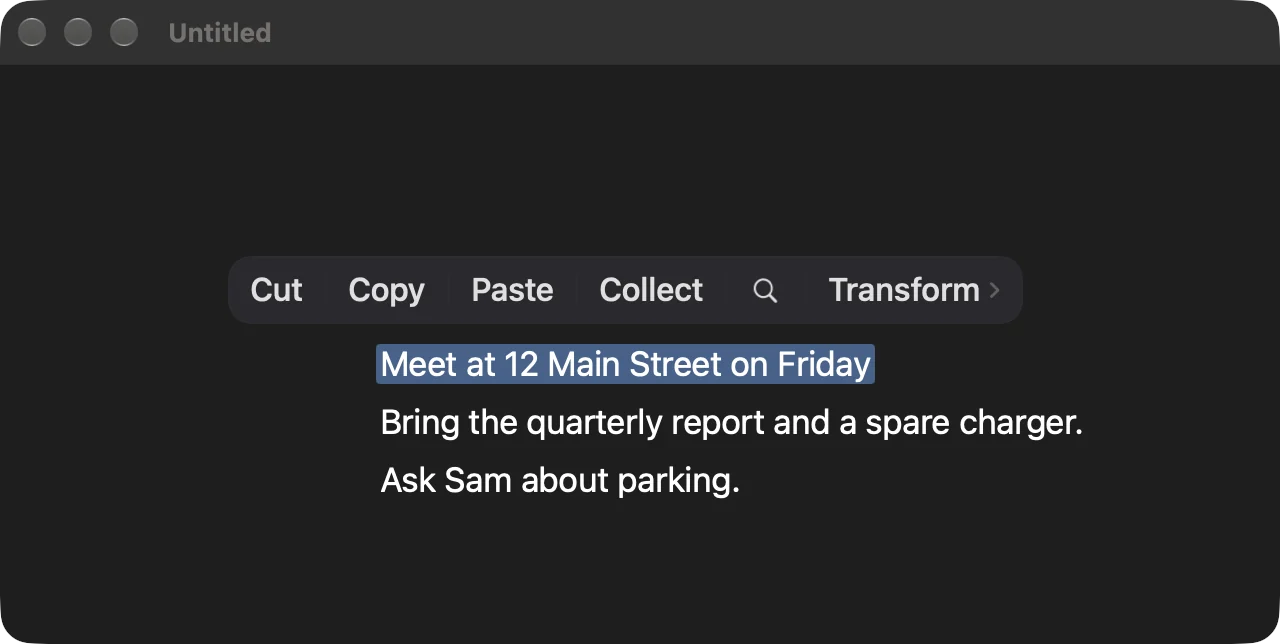
Clipbar's buttons are called actions. Some are always useful, like Copy. Others appear only when the selected text is something they can use: Open Link for a link, Maps for an address, Convert for an amount. This page lists every built-in action. You arrange them, and add more, in Settings › Clipbar.
Add an action to the bar#
Most actions aren't on the standard bar. To add one:
- Open Settings›Clipbar and scroll to Actions.
- Click + below the list, then Add Built-in Action.
- Choose the action. It appears at the end of the list and on the bar.
To take one off the bar, switch it off in the list, or open its ⋯ menu and choose Delete. It stays available under Add Built-in Action. Settings › Clipbar has the full steps.
Paste without formatting#
- Add Paste as Plain Text (or Clean Paste, which also tidies the text) to the bar, as above.
- Copy the text you want to paste.
- Go to a text field and select a word, or the text you want to replace, so the bar appears.
- Click Paste as Plain Text. The text goes in without formatting, and your clipboard is put back as it was.
Or hold ⇧ when you click Paste to paste as plain text.
Make a QR code#
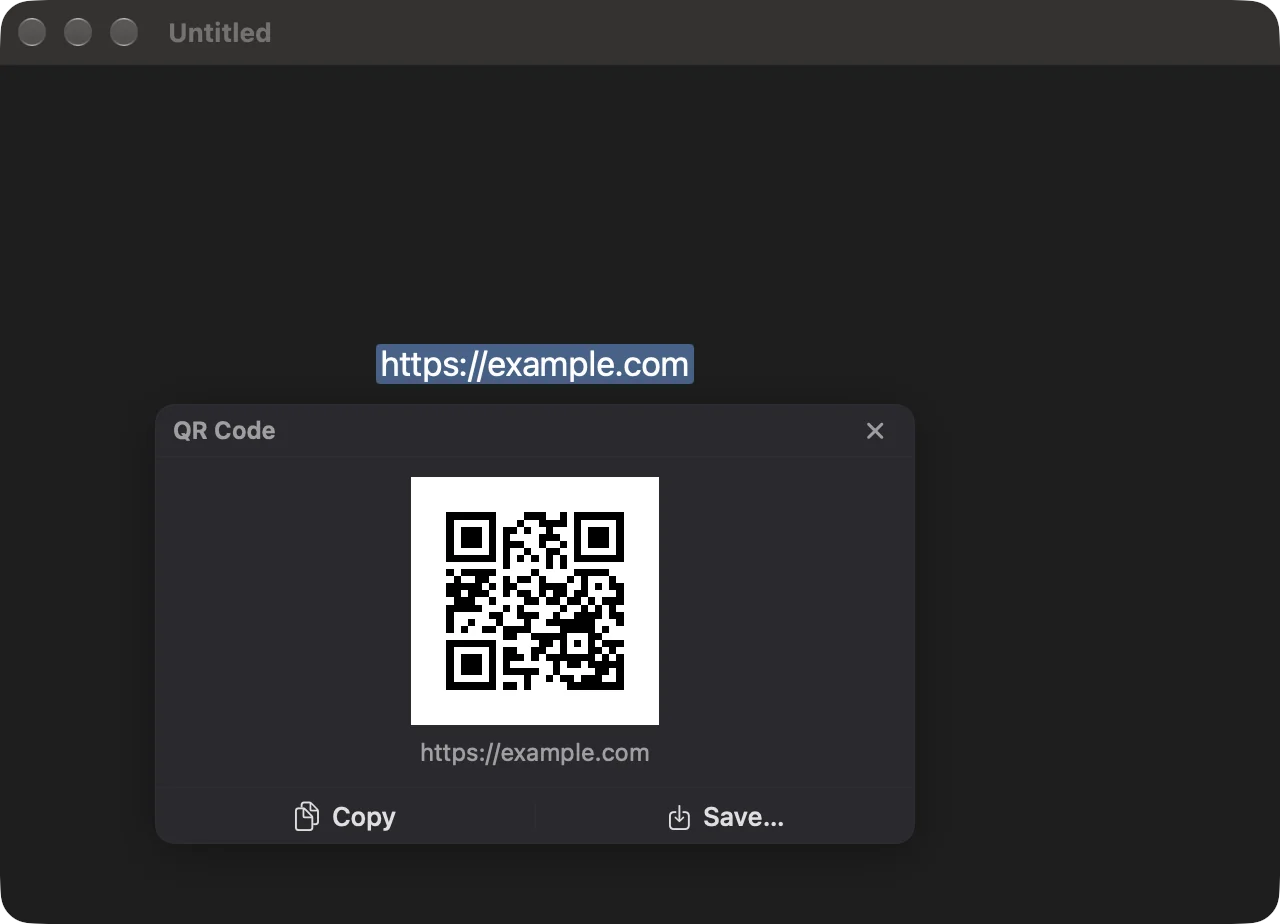
- Add QR Code to the bar.
- Select the text or link, such as
https://example.com. - Click QR Code. The code opens in the result window.
- Click Copy to copy the picture, or Save… to save it as a file.
Shorten the links in a selection#
- Add Shorten Links to the bar. If you want Bitly, choose it and paste your token in Settings › Clipbar › Links and lookups first.
- Select text that holds one or more links.
- Click Shorten Links. Each link becomes a short link and the result window shows the text.
- In the result window, click Replace to type it over your selection (shown when the selection takes typing), or Copy.
How the bar decides#
- Relevant first. Actions that fit the selection move to the front of the bar. A link leads with Open Link, an address with Maps, a phone number with Call, an amount with Convert, a color with Color, a command with Run in Terminal, and a misspelled single word with Spelling. Pinned actions keep their places.
- Only what fits. An action with nothing to do for this selection isn't shown. Open Link needs a link, Call a phone number, Paste a place that takes text, and so on.
- Most actions aren't in the standard bar. It starts with Cut, Copy, Paste, Collect, Open Link, Search, Maps, Convert, Spelling, Dictionary, Reveal in Finder, Transform, Translate, Writing and Save to Pinboard. Add the rest from the plus menu in the Actions list.
- Results. An action that returns text shows it in a result window you can edit, or replaces the selection or copies it, as you set in When It Finishes.
Hold ⇧ or ⌥ when you click for the variations noted below.
Clipboard#
| Action | What it does |
|---|---|
| Cut | Cuts the selection. With ⇧ held, the clipboard keeps only plain text. |
| Copy | Copies the selection. With ⇧, plain text only. |
| Paste | Pastes what is on your clipboard. With ⇧, as plain text. |
| Paste as Plain Text | Pastes the clipboard's text without its formatting, then puts the clipboard back. |
| Paste and Return | Pastes, then presses Return. |
| Paste and Line Break | Pastes, then presses ⇧Return for a new line without sending. |
| Clean Paste | Pastes the clipboard's text as plain text, tidied by the steps you choose in Settings › Clipbar › Clean Paste. |
| Append to Clipboard | Adds the selection to the end of what is on your clipboard, on a new line. The combined text stays on the clipboard but isn't a new entry in Clipboard history. |
| Swap with Clipboard | Pastes the clipboard's text over the selection and puts the old selection on the clipboard. Needs a selection you can type over, and Accessibility. |
The paste actions need a place that takes text and, like Clipbar itself, Accessibility.
Goblin's own#
| Action | What it does |
|---|---|
| Collect | Adds the selection to the Clipbar collection, joined with the separator in Settings. |
| Save to Pinboard | Opens a list of your pinboards; pick one to save the text there. Locked and smart pinboards aren't listed. |
| Snippets | Opens a list of your snippets (the first 30) and pastes the one you pick. |
| Capture Area | Starts an area screenshot and puts the picture on the clipboard. |
| Capture Text | Starts a Capture Text selection and shows the text it reads in the result window. |
Text tools#
| Action | What it does |
|---|---|
| Transform | Opens a list of text transforms. It lists only the transforms that would change this selection. There are 76, in 16 groups: see Transforms. |
| Writing | Fix Grammar, Rewrite, Write Formally and Summarize. Needs Apple Intelligence; it isn't shown without it. |
| Dictionary | Shows the definition of a word or short phrase in the result window. With ⌥ held, or for a word the dictionary doesn't have, opens Dictionary instead. With ⇧, copies the definition. |
| Spelling | For a misspelled single word, lists the spelling suggestions; pick one to replace the word. With ⇧, copies the suggestion instead. |
| Word Count | Shows "12 words · 60 characters · 3 lines". |
| Character Count | Shows "42 characters · 38 without spaces". |
| Speak | Reads the selection aloud. Click it again while it reads to pause, and again to carry on. The voice is set in Settings › Clipbar › Apps and sharing; the speed is the one set for Capture Text. |
| Translate | Opens the system Translate popover; its Replace button types the translation over the selection. |
| Bold, Italic, Underline | Press the app's ⌘B, ⌘I or ⌘U. Shown for text with formatting you can change. |
| Strikethrough | Presses the app's Strikethrough menu item. Shown only for apps that have one. |
| Clear Formatting | Pastes the selection back as plain text. |
The web and lookups#
| Action | What it does |
|---|---|
| Search | Searches for the selection with your chosen engine. With ⌥ held, searches for the exact phrase. |
| Search With | Opens a list of sites; pick one to search the selection there. The sites in the list are chosen in Settings; eight to start. |
| Open Link | Opens the links in the selection. With ⌥, copies them instead. |
| Shorten Links | Replaces each link in the selection with a short link from the service in Settings and shows the result. A link the service refuses stays as it was. Bitly needs an access token. |
| QR Code | Makes a QR code of the selection and shows it in the result window, with Copy and Save…. Selections over about 2,000 bytes are too long. |
| Open DOI | For a selection holding a DOI such as 10.1000/xyz123, opens doi.org for it. |
| Open GitHub Repo | For a selection that is owner/repo (or a github.com address for one), opens the repository. |
| Look Up IP | For an IPv4 or IPv6 address, shows the place, organization and host name the lookup service has for it. Private addresses have no details. |
Links open in the browser the selection came from, if it was a browser, and otherwise in your default browser. Hold ⇧ to ask the browser not to come forward.
Shorten Links and Look Up IP send the link or the address to the service over the internet. Nothing else about the selection leaves your Mac.
What the text is#
| Action | What it does |
|---|---|
| Maps | For an address, opens it in Maps. |
| Call | For a phone number, starts a call. |
| New Email | For an email address, starts a new message. |
| Add to Calendar | For a date, opens an event in Calendar with the selection as its title. |
| Add Contact | For a phone number, email or address, opens a contact card for Contacts to import; Contacts asks first. |
| Convert | For an amount, a measurement or a time, shows it in other values. See Clipbar Convert. |
| Color | For a color such as #FF8800 or oklch(70% 0.15 50), shows it in hex, rgb(), hsl() and oklch(). |
| Run in Terminal | For a shell command or script, runs it in Terminal. |
| Reveal in Finder | For a path to a file that exists, shows it in Finder. |
| Extract, Open Archive, Compress | Archive actions for paths to files. Off in the standard bar; see Archives. |
Notes, tasks and sharing#
Choose which apps these use in Settings › Clipbar › Apps and sharing. Each is shown only when its app is on this Mac.
| Action | What it does |
|---|---|
| Create Note | Makes a new note. The first line is its title and the rest its body. Works with Apple Notes, Bear, Obsidian, UpNote, Drafts and Craft. |
| Add to Note | Adds the selection to the end of a note. Works with Apple Notes, Bear and Obsidian. Apple Notes uses the note selected in Notes, or the name you set. |
| Add Task | Opens a list of the task apps on your Mac (Reminders, Things, OmniFocus, Todoist). The first line becomes the task, the rest its notes. |
| Read Later | For a selection with a link, saves the first link to Safari Reading List, Raindrop.io or GoodLinks. |
| Message Contact | Opens a new message in Messages to the person set in Settings with the text typed in. You press Return to send. Shown once a recipient is set. |
| Share… | Opens the system share menu on the bar for the text, or for the files if the selection holds paths. |
| AirDrop | Shares the text, or the files, by AirDrop. |
| Your Shortcuts | Apple Shortcuts you add in Settings each get a button named after the shortcut. They can receive the selected text and either show their output in the bar or replace the selection. |
If Create Note, Add to Note or Add Task can't reach the app, the bar shows "Couldn't reach" with the app's name. If the app isn't installed, the action isn't offered.
Your own actions#
Add custom actions (an AI prompt, a link, a Terminal command, AppleScript or JavaScript) and extensions from Settings › Clipbar, including a starter catalog of more than 100 extensions.