 Goblin
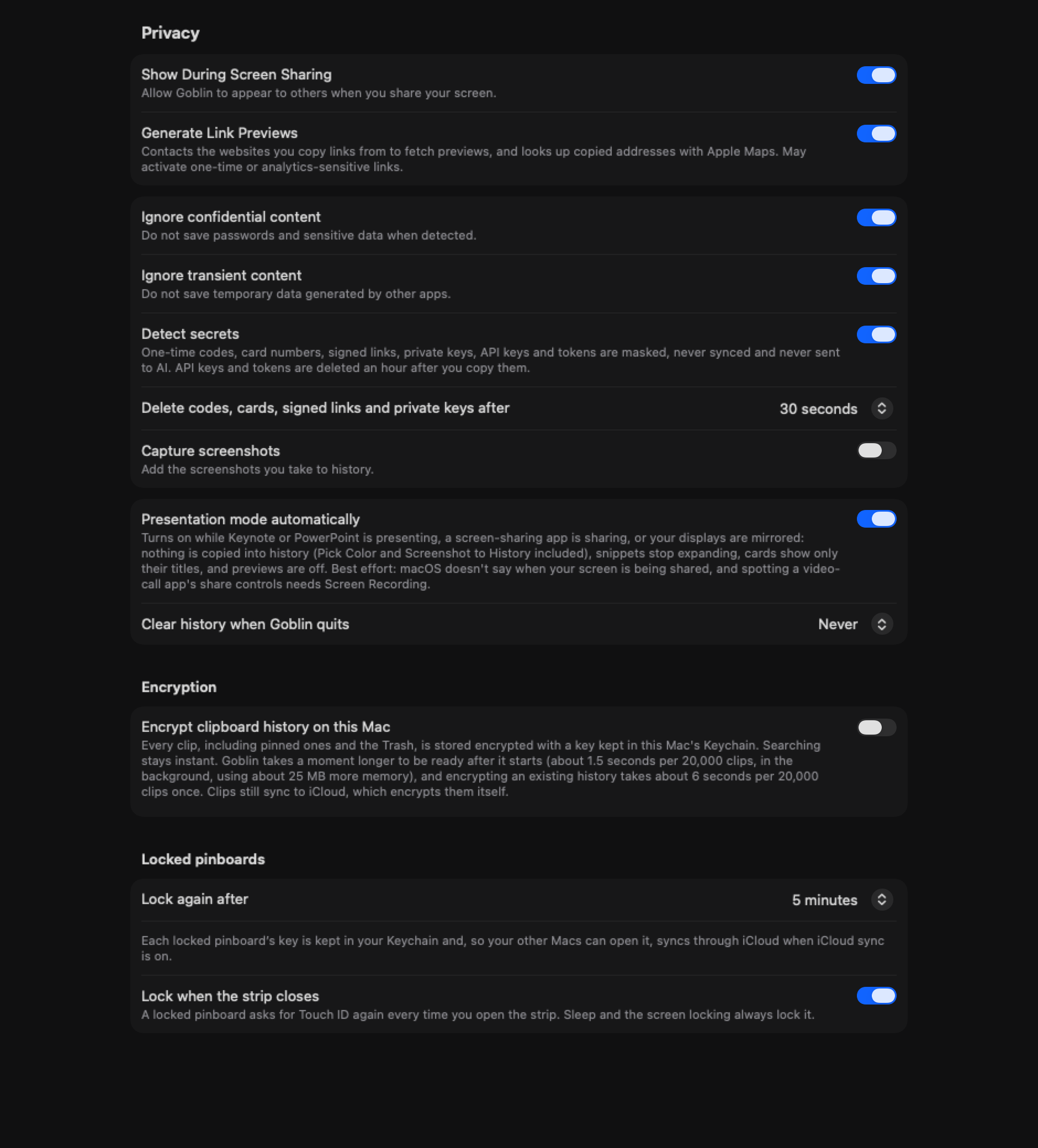
 keeps a copy of what you copy, so it is careful about what it keeps, for how long, and who else can see it. This page shows how to pause the clipboard, keep one app's copies out, shorten how long passwords and codes stay, clear or encrypt your history, and hide it while your screen is on show. It also lists everything that leaves your Mac. Most of it is in Settings›Clipboard.
Pause the clipboard#
Pause when you are about to copy something you don't want in the history, such as a one-off password you typed.
- Open the strip with ⇧⌘V.
- Click the ⋯ button in the strip's top bar.
- Choose Pause Clipboard›Pause (⌘T), or a timed pause: Pause for 15m, 30m, 1h, 3h or 8h.
New: Coming in the next update. Pause and presentation mode also stop text expansion and saving clips through the capture shortcuts.
Nothing you copy is saved while it is paused. Text expansion also stops. Pick Color still copies the chosen color, but does not save it to history; Screenshot to History stops and says why. To start again, open the same menu and choose Resume Clipboard (⌘T). A timed pause ends by itself.
You can also pause from the other two places: the pause button in the footer of the menu bar panel's Clipboard tab (its tip reads Pause capturing or Resume capturing), and Pause / Resume in the header of the Clipboard tab in Goblin's window. A pause isn't remembered: quitting Goblin resumes saving.
What Goblin never keeps#
Goblin looks at the clipboard about three times a second and reads it only when something new was copied. It skips a copy when:
- the clipboard is paused or presentation mode is on (both below);
- it came from an app set to Don't save in the Apps list (the app in front when you copied, or the app that names itself on the clipboard);
- the copying app marked it confidential. Password managers do this for passwords. Skipped while Ignore confidential content is on;
- the copying app marked it transient or auto-generated, such as a value a utility put on the clipboard for a moment. Skipped while Ignore transient content is on;
- it was Goblin's own paste or copy;
- it holds nothing Goblin can keep.
Whatever was already on the clipboard when Goblin started watching is never saved, only what you copy afterwards. With the Clipboard switch off, Goblin doesn't read the clipboard at all.
| Setting | What it does | Default |
|---|---|---|
| Ignore confidential content | Skips copies the copying app marked as confidential (passwords from password managers). | On |
| Ignore transient content | Skips copies the copying app marked as temporary or generated. | On |
Both switches are in Settings›Clipboard, in the group under Privacy. They rely on the copying app saying so. Goblin's own check for passwords, codes and keys is Detect secrets, below.
Things to know:
- Copies arriving from your iPhone or iPad through Universal Clipboard have no app attached, so app rules don't apply to them. Goblin labels them "iPhone" whichever device they came from.
- When Goblin pastes a secret or a clip from a locked pinboard, it marks the clipboard confidential and for this Mac only, so other clipboard managers skip it and it doesn't travel to your other devices through Universal Clipboard.
- The Pick Color and Screenshot to History shortcuts honor Pause and presentation mode. Pick Color copies the color without saving it; Screenshot to History stops and explains why. See Paste tools.
Rules for particular apps#
The Apps section of Settings›Clipboard decides what happens to what each app copies. Every row has the app's icon and name and a choice.
Stop saving what one app copies#
A new install starts with four apps set to Don't save: Keychain Access, Passwords, 1Password and Bitwarden. To add another, or to give an app its own retention time:
- Open Settings›Clipboard and scroll to the Apps section.
- Click + under the list.
- Choose Choose Application… and pick one or more apps from Applications. Or pick an app from the list below it, which holds up to 12 apps you have already copied from, most-copied first.
- The new row starts as Don't save. To use another choice, click the menu at the right of the row and pick it.
To remove a row, click it and then click −. The app goes back to following Keep History. Apps that aren't installed on this Mac show a generic icon and "Not installed".
The choices for an app#
| Choice | What it does |
|---|---|
| Don't save | Copies from this app are never saved. Clips already saved from it stay until they age out. |
| Keep 1 hour | This app's clips are deleted for good an hour after you last used them. |
| Keep 1 day | The same, after a day. |
| Keep 1 week | The same, after a week. |
| Default | Follows Keep History, like every app without a row. |
The Keep times replace Keep History for that app, so they can be shorter or longer than it. Pinned clips are never removed. Goblin applies these times when it starts and then once an hour, so a Keep 1 hour clip can last up to about two hours. Keep History itself is described in Pinboards.
An app set to Don't save is also never read by Allow Screen Access. The list syncs to your other Macs when you sync Goblin's settings; see iCloud Sync.
New: Coming in the next update. Choose where timed per-app deletions apply.
With clipboard iCloud sync on, choosing a Keep time asks whether to delete on This Mac Only (the default) or All My Macs. The same choice appears beside the app's retention rule, so you can change it later. All-Macs deletions are kept while offline and sent when Goblin reconnects. Pinned clips stay in either scope.
Short-lived secrets#
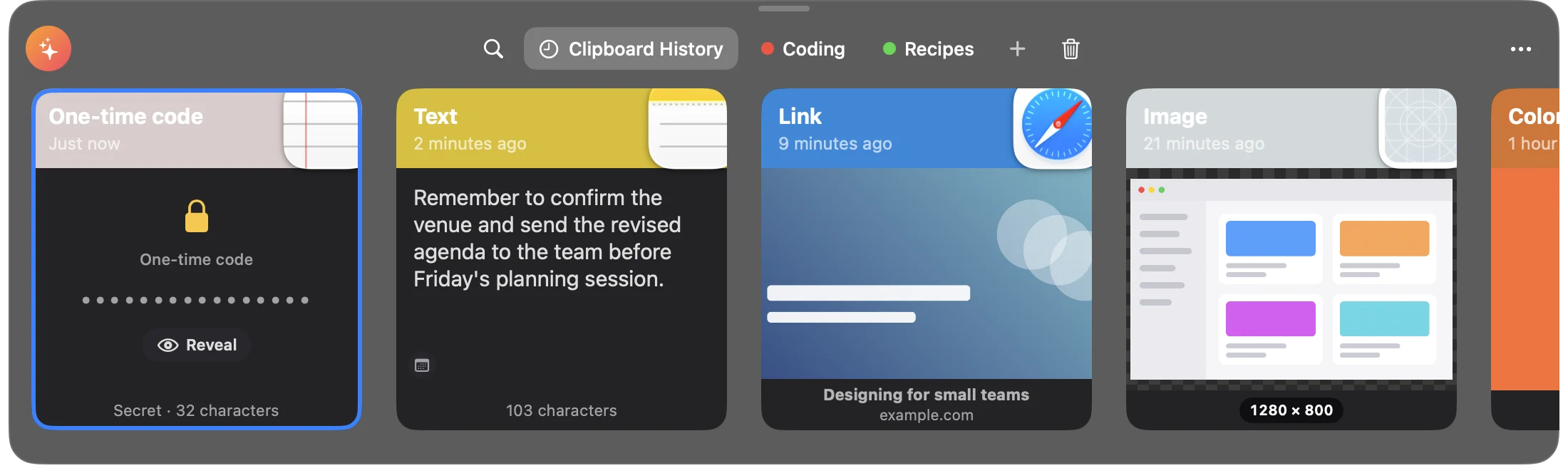
With Detect secrets on (the default), Goblin checks every text and link you copy for five kinds of secret. A secret is saved masked, kept on this Mac only, and deleted for good after a short time.
| Kind (as the card shows it) | What counts | Deleted after |
|---|---|---|
| One-time code | A 4 to 8 digit code (or 123 456, 123-456, G-123456) near words like "code", "verification", "OTP", "2FA" or "sign in", or a bare code copied from Messages or Mail. Order, invoice, tracking, phone and similar numbers don't count. | 30 seconds (your choice) |
| Card number | A valid card number from a real card network, written in one run or in the usual groups, on its own or as the only card number in a short note that mentions a card. | 30 seconds (your choice) |
| Signed link | A web link carrying a signature or access token, such as a pre-signed cloud storage link or a private file link from Dropbox, Google or Slack. | 30 seconds (your choice) |
| Private key | Text containing a -----BEGIN … PRIVATE KEY----- block. | 30 seconds (your choice) |
| Secret | An API key or token: AWS, GitHub, Stripe live keys, Anthropic, OpenAI, Slack, Google API keys, JWTs, and long random-looking tokens. Ordinary links, paths, IDs, email addresses and hashes aren't flagged. | 1 hour |
Change how long codes and keys are kept#
- Open Settings›Clipboard and find the group under Privacy that holds Detect secrets.
- Make sure Detect secrets is on. The menu below it is greyed out while it is off.
- Open Delete codes, cards, signed links and private keys after and choose 30 seconds, 2 minutes or 1 hour.
The choice applies to codes, cards, signed links and private keys. API keys and tokens always go after an hour.
| Setting | What it does | Default |
|---|---|---|
| Detect secrets | Checks each new text or link copy for the kinds above. | On |
| Delete codes, cards, signed links and private keys after | 30 seconds, 2 minutes or 1 hour. | 30 seconds |
How the timing works:
- The clock starts from the secret's last use. Copying the same thing again, or pasting it from Goblin, starts it over.
- Goblin checks every 5 seconds, so a 30-second secret goes after 30 to about 36 seconds.
- Secrets are deleted for good, not moved to the Trash.
- A secret you've pinned to a pinboard is never deleted.
- If you move a secret to the Trash, codes, cards, signed links and private keys are still deleted on time there (unless they went to the Trash from a pinboard). API keys and tokens in the Trash wait until the Trash empties.
- Expiry runs only while the Clipboard switch is on. Secrets saved before you turned it off are deleted once it's on again.
Reveal a masked code or key#
A secret card shows a lock, its kind, a row of dots and a Reveal button.
- Open the strip with ⇧⌘V, or the Clipboard tab of Goblin's window.
- Find the card with the lock and the dots.
- Click Reveal. The text shows. Click Hide to put the dots back.
Its preview says how long it's kept, such as "Kept on this Mac only and deleted 30 seconds after you copy it." In lists it's titled "Secret", and typed search only matches its title and app, never what's inside.
Where a secret never goes#
A secret is never synced to your other Macs (one that synced before Goblin recognised it is removed from iCloud), never described or rewritten by Apple Intelligence, never suggested, never given to AI assistants or Shortcuts, never added to Spotlight, and never previewed. It can't go in a shared pinboard, get a snippet trigger, or be transformed, combined or floated. The goblin command can still copy one: goblin clip copy prints "Copied a secret item."
Note: Detection works from patterns, so it can miss a secret or flag something harmless. It only looks at plain text and links, never images, text read from images, or files. Turning Detect secrets off stops checking new copies; clips already marked as secrets stay masked and still expire.
Clear history when Goblin quits#
- Open Settings›Clipboard and find Clear history when Goblin quits, below Presentation mode automatically.
- Choose Never, Move to the Trash or Delete for good.
| Choice | What happens to every unpinned clip when you quit |
|---|---|
| Never | Nothing. This is the default. |
| Move to the Trash | It goes to the Trash, where you can put it back until the Trash empties. |
| Delete for good | It is deleted with its data. The Trash is left as it is. |
Pinned clips always stay. With iCloud sync on, Move to the Trash also moves the clips on your other Macs.
New: Coming in the next update. Permanent quit clearing has a deletion scope.
Choosing Delete for good while clipboard sync is on asks whether to delete on This Mac Only (the default) or All My Macs. Change it later with Delete for good on. All-Macs deletions made offline are sent when Goblin next connects. The existing Trash and pinned clips stay.
It runs when you quit Goblin normally with the clipboard on. It doesn't run if Goblin crashes or is force-quit.
Encrypting history on this Mac#
Your clipboard lives in a database in ~/Library/Application Support/Goblin/Clipboard/. Deleted clips are overwritten in the file, not only marked as gone. For more protection, encrypt it.
- Open Settings›Clipboard and scroll to the Encryption section.
- Turn on Encrypt clipboard history on this Mac.
- Watch the status line under the switch. It counts through "Encrypting 1,234 of 20,000 clips…" and ends at "On: history is encrypted."
You can keep using Goblin while it works. To turn it off, switch the same setting off: the line reads "Decrypting … clips…", the search index is rebuilt on disk and the key is deleted.
What's encrypted. Every clip, including pinned ones and the Trash: its text, title, link, file names, color, text read from images, image labels, descriptions, preview pictures, and the copied data itself. The key is made on this Mac and kept in its Keychain, for this Mac only. Clips in a locked pinboard are already encrypted with their own key and are left as they are.
What stays readable in the database. Each clip's kind, dates, how often you've used it, its size and image dimensions, the app and device it came from, which pinboard it's in and where, whether it's in the Trash, whether it's a secret and of what kind, and a snippet's trigger (so text expansion can find it). The log of which clip you pasted into which app, and when, isn't encrypted either; it holds no clip content.
What it costs.
- Encrypting your existing history takes about 6 seconds per 20,000 clips, once, in the background.
- The search index is kept in memory instead of on disk. Each time Goblin starts, it rebuilds it in the background (about 1.5 seconds per 20,000 clips, "Building the search index…"), and results fill in as it goes. It uses about 25 MB more memory per 20,000 clips.
- Nothing goes into Spotlight while it's on, even with Find clips in Spotlight turned on.
- A search made only of punctuation, such as
@or$, finds nothing.
Goblin reads the key without asking for your password, and so do the goblin command and AI assistants, so clips stay available to them as before. With iCloud sync on, clips still sync: your other Macs don't have this Mac's key, so they travel under iCloud's own end-to-end encryption instead. The setting is per Mac and never synced.
Warning: The key lives only in this Mac's Keychain. If it's removed (a reset Keychain, or a Mac set up from a backup without it), the encrypted clips can't be opened. The status line then says so, and Delete the clips that can't be opened… (then Delete Them) removes them and turns encryption off. That can't be undone.
Presentation mode#
Presentation mode is for when other people can see your screen: presenting, sharing your screen on a call, or mirroring to a projector. While it's on:
- nothing new is saved (a copy in progress is dropped), and Capture screenshots stops adding screenshots;
- cards in the strip and on the Clipboard tab of Goblin's window show only their titles, with a frosted placeholder and "Presentation mode" in place of their contents;
- previews and Quick Look are off (Space does nothing, and an open preview closes), and you can't edit clips from the strip;
- Goblin's clipboard windows are left out of screen sharing and recordings: the strip, the Copy Queue panel, the preview, the clip editor, the menu bar dropdown, and Goblin's window while it shows the Clipboard tab.
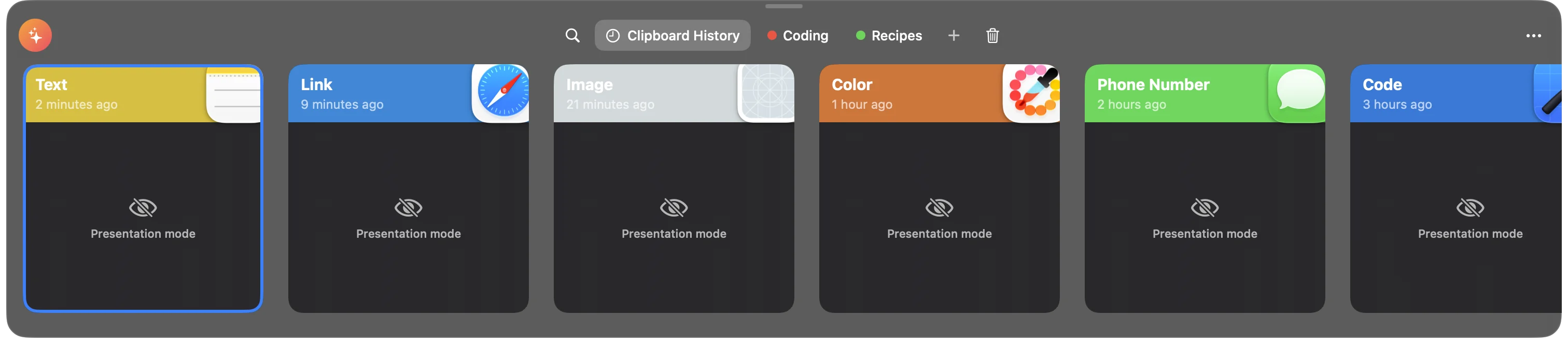
The menu bar dropdown's rows use clip titles or kinds without content excerpts or thumbnails. The window's inspector shows a presentation-mode placeholder, and floating clips hide their content and are left out of screen capture. Any titles you gave clips can still be seen by someone looking directly at your screen or a mirrored display.
Turn on presentation mode#
Use any one of these:
- In the strip, click ⋯ and choose Presentation Mode.
- In the menu bar panel, click the eye-slash button in the footer. It turns amber while presentation mode is on. (Its More button has the same Presentation Mode item.)
- In the Clipboard tab of Goblin's window, click Presentation in the header. It reads Presenting while on.
Click the same item again to turn it off. Presentation mode isn't remembered: Goblin always starts with it off.
Let Goblin turn it on for you#
- Open Settings›Clipboard and find Presentation mode automatically, in the group below Detect secrets.
- Turn it on (it is on by default).
| Setting | What it does | Default |
|---|---|---|
| Presentation mode automatically | Turns presentation mode on while Goblin can tell your screen is on show, and off again when it isn't. | On |
Goblin checks every 3 seconds for:
- A presentation: Keynote or PowerPoint showing a slideshow full screen, or a presenter display or presenter view.
- Screen sharing: Screen Sharing running, someone viewing this Mac through screen sharing, or a window whose title shows a share bar or share control, such as "You are sharing your screen" or "Stop sharing".
- Mirrored displays: any display mirroring another.
The menu item then names the reason, such as Presentation Mode (your screen is being shared).
Note: macOS doesn't tell apps when your screen is being shared, so this is a best guess. Video call apps are recognised only by the titles of their share bars, and Goblin can read window titles only with Screen Recording permission. Without it, only Screen Sharing and someone viewing this Mac are detected. If you share your screen often, turn presentation mode on yourself before you start.
Turn off presentation mode that turned on by itself#
Click the same Presentation Mode menu item or presentation button to turn it off for the rest of the current presentation, screen share or mirroring session. That automatic trigger is ignored until it ends. Click again if you want protection back before the session ends.
To stop automatic activation altogether, turn off Presentation mode automatically in Settings›Clipboard.
Hide the clipboard windows from screen sharing#
| Setting | What it does | Default |
|---|---|---|
| Show During Screen Sharing | Off leaves clipboard windows out of screen sharing and recordings, including floating clips, the menu bar dropdown on Clipboard and the main window on its Clipboard tab. | On |
To change it, open Settings›Clipboard, find Show During Screen Sharing at the top of the Privacy section, and turn it off. The menu bar dropdown and main window follow this choice while they show Clipboard; their other pages keep their normal sharing behavior.
What leaves your Mac#
Your clipboard history is stored on this Mac. Optional sync and AI tools can share clips; link and address previews contact websites and Apple Maps. The table below shows which setting controls each connection:
| What | When | Where it goes |
|---|---|---|
| A copied link's page, to show its title and picture | Generate Link Previews is on (the default) | The website the link points to. Goblin fetches the page as a browser would, which can count as a visit or use up a one-time link. Only ordinary web links; never secrets. |
| A copied street address, to draw a map preview | Generate Link Previews is on | Apple Maps, which looks up the address and returns a map picture. |
| Your clips and pinboards | iCloud sync is on | Your iCloud account, end-to-end encrypted. Secrets never sync. See Sync. |
| Clips and pinboards you or an AI assistant ask for | Enable MCP is on and you've added Goblin to an AI app | The AI app, and whatever service it uses. Secrets, the Trash and locked pinboards are never given out. See AI assistants. |
Turn off link previews#
- Open Settings›Clipboard and scroll to the Privacy section.
- Turn off Generate Link Previews.
| Setting | What it does | Default |
|---|---|---|
| Generate Link Previews | Fetches previews for copied web links, and map pictures for copied addresses. Off: neither happens; previews you already have stay. | On |
What stays on the Mac:
- Apple Intelligence features (descriptions, plain-language search, writing actions, suggestions) and reading the window you're pasting into all run on the Mac. See Apple Intelligence.
- Find clips in Spotlight adds clip titles and the start of their text to this Mac's own Spotlight index. Secrets, locked pinboards and the Trash are never added.
- Text read from images (OCR) is done on the Mac.
For the rest of Goblin, see Privacy and data.
Ask the Goblin to change these settings#
The Goblin can change several of the settings on this page when you ask him. Click Talk to Goblin in the main window toolbar and type one of these requests exactly:
| Request | What it does |
|---|---|
Read Clipboard Privacy Settings | Says how long history is kept, how the Trash and quit policy are set, and the state of encryption, iCloud sync and snippets. |
List Clipboard Privacy Applications | Lists the apps Goblin knows about with their rule. |
Review Erase Clipboard History | Prepares moving every unpinned clip to the Trash. |
Review Clipboard History Encryption on (or off) | Prepares the encryption change. |
Review Delete Unreadable Clipboard Items | Prepares deleting clips whose key is missing. Only works when the key is missing. |
Asking never changes anything by itself. The Goblin opens a review window that lists exactly what will change; nothing happens until you confirm it there, and Cancel closes the review without a change. Changing your history or settings while a review is open cancels it. You can ask Read Clipboard Settings Review Result for how the last review ended, or Cancel Clipboard Settings Review. Keys, passwords and clip contents are never part of these requests.
The same kind of review exists for locking pinboards (Review Lock Clipboard Pinboard followed by the pinboard's exact ID, and the matching Unlock, Relock and Remove Lock requests). Locking, unlocking and removing a lock ask for Touch ID or your Mac password in the review. Removing a lock decrypts the board's clips into ordinary storage and can't be undone. See Locked pinboards.