 Goblin
If you're moving to Goblin from another clipboard manager, Goblin can bring your pinboards, and your history if you like, straight across. And any pinboard can go out to a folder of ordinary files, to keep as a backup, hand to someone, or read back in on another Mac. Both are in Settings›Clipboard›Moving Pinboards. This page also covers adding a photo, scan or sketch from your iPhone.

Import from another clipboard manager#
Goblin can read the pinboards and history of a clipboard-manager app on your Mac. Open Settings›Clipboard›Moving Pinboards: the first row, Import from …, names the app it imports from.
- Open Settings›Clipboard and find the import row under Moving Pinboards.
- Click its button, Import from ….
- Choose Import Pinboards and History, or Import Pinboards Only to leave your old history behind.
- Wait for the progress bar. When it's done, a message says how many pinboards and clips came across. Click OK.
A progress bar takes the button's place while it works, with a count below the section.
You don't need to quit the other app. Goblin only reads its data and never changes it, so it carries on as it was. If Goblin can't find any data, it says the other app's data wasn't found on this Mac. Beyond pinboards and clips, the import also brings across the matching settings Goblin has: shortcuts, ignored apps, plain text and sounds.
The import works even while Clipboard is off; Goblin reminds you to turn it on to see what came in.
What comes across#
- One Goblin pinboard for each pinboard, in the same order, with the nearest Goblin color. A pinboard with no name becomes "Untitled". The other app's own sample pinboard is skipped.
- Every clip with all its content: each format the other app kept (plain and rich text, images, files, links, colors), its title, when it was copied and last used, the app it came from, and the device it was copied on, so a clip copied on your iPhone still shows the iPhone symbol.
- Each clip's place in its pinboard.
- With Import Pinboards and History, your history too. A clip that's both in your history and pinned comes in once, as the pinned clip.
If the other app kept a clip in a form Goblin can't read, Goblin keeps the short text preview it stored, and the summary tells you how many came in that way. Anything with no readable content at all is skipped and counted.
Running the import again doesn't duplicate anything. Goblin recognises each pinboard and clip it brought over before, even if you've renamed or recolored the pinboard since, and a pinboard you'd moved to the Trash comes back. So you can import once to try Goblin, keep using the other app, and import again later to catch up.
History clips keep the date they were last used, and Goblin's Keep History setting applies to them like any other clip. If your old history goes back further than Keep History allows, the older clips are removed the next time Goblin tidies up. Set Keep History to Year or Forever first if you want to keep them all (see how long history is kept). Pinned clips are never removed.
Tip: Another clipboard manager may use ⇧⌘V too. While it is running it holds that shortcut, and Goblin's import summary reminds you to quit it so the strip can open with ⇧⌘V. You can also choose another shortcut in Clipboard settings.
Export pinboards#
- Open Settings›Clipboard and find the Pinboards row under Moving Pinboards.
- Click Export….
- Choose where to put the export (the sheet is titled Export Pinboards) and click Export.
Goblin makes a folder there called Goblin Pinboards (or Goblin Pinboards 2 and so on, if one already exists), says how many pinboards and clips it wrote, and shows the folder in Finder.
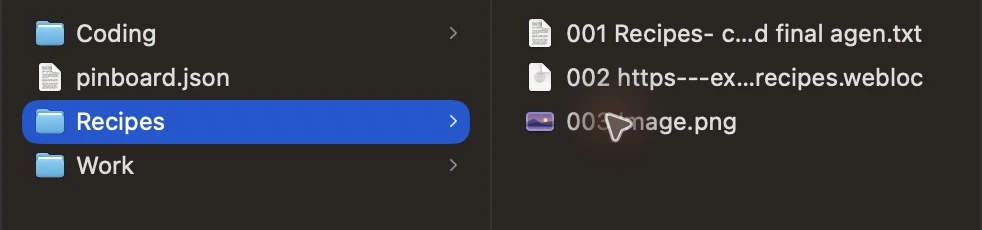
Every pinboard is exported, except:
- pinboards in the Trash,
- smart pinboards, which are a saved search rather than a set of clips,
- locked pinboards. These are left out on purpose, so their clips never end up as readable files; the summary says how many were left out. Remove a pinboard's lock first if you need to export it.
To export only some pinboards, use goblin clip export --pinboard NAME from the command line. To export a handful of clips rather than whole pinboards, select them on the Clipboard page and use its Export… button.
The folder format#
- A folder for each pinboard, named after it.
- One file for each clip, numbered in pinboard order and named from the clip's title or the start of its text, such as
001 Address.txt. Each clip is saved in its most faithful form: a link as a.webloc, then a PDF, an image, the original file, rich text (.rtf), plain text (.txt) or HTML. pinboard.jsonat the top, listing each pinboard's name and color and each clip's file, kind, title, date, app and link. Goblin uses it to read the folder back in exactly; other tools can read it too.
Because they're ordinary files, you can open them, attach them to an email, or keep them in any folder that syncs.
Import pinboards from a folder#
- Open Settings›Clipboard and find the Pinboards row under Moving Pinboards.
- Click Import….
- Choose the folder ("Choose a folder that was exported from Goblin.") and click Import.
- A message says how many pinboards and clips Goblin read. Click OK.
- A folder Goblin exported: each pinboard goes into the pinboard with the same name (ignoring capitals), or a new one in the exported color. Clips get back their titles, dates, apps and links. Importing the same folder again replaces those clips rather than adding them twice.
- Any other folder of files: the files directly inside become one pinboard named after the folder, and each subfolder becomes another pinboard. Hidden files are skipped.
Goblin only reads files inside the folder you chose. If the folder is empty, it says There's nothing in that folder to import.
The same import and export are available as goblin clip import and goblin clip export, and the import from another clipboard manager as goblin clip import --paste. See the goblin command.
Import a photo, scan or sketch from your iPhone#
With an iPhone nearby (signed in to the same Apple ID, as Continuity Camera needs), you can take a photo, scan a document or draw a sketch on it and have the result land in your clipboard history.
- Press ⇧⌘V to open the strip, then click ⋯ at the right of the top bar.
- Choose Import from iPhone. macOS lists your iPhone in the submenu.
- Under your iPhone, choose Take Photo, Scan Documents or Add Sketch.
- Finish on the iPhone. The picture arrives on your Mac.
Each picture is saved as an image clip from "iPhone", and a scan of several pages makes one picture per page (up to 20). Goblin then reads the text in the pictures and copies it, the same way as Capture Text, so the text is on your clipboard and in History, and the After Capture options set there apply.
Goblin AI and Siri#
Goblin AI and Siri can start the same imports and exports, each one asking you to confirm first: Review Import Clipboard Pinboard Folder and Review Export Clipboard Pinboards (each opens the macOS folder chooser), the matching import for the clipboard manager, and Review Import Clipboard From iPhone, which opens the macOS menu where you pick the iPhone and Take Photo, Scan Documents or Add Sketch. Once confirmed, a batch can't be stopped or rolled back, and anything already imported stays if a later file fails. Export always makes a new, uniquely named Goblin Pinboards folder and leaves out locked pinboards. Read Native Migration Review reports the result, including any partial failures, and Cancel Native Migration Review cancels a review that hasn't been confirmed. The full list is in Siri phrases.