 Goblin
Settings›Keep Awake holds every Keep Awake option, from what a new session starts with to its icon in your menu bar. This page goes through it top to bottom. For starting and ending sessions, see Keep Awake basics.
Changes to the session options apply to the next session. A session that's running keeps the options it started with. Changes take effect as soon as you make them; there's no Save button.
Open the Keep Awake settings#
Pick whichever is closest:
- Right-click Goblin's menu bar item, choose Settings… (or press ⌘,), and click Keep Awake in the sidebar.
- In Goblin's window, open the Power tab (⌘7), click Keep Awake at the top, and click Keep Awake Settings… under the card.
- In the separate Keep Awake menu bar item, choose Preferences….
If Settings is already open on another pane, the last two switch it to Keep Awake.
New Sessions#
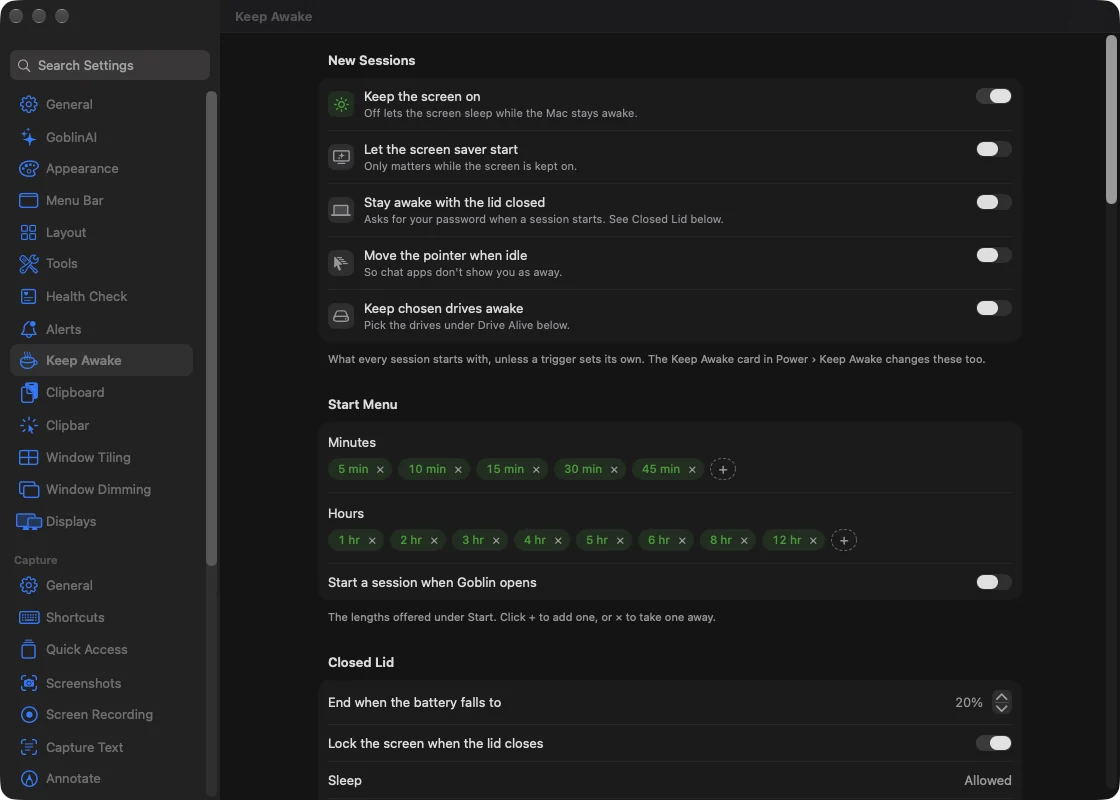
What every session starts with, unless a trigger sets its own. Each switch has an icon, lit while it's on, and a line saying what it does.
| Setting | What it does | Default |
|---|---|---|
| Keep the screen on | New sessions keep the display awake too. Off lets the screen sleep while the Mac stays awake. | On |
| Let the screen saver start | Your screen saver still starts while the screen is kept on. It only matters while the screen is kept on, so it's greyed out otherwise. | Off |
| Stay awake with the lid closed | New sessions use closed-lid mode. Asks for your password when a session starts, unless Goblin's helper is approved. | Off |
| Move the pointer when idle | New sessions nudge the pointer when you're idle, so chat apps don't show you as away. | Off |
| Keep chosen drives awake | New sessions keep the drives you pick under Drive Alive spinning. | Off |
The Screen on, Closed lid and Jiggle buttons on the Keep Awake card change the same settings. Each option is explained in Screen, closed lid, mouse jiggle and Drive Alive.
Start Menu#
The lengths offered under Start on the card and in the separate menu bar item.
Change the lengths in the Start menu#
- Open Settings›Keep Awake and find the Start Menu section.
- To take a length away, click the × on its chip in Minutes or Hours.
- To add one, click + at the end of the row, type a whole number in the field that appears, and click Add (or press Return).
The Start menu shows the new list straight away.
| Setting | What it does | Default |
|---|---|---|
| Minutes | The choices under Start›Minutes, 1 to 720 minutes. | 5, 10, 15, 30, 45 |
| Hours | The choices under Start›Hours, 1 to 72 hours. | 1, 2, 3, 4, 5, 6, 8, 12 |
| Start a session when Goblin opens | Starts a session each time Goblin opens, for the Length you pick. | Off |
Each length is a chip. Click × on a chip to take it away, or + to add one: type a whole number in the field that appears and click Add or press Return. Goblin keeps the chips in order and ignores a length that's already there. Each list holds up to 12, and the last one can't be removed, so the menu is never empty.
Start Keep Awake every time Goblin opens#
- In Settings›Keep Awake›Start Menu, switch on Start a session when Goblin opens.
- In the Length menu that appears, choose Indefinitely or one of your minute and hour choices.
Combined with opening Goblin at login (see Permissions), this keeps the Mac awake from the moment you log in.
Closed Lid, Mouse Jiggle and Drive Alive#
These three sections come next, straight after the switches they explain. They're described on their own page:
- Closed Lid: Closed-lid mode
- Mouse Jiggle: Mouse jiggle
- Drive Alive: Drive Alive
Battery and Heat#
A session ends by itself when any of these happens.
Stop Keep Awake when the battery is low#
- Open Settings›Keep Awake and find the Battery and Heat section.
- Switch on End when the battery falls below if it's off, and set the level with the stepper (5% to 90%).
- Optionally switch on End when the Mac is unplugged or End when Low Power Mode turns on.
| Setting | What it does | Default |
|---|---|---|
| End when the battery falls below | On battery, ends the session when the charge reaches this level. 5% to 90%, in steps of 5. | On, 10% |
| End when the Mac is unplugged | Ends the session as soon as the Mac runs on battery, and stops one starting while it does. | Off |
| End when Low Power Mode turns on | Ends the session when Low Power Mode turns on, and stops one starting while it's on. | Off |
| End when the Mac gets too hot | Ends the session when macOS reports the Mac is seriously hot. | On |
The battery settings do nothing on a Mac without a battery. Closed-lid sessions also end at their own, higher battery level and always end when the Mac is critically hot; see Closed-lid mode.
Screen#
| Setting | What it does | Default |
|---|---|---|
| Lock the screen when the Mac is idle | During a session, locks the screen after this many minutes without keyboard or mouse. 1 to 240 minutes. | Off (10 min when switched on) |
| Let the screen sleep while it is locked | While the screen is locked during a session, the display may sleep. | Off |
While Work Is Running#
These decide what counts for a While Work Is Running session.
| Setting | What it does | Default |
|---|---|---|
| Programs that count while they run | Builds, encodes and copies: while any of these runs, the Mac stays awake. | See below |
| Programs that count only while busy | Assistants and runtimes that sit open all day: they count only while they use at least 2% of a core, on average over the last minute. | See below |
| Count dev servers | Dev servers from the Projects tab count while they're in use. | On |
| Keep going after the last one ends | How long the session waits, after the last program stops, before ending. 0 to 30 minutes. | 2 min |
| Reset the Lists | Puts both program lists back to the defaults. Greyed out when they already are. | – |
Choose which programs count as work#
- Open Settings›Keep Awake and find the While Work Is Running section.
- In Programs that count while they run or Programs that count only while busy, click × on a chip to take a program away.
- To add one, click + (Add a program), type its name and click Add.
- To go back to the defaults, click Reset the Lists.
Each program is a chip. You can add several at once, separated by commas. Names are the program's own name as it runs, like claude or cargo, not the app's name, and capitals don't matter. Time Machine backups always count.
By default, these count whenever they run: xcodebuild, swift-build, cargo, rustc, go, make, ninja, cmake, gradle, mvn, bazel, ffmpeg, handbrakecli, rsync, scp, brew and softwareupdate.
These count only while busy: the coding agents and model servers claude, codex, gemini, aider, cursor-agent, goose, ollama and llama-server, and node, python, python3, ruby, java, bun, deno, npm, pnpm, yarn and docker. They often stay open between jobs, so they only count while they're doing something. A Claude session at work uses roughly 3% to 12% of a core; an open but idle one stays under 1%, so it doesn't keep the Mac awake.
Note: Goblin saves both lists with your other Keep Awake settings. If you tried Keep Awake in a pre-release build of 1.1 and changed any of its settings, you still have that build's lists, where claude and the other agents count whenever they run. Click Reset the Lists to switch to the lists above (this also removes any names you added).
While a File Is Downloading#
Watch shows the folder that While a File Is Downloading sessions look in, ~/Downloads unless you change it. Goblin only looks at files directly in that folder, not in folders inside it. Choose File… in the Start menus opens its file window in this folder too.
Watch a different folder for downloads#
- Open Settings›Keep Awake and find the While a File Is Downloading section.
- Click Choose….
- Pick the folder in the file window and confirm.
Watch now shows that folder. To go back, click Use Downloads.
Triggers#
The Triggers section comes next. It has a page of its own: Keep Awake triggers.
Notifications#
Turn notifications on or off#
- Open Settings›Keep Awake and find the Notifications section.
- Switch Tell me when a session starts and Tell me when a session ends the way you like.
- For a reminder during long sessions, switch on Remind me while a session runs and set how often with the stepper.
- To add a sound, choose one in Sound, and where it plays in Play it on.
| Setting | What it does | Default |
|---|---|---|
| Tell me when a session starts | A "Keep Awake is on" notification when any session starts. | Off |
| Tell me when a session ends | A "Keep Awake ended" notification, with the reason, when a session ends by itself. | On |
| Remind me while a session runs | A "Keep Awake is still on" reminder at this interval, with what the session is doing and the time left. 5 to 480 minutes. | Off (60 min when switched on) |
| Sound | A sound played with each of these notifications. Choosing one plays it. | None |
| Play it on | Which output plays that sound: System default or any connected output device, such as particular speakers or headphones. Choosing one plays the sound on it. Greyed out while Sound is None. | System default |
Tell me when a session ends covers sessions that end on their own: time up, the app quitting, a download or work finishing, or a battery or heat rule. You don't get one when you end a session yourself, start another, or quit Goblin, or when a trigger's session ends because the trigger stopped matching. The sounds are the ones built into macOS. If the device chosen in Play it on isn't connected, the menu shows "Not connected (using the default)" and the sound plays on the default output. Notifications need Goblin to be allowed to send them; see Permissions.
Menu Bar#
Show the time left in the menu bar#
- Open Settings›Keep Awake and find the Menu Bar section.
- Make sure Show the icon in the menu bar while a session runs is on.
- Switch on Show a time beside it.
- In The time shows, choose The time left or When it ends.
Start a session with an end time: the time appears beside the icon at the start of Goblin's menu bar item.
Change the menu bar icon#
In the Menu Bar section, open the Icon menu and choose one. The two small pictures beside it show how it looks Running and Off.
Add a separate menu bar item#
- Open Settings›Keep Awake and find the Menu Bar section.
- Switch on A separate menu bar item. A second icon appears in the menu bar.
- Optionally switch on Dim the icon when no session runs.
- Click the new icon to open its menu.
To remove it, switch A separate menu bar item off.
| Setting | What it does | Default |
|---|---|---|
| Icon | The symbol Keep Awake uses in the menu bar: Cup, Mug, Pill, Eye, Bolt, Sun, Moon or Light bulb. Beside the menu, the chosen icon shows both ways: filled, captioned Running, as it looks while a session runs, and outlined, captioned Off. | Cup |
| Show the icon in the menu bar while a session runs | Puts the filled icon at the start of Goblin's menu bar item during a session. | On |
| Show a time beside it | Adds a time next to the icon, for sessions with an end time. Greyed out while the icon is off. | Off |
| The time shows | The time left, or When it ends as a clock time. Appears while both switches above are on. | The time left |
| Clock | Same as the Mac, 12-hour (6:30 PM) or 24-hour (18:30). | Same as the Mac |
| A separate menu bar item | Its own icon, with a menu to start, extend and end sessions. | Off |
| Dim the icon when no session runs | Fades the separate item while Keep Awake is off. Appears while the separate item is on. | Off |
| In Goblin's right-click menu | A Keep Awake section in the menu a right-click on Goblin's item opens, with the same session controls as the separate item's menu. | On |
The time left reads like "45m" or "1h 12m", rounded up to the whole minute, and "<1m" in the last minute. It updates every 15 seconds. When it ends reads like "6:30 PM", with "tomorrow" or the weekday in front when the session ends on another day. When no session runs, Goblin's menu bar item looks exactly as it did.
Clock applies to every clock time Keep Awake shows, not just the menu bar: the card, the Until a Specific Time picker, notifications, what goblin awake prints and what AI assistants are told.
In Goblin's right-click menu#
Right-click Goblin's menu bar item and a Keep Awake section follows the capture items. It has the same controls as the separate item's menu below: the session line, End Current Session and Extend › while a session runs, then Start New Session ›, Quick Preferences › and Triggers ›. Goblin's own Settings… and Quit Goblin sit at the bottom of that menu, so the section leaves out Preferences, Open Goblin and Quit. Turn off In Goblin's right-click menu to hide it.
The separate menu bar item#
The separate item shows the icon you chose: an outline when Keep Awake is off (faded, with Dim the icon when no session runs on), filled while a session runs. With Show a time beside it on, the time left or the end time appears next to it, as set in The time shows. Hover over it to see what the session is doing. Click it, with either button, to open its menu:
- While a session runs, the top line says what it's doing, such as "Session active: 1h 12m remaining", then End Current Session and Extend › (+ 5 minutes to + 2 hours).
- Start New Session › has the same choices as the card's Start menu, with app icons beside the apps and Choose File… at the bottom of While a File Is Downloading. Until a Specific Time… opens a small Keep Awake Until window with a time field; a time that has already passed today means tomorrow.
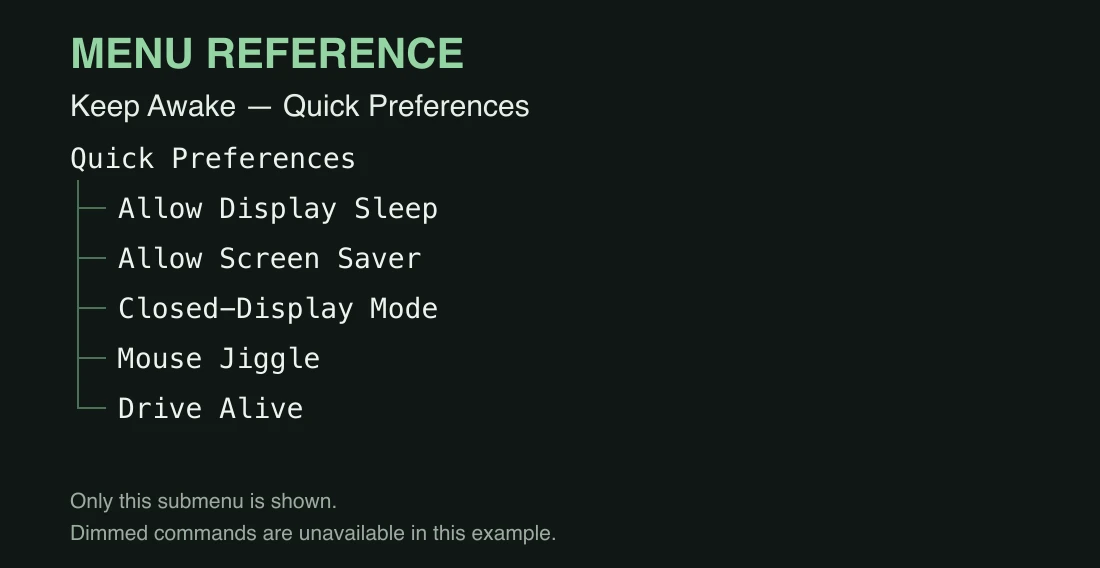
- Quick Preferences › changes the defaults for new sessions: Allow Display Sleep, Allow Screen Saver, Closed-Display Mode, Mouse Jiggle and Drive Alive. A tick shows which are on.
- Triggers › Use Triggers turns all triggers on or off; Edit Triggers… opens Keep Awake settings.
- Preferences… opens Keep Awake settings, Open Goblin opens Goblin's window on the Power tab, and Quit Goblin quits.
In this menu, While a File Is Downloading usually offers Any Download and Choose File… only; use Choose File… to wait for one particular file.
AI Assistants#
To let an assistant start and stop sessions, open Settings›Keep Awake, find the AI Assistants section, and switch on Let AI assistants start and stop sessions. The assistant also has to be connected first; see below.
| Setting | What it does | Default |
|---|---|---|
| Let AI assistants start and stop sessions | Lets assistants connected through Goblin's MCP server start and end Keep Awake sessions. | Off |
Assistants connected to Goblin can always ask whether a session is running. They can only start or end one with this switch on. Connecting an assistant at all needs Let AI assistants ask about this Mac under Settings›Projects›AI Assistants; see AI assistants. An assistant can't turn on closed-lid mode.
History#
The last 20 sessions, newest first. Each shows how the session was set to last, such as "For 2 hours", "Indefinitely" or "Trigger: At my desk", then when it started, how long it ran, and why it ended: "Ended by you", "Replaced by another session", "Goblin quit", or the reason it ended by itself, such as "Ended: the app quit". Before your first session it says "No sessions yet." The Keep Awake card in Goblin's window (Power›Keep Awake) shows the three most recent.
Syncing between Macs#
To sync, open Settings › iCloud Sync and turn on Keep Awake. Do the same on each Mac. These settings and your triggers then travel to your other Macs. The watched downloads folder, the Drive Alive drives, the Let AI assistants start and stop sessions switch and the Play it on device stay on each Mac.
Keep Awake can also be controlled from the goblin command, goblin:// links, AppleScript and Shortcuts.