 Goblin
Files lists the largest files in a folder, biggest first, so you can spot the old downloads, disk images and videos you no longer need. It starts with your Downloads folder, where forgotten files tend to pile up. Pick the ones you want gone and review them before they move to the Trash.
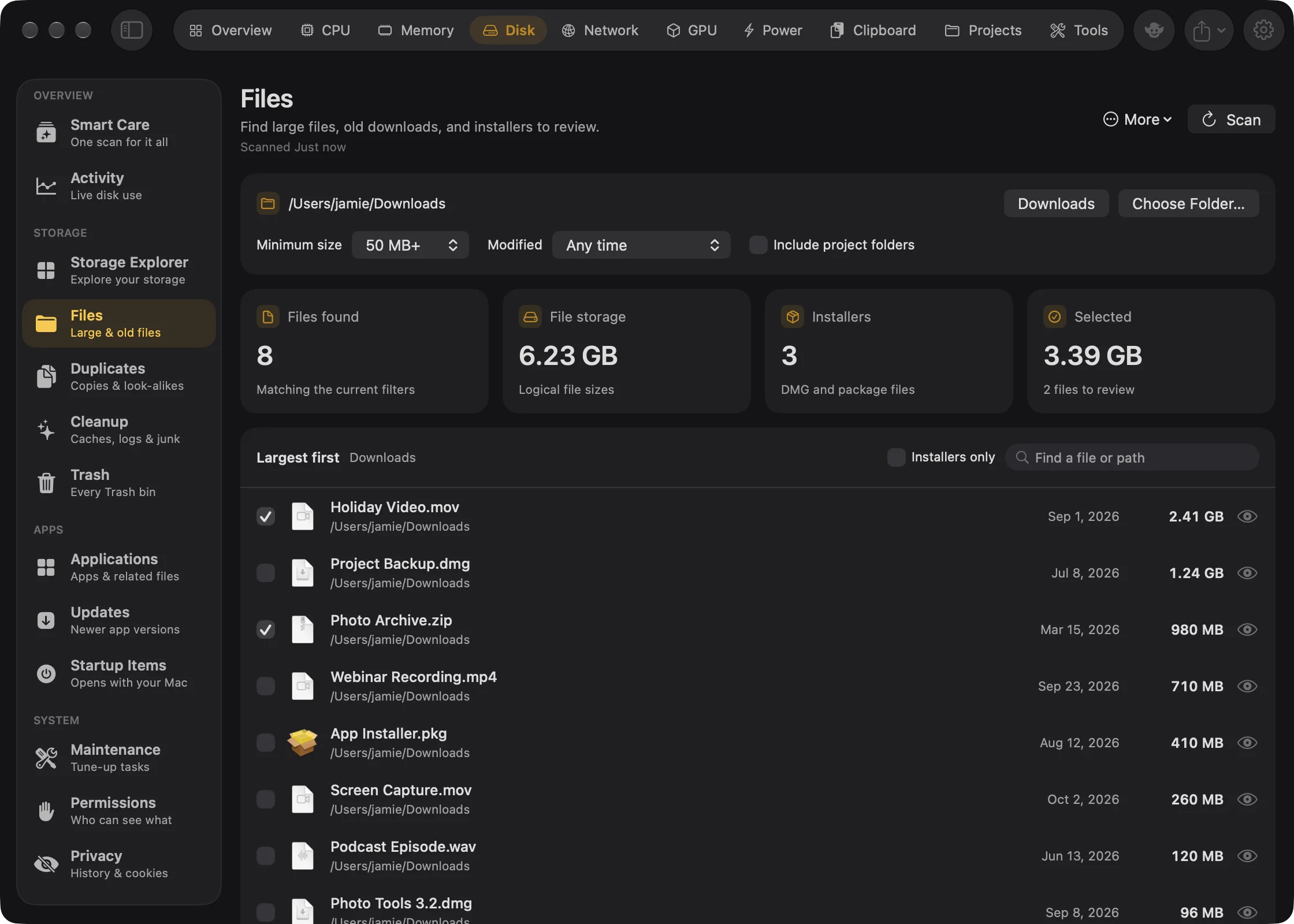
The first time you open Files, it scans ~/Downloads for files of 50 MB or more. After that it scans when you press Scan.
Find large files#
- Click Disk in the main window's tab bar, then Files in the sidebar (under Storage).
- Wait for the first scan of Downloads to finish, or press Scan to run it again.
- Read the list, largest first. Use Find a file or path to search it.
- Tick the files you want gone. The footer shows how many and how much.
- Press Review Removal, check the list in Move selected files to Trash, and press Move to Trash.
When it worked, a status card says how many items moved to the Trash and the files leave the list.
Tip: Nothing is ticked for you. Large or old files are often still useful.
Find old downloads#
- Open Disk›Files. The folder is Downloads to start with.
- Set Modified to Over 30 days ago, Over 90 days ago or Over a year ago. The list changes at once; you don't need to scan again.
- To include smaller files, set Minimum size to Any size and press Scan.
The age filter uses each file's modification date, not when you downloaded it.
Clear out old installers#
- Open Disk›Files.
- Tick Installers only above the list. It shows only disk images and packages (
.dmg,.pkg,.mpkg), which are often left behind once the app is installed. - Tick the ones you don't need and press Review Removal.
Choose where to look#
To scan another folder:
- Click Choose Folder… on the location card at the top and pick the folder.
- Set Minimum size and, if you like, Include project folders.
- Press Scan. (Downloads on the same card goes back to your Downloads folder.)
The location card sets what the next scan looks at:
| Setting | What it does | Default |
|---|---|---|
| Folder | The folder to scan. Downloads goes back to your Downloads folder (and sets the minimum size to Any size); Choose Folder… picks any other. Neither scans by itself. | Downloads |
| Minimum size | Any size, 50 MB+, 100 MB+ or 1 GB+. Filters the list now, and sets the smallest file the next scan collects. | 50 MB+ |
| Modified | Any time, Over 30 days ago, Over 90 days ago or Over a year ago, by modification date. Filters the list only. | Any time |
| Include project folders | Also look inside code projects. | Off |
A scan only collects files at or above the minimum size it was run with. If you lower the minimum, choose another folder or change the project setting, a note says "Scan again to apply…" and the list still shows the previous scan.
Include project folders#
To see large files inside code projects, tick Include project folders on the location card and press Scan.
Project folders are folders that contain .git, package.json, Package.swift, Cargo.toml, pyproject.toml, go.mod or an Xcode project. They're skipped by default because their large files usually belong to the project. If you point Files at a project folder with the option off, it tells you to turn on Include project folders.
What a scan skips#
To keep the list to files you can safely judge on their own, a scan leaves out:
- hidden files and your Library folder;
- the insides of apps, photo libraries, document bundles, Xcode projects and other packages;
- symbolic links, and cloud files that aren't downloaded;
- anything on the Files or Every Section ignore list.
It won't scan /, /System or /Library as a whole. For a map of everything, use Storage Explorer.
The results#
Four tiles sum up the scan:
| Tile | What it counts |
|---|---|
| Files found | Files that match the current filters. |
| File storage | Their total size. |
| Installers | Disk images and installer packages (.dmg, .pkg, .mpkg). |
| Selected | What you've ticked so far. |
The list shows each file's name, folder, modified date and size, largest first, 200 at a time (Show N More Files for the rest). Tick Installers only to see only disk images and packages, which are often left behind once the app is installed. Search with Find a file or path.
Click the eye to preview a file with Quick Look. A greyed-out checkbox means the file couldn't be read completely or is blocked.
Hide a file from the list#
- Right-click the file.
- Choose Ignore Item.
The file goes on the Files ignore list, so no scan lists it again. To bring it back, see Ignore lists. The same menu has Quick Look and Show in Finder.
Age is based on the modification date. Large or old files can still be useful, so nothing is ticked for you.
Remove files#
The steps are under Find large files. Files go to the Trash unless you choose to delete them immediately in the review sheet. See Reviewing a removal.
The More menu (⋯) in the header has Ignored Items… and Removal History….