 Goblin
The Projects tab is for people who write code. It finds the dev servers, watchers, scripts and coding agents you started in your project folders, shows which ports they hold and how much memory they use, and spots the ones you've forgotten about. You can open, stop or restart any of them from here, and clean up the idle ones in one go.
Open the Projects tab#
- Click Projects in the tab bar of the main window, or press ⌘9.
- If you use Docker, a switcher at the top has two pages, Projects and Containers. Click Projects.
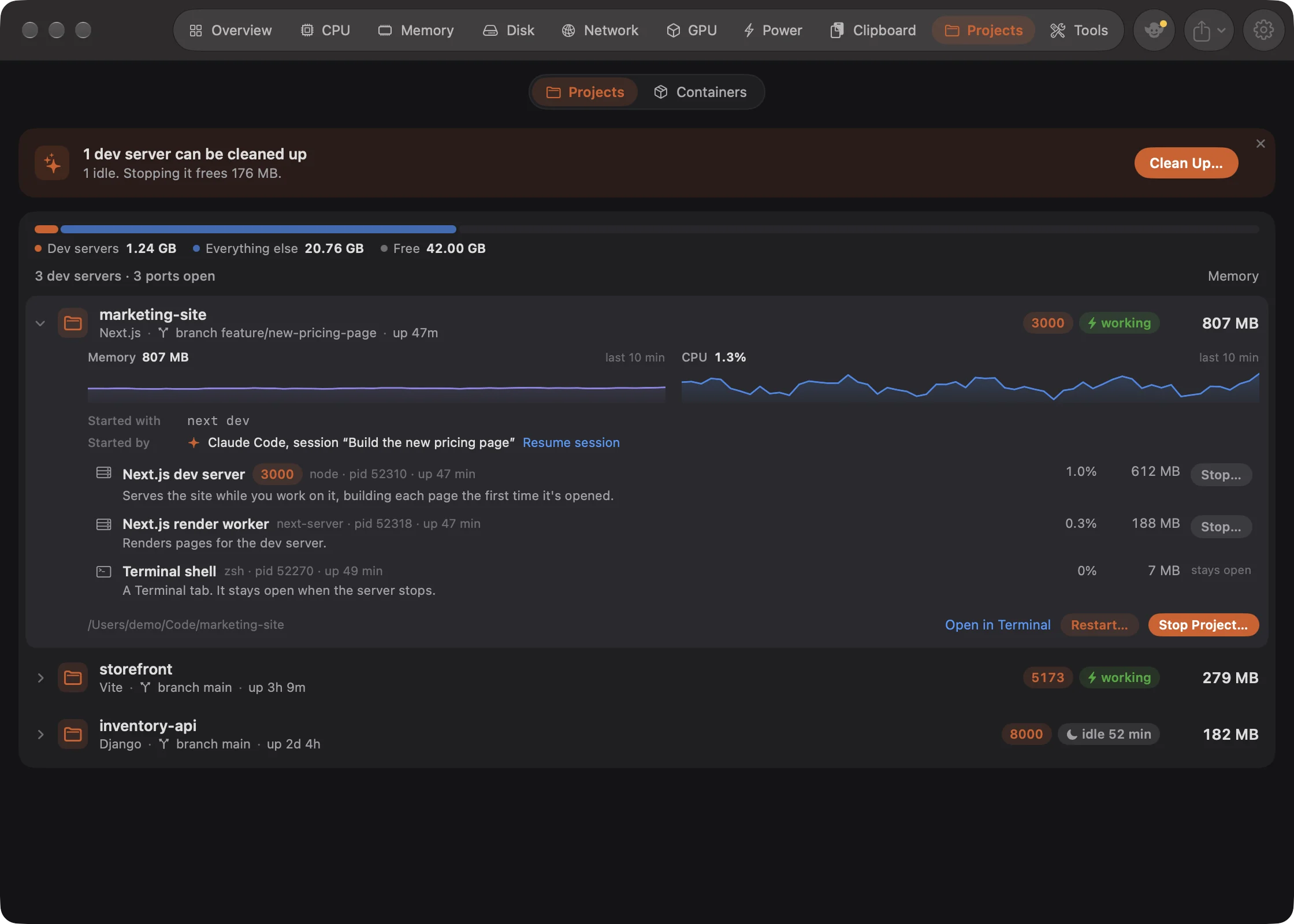
You'll see a memory bar and one row for each dev server, biggest memory first. If nothing is running in a project folder, the tab says "No dev servers running".
New: Coming in the next update. Containers used to be a tab of its own. It is now the second page of this tab, and the switcher only appears when Docker is installed. See Docker containers.
Show projects that aren't shown#
If a server or terminal is running in your Documents, Desktop or Downloads folder, or on another drive, and Goblin hasn't been allowed in there yet, a card at the top of the tab reads Some projects aren't shown.
- Open the Projects tab.
- In that card, click Allow… beside the folder. macOS shows its own prompt.
- Click Allow in the prompt. The row shows On.
For other drives, the card says "External and network drives need Full Disk Access." and its button walks you through it. Close the card with its × to hide it until a different folder needs allowing. More in Permissions.
How Goblin finds projects#
Goblin looks at every process you own and checks the folder it's running in. If that folder, or one above it, holds a file that marks a project, the process belongs to that project. The marker files are:
.git, package.json, Cargo.toml, go.mod, pyproject.toml, requirements.txt, Gemfile, composer.json, mix.exs, Package.swift, deno.json, deno.jsonc, pom.xml, build.gradle, build.gradle.kts, Pipfile, manage.py, pubspec.yaml, bun.lockb and Makefile.toml.
The nearest such folder is the project, but never your home folder itself. A few things are left out on purpose:
- Apps. Anything inside an
.appbundle belongs on the other tabs, so an editor's helpers never get stopped with a project. Language runtimes that ship as an app inside a framework, such as Python, still count. - System folders. Processes running in
/System,/Library,/private,/usr,/bin,/sbin,/opt/homebrew,/usr/local,/Applications,/dev,/cores,~/Library, the Trash,/tmpor/var. - Folders with only a shell open. A Terminal tab sitting in a project isn't a running project.
A process whose folder has since been deleted, or whose git worktree was removed, becomes a project of its own so you can find it and stop it.
Goblin checks every 2 seconds while you're looking, and every minute otherwise.
Dev servers and ports#
A project is a dev server when one of its processes listens on a TCP port. Which ports count is up to you in Settings › Projects under Ports:
| Choice | Ports |
|---|---|
| Usual (default) | 1 to 49151: every port a program can choose for itself. |
| 3000 up | 3000 to 49151, where dev servers usually are. Hides 80, 443 and the like. |
| All | 1 to 65535, including macOS's short-lived ones. |
Projects without a listening port, such as a file watcher, a build or an MCP server, are still listed, under Other processes in project folders.
The list#
At the top, a memory bar shows how much of your Mac's memory goes to Dev servers, Everything else and what's Free. Below it a line counts the servers and open ports, then one row per server, biggest memory first. Other projects follow in a collapsible row, Other processes in project folders: "Not listening on a port: background tools, scripts and terminal shells".
If nothing is running in any project folder, the tab says "No dev servers running" and explains how one appears.
Rows don't move while your pointer is over the list, a hover card or menu is open, or a row is expanded, so what you're about to click stays put.
What a row shows#
- Name: the project's folder name. Rest the pointer on it for a hover card with its figures and status.
- Subtitle: the framework or language for a server ("Next.js", "Vite", "Django", "node", "python"…), or a summary of what's running for other projects, such as "2 MCP servers · 1 terminal shell". Then the git branch, and how long the oldest server has been up.
- Port chips: click one to open
http://localhost:<port>in your browser. - Flags, when something stands out:
- high memory or leaking (amber): over the memory limit you set, or growing fast. Hover for the numbers.
- folder deleted or worktree removed (red): the folder it serves is gone.
- protected (lock): a database. Cleanup never stops it.
- Status:
- working: something in the project is busy right now.
- idle and a time: the server has done nothing for that long.
- up and a time, barely used: up for over a day and hardly ever used.
- Memory for the whole project, amber when it's leaking.
Expanding a row#
Click a row to expand it:
- Memory and CPU charts for the last 10 minutes (servers only). They say "Collecting…" until there are three readings.
- Started with: the command that started the server. You can select and copy it.
- Started by: the coding agent session it came from, such as "Claude Code, session “Fix login”", with Resume session, which opens Terminal and runs
claude --resume '<id>'orcodex resume '<id>', with the session ID in quotes. For Conductor it shows the workspace, with Show workspace. Turn this off with Show which agent started a server in Settings › Projects. - Pull request: the open, merged or closed pull request for the branch. Off until you turn on Pull request for the branch; it uses the GitHub CLI you're signed in to.
- Preview: a preview deployment's state (ready, building or failed). Off until you turn on Preview deployments.
- Deploys to: Railway, Heroku, Cloudflare, Fly.io, Netlify, Vercel or Render, worked out from the files in the folder. Each chip opens that platform's dashboard. Nothing is sent online to find these.
- The processes, each with a plain-language role, its ports, PID, how long it's been up, CPU and memory, and a Stop… button. Terminal shells say "stays open" instead, because stopping a project never closes them.
- A footer with the folder path, Open in Terminal, Restart… and Stop Project….
What the roles mean#
Goblin names each process by what it does rather than its program name. Servers are named after their framework, such as "Vite dev server", "Next.js dev server", "Django dev server", "Rails server" or "Static file server". Databases (Postgres, Redis, MongoDB, MySQL, MariaDB, ClickHouse, memcached) read "Postgres database" and so on. Other processes get names like "MCP server", "Claude Code", "Codex", "Language server", "File watcher", "Terminal shell", "Following a file (tail -f)" or "npm script: dev", with a sentence explaining each one.
If whatever started a process has gone away, its explanation adds "Whatever started it has gone, so it's usually safe to stop."
The context menu#
Right-click (or Control-click) a project for Stop Project…, Restart…, Resume Claude Code Session or Resume Codex Session, Open \<platform\> Dashboard, Show Logs, Show in Finder, Open in Terminal, Open localhost:\<port\> for each port, and Copy Path. Show Logs opens the project in the Log viewer.
When a server counts as idle#
Goblin watches each server for signs of use, so it can tell you about the ones you've forgotten.
- A process is busy when it uses more than 0.5% of a CPU core, or more than 512 bytes a second of network traffic. A project is working while any of its processes, other than shells, is busy.
- A server project shows idle once its servers have done nothing for 15 minutes. If Goblin has never seen it busy since Goblin started, the time counts from when the server started or when Goblin started, whichever is later.
- A server that has been up for more than 24 hours, was never seen busy, and has averaged under 0.2% of a core over its whole life is barely used.
An idle server becomes an idle dev server, which Goblin suggests stopping, once it has been idle for as long as A server is idle after in Settings › Projects: 15 minutes, 30 minutes (the default), 1 hour, 2 hours or 1 day. Barely used servers count straight away. Neither happens when Clean up servers is Off, or for a protected database.
Idle dev servers also appear in the Overview's health banner as "Worth a look", with a Stop It… or Stop Them… button, and are marked "idle" on the Overview's Dev Servers card. See Health and alerts.
Memory leaks#
When Warn about leaking dev servers is on (the default), Goblin flags a server that:
- holds more than 2 GB of memory, or
- grows by 500 MB or more within about 10 minutes, counting from 3 minutes after it started.
Both numbers are yours to change in Settings › Projects. A leaking server's memory turns amber, the menu bar icon turns into a warning sign, and you get one notification with Details, Stop and Snooze buttons. Snooze silences it for 1 hour by default. Leak warnings only run while Watch for apps that misbehave is on in Settings › Alerts.
Stop, restart and open#
Stop a dev server#
- Open the Projects tab (⌘9).
- Right-click (or Control-click) the project and choose Stop Project…. Or click the row to expand it and click Stop Project… in its footer.
- Read the question, "Stop \<project\>?", which says what will be freed.
- Click Stop to ask each process to quit, or Force Quit to end everything at once.
When it worked, a message says what stopped and which ports are free, and the row leaves the list.
Stop Project… stops every process in the project and everything they started, but leaves terminal shells, and their Terminal tabs, open. The question says what will be freed, for example "Stops vite, freeing 412 MB and port 5173." If the project runs a database, it warns that stopping ends its connections.
- Stop asks each process to quit, waits, then forces whatever is still running. The wait is 3 seconds by default; change it under Stopping in Settings › Projects.
- Force Quit ends everything at once, without waiting.
Stop… on a single process works the same way for that process and whatever it started.
Before it stops anything, Goblin checks that each process is still the one it listed. A process that has already ended is skipped, even if macOS has since given its number to a new one, and the message says "\<name\> has already quit."
Restart a dev server#
- Open the Projects tab (⌘9).
- Right-click the project and choose Restart…, or expand its row and click Restart… in the footer.
- In the question "Restart \<project\>?", click Restart. Cancel leaves the server alone.
When it worked, a message says where the server's output is. Restart… stops the servers and starts the same command again in the same folder, with the same environment. Goblin waits up to the stopping time for them to quit, up to 5 more seconds for their ports to free up, then starts them again. Because Goblin starts it, the server then runs in the background: its output goes to a file in ~/Library/Logs/Goblin, named after the project and port, not to the Terminal tab it started in.
Restart can fail when:
- Goblin can't read how the server was started. Stop it here and start it again from its Terminal tab.
- The project's folder is gone, so there's nothing to start. The same message appears when the server had already quit before Goblin could restart it.
- It stopped but couldn't be started again.
Restart… isn't offered when the folder is gone.
Open a dev server in your browser#
- Open the Projects tab (⌘9).
- Click the port chip on the server's row, for example
3000. Or right-click the row and choose Open localhost:\<port\>.
Your browser opens http://localhost:<port>. In the same menu, Open in Terminal opens Terminal in the project folder.
Clean up idle dev servers#
- Open the Projects tab (⌘9). With Clean up servers on Ask (the default), a banner at the top says something like "2 dev servers can be cleaned up".
- Click Clean Up… in the banner.
- In the Clean Up Dev Servers sheet, untick any server you want to keep. Databases are greyed out.
- Click Stop 2 Servers (the count follows your choice).
When it worked, a message says "Stopped \<names\> to free \<memory\>." and the rows leave the list. There's no further question, and servers are asked to quit, not forced.
What happens to idle servers depends on Clean up servers in Settings › Projects:
| Setting | What happens |
|---|---|
| Off | Goblin doesn't suggest stopping servers. |
| Ask (default) | A banner on this tab, such as "2 dev servers can be cleaned up", offers Clean Up…. Its × closes it until the list of servers changes. |
| Automatic | Goblin stops them itself and tells you. |
The candidates are idle dev servers, and servers whose folder or git worktree was deleted (when Also servers whose folder or git worktree was deleted is on, as it is by default). Databases are never candidates. To protect other programs, add their names to Never stopped by cleanup; it starts with postgres, postmaster, redis-server, mongod, mysqld, mysqld_safe, mariadbd and mysql.
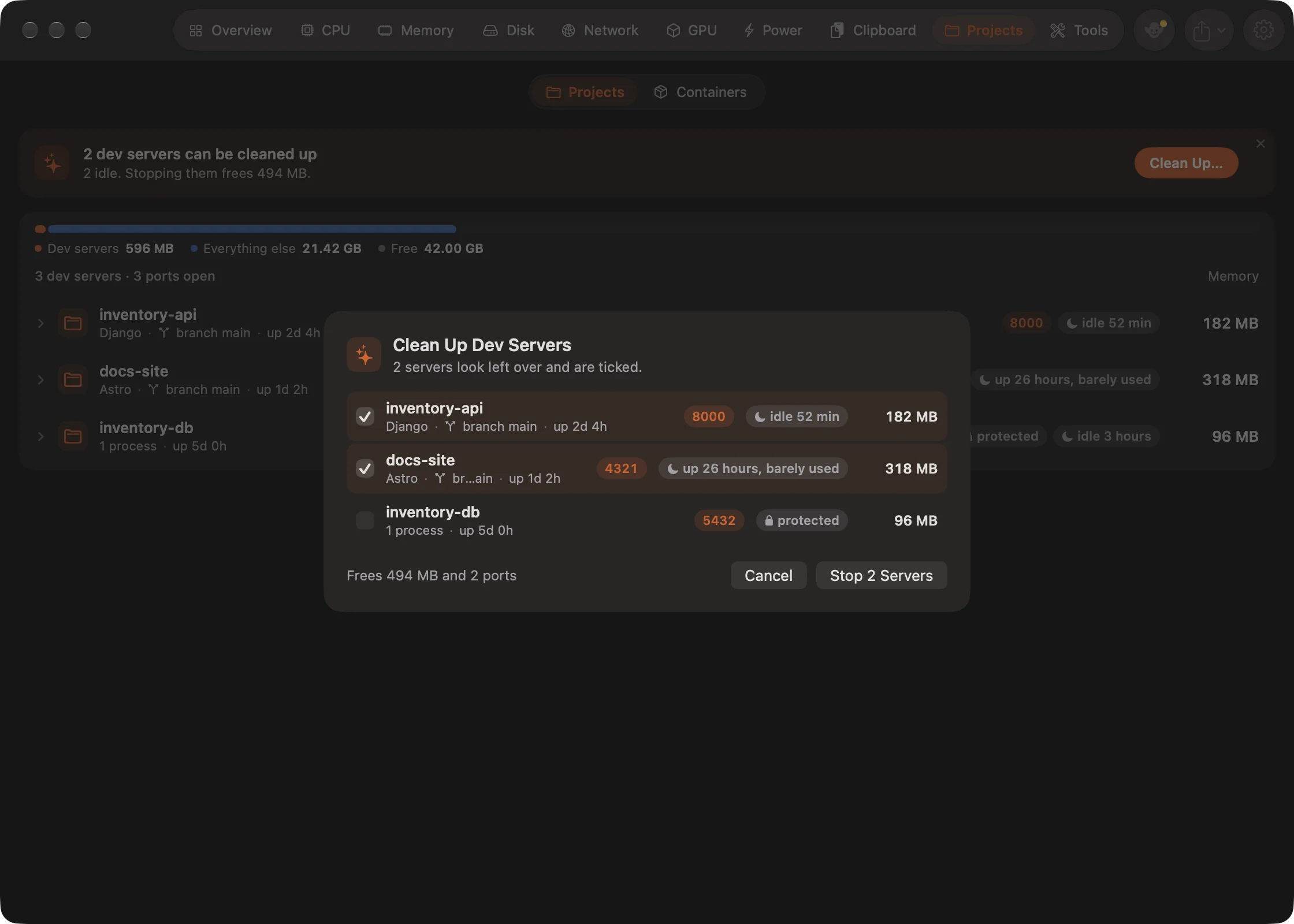
The sheet lists every server that can be stopped, each with a checkbox and the reason it's there (folder deleted, worktree removed, idle). Candidates are ticked for you. The footer shows what you'll free, for example "Frees 1.2 GB and 2 ports".
In Automatic mode, a server that has been a candidate for 20 seconds is stopped politely, and Goblin leaves that project alone for 3 minutes afterwards. A server that is leaking is never stopped automatically: it's left for you to look at. A message says "Stopped \<names\> to free \<memory\>.", and if notifications are on you get "Cleaned up 2 dev servers".
On the Overview#
The Dev Servers card on the Overview lists each project with a listening port, biggest first, with its ports, memory, and "idle" in amber when it's idle. Each row has small buttons to open it in your browser, restart it and stop it; restarting and stopping ask first, as they do here. On that card, the name is taken from the git branch when you're on a feature branch (so feature/new-login shows as "new login"), and from the folder on main, master, trunk, develop or dev. Click the card's header to come here.
In the menu bar panel#
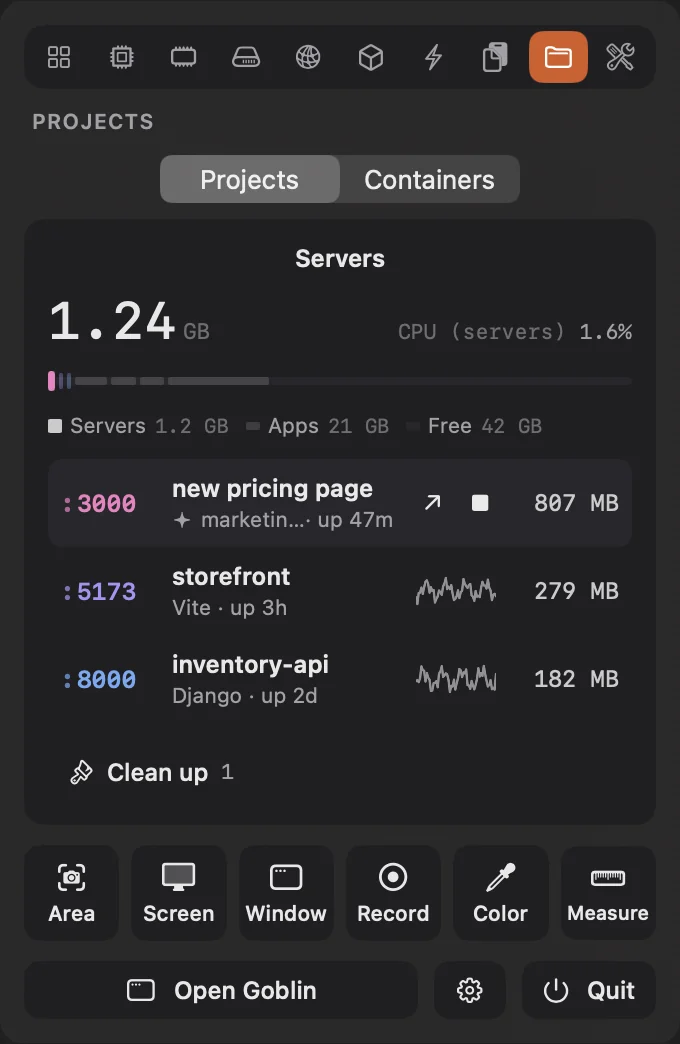
The panel's Projects tab is built for quick stops. At the top, the memory your servers hold, their CPU, and a bar split into Servers, Other apps and Free; point at a part of the bar to see what it is. Each server row shows its port, branch-based name, how long it's been up or idle, a memory trend line and its memory. Point at a row for two buttons: open it in the browser, and Stop, which stops it straight away without asking.
Click a row for its details: the port, how long it has run, restart and stop buttons (which also act without asking), the session, branch, framework, command, pull request, deploy targets, address and open connections, memory and CPU charts for the last 10 minutes (the memory chart marks your leak limit), and the processes. The footer has Open localhost:\<port\> and a … menu with the other ports, Copy URL, Copy Command, Open in Terminal, Show in Finder, Show Logs and each Open \<platform\> Dashboard.
Clean up at the bottom of the list ticks the servers that look left over and lets you change the choice; then Stop 2 servers · free 1.2 GB stops them. If nothing is listening, the tab says "Nothing listening".
New in 1.1: Stopping a server with one click from the panel or a notification plays a short sound. Turn it off with Sound effects in Settings › General.
From Terminal#
The goblin command lists, opens, stops and restarts the same servers from Terminal, and goblin cleanup stops the idle ones. Install it from Settings›Projects›Command Line. See The goblin command.
Ask Goblin about a dev server#
“List Dev Servers” lists current project paths and ports. Use an exact unique project name or its full path with “Inspect Dev Server”, “Open Dev Server Folder”, “Show Dev Server Logs” or “Open Dev Server in Terminal”. “Open Dev Server Port 3000” accepts a currently listed port; opening it does not verify a server response.
“Review Stop Dev Server Exact Name”, “Review Restart Dev Server Exact Name” and “Review Dev Server Cleanup” refresh the native project targets and prepare the existing confirmations. Confirm there to stop or restart the displayed processes. Restart uses the native captured launch and environment; Goblin does not accept a generated launch command. Protected projects and unavailable targets are rejected.
“List Dev Server Processes Exact Project” returns PID:uniqueID process identities. “Review Stop Dev Server Process {"projectPath":"/absolute/project","processID":"PID:uniqueID"}” prepares the existing process confirmation and rejects stale or protected targets.
“Read Dev Server Settings” reads current native configuration. “Review Dev Server Settings {"cleanup":"ask","portMin":1,"portMax":49151}” validates typed settings before review. Other optional fields include idle time, protected process names, leak thresholds, shutdown grace and native agent/GitHub/deployment switches. The review calls out automatic cleanup and external lookup. Every requested field is checked by readback.
“List Dev Server Sessions and Deployments Exact Project” returns native session and deployment IDs. “Review Resume Dev Server Session {"projectPath":"/absolute/project","sessionID":"ID"}” shows the native captured command and folder for confirmation, then revalidates the session. “Open Dev Server Deployment Dashboard {"projectPath":"/absolute/project","deploymentID":"ID"}” opens an existing native dashboard URL. Generated launch commands are never accepted.