 Goblin
 keeps itself up to date. It checks for a new version in the background, downloads it, makes sure it really comes from Higher Bar Apps, and installs it when you're not looking at Goblin, so an update never interrupts you. There's no update dialog: everything about updates lives at the top of Settings › General.
Check for an update now#
- Open Settings›General. The update card is at the top.
- Click Check Now. The status line reads "Checking for updates…".
- If there's a newer version, Goblin downloads and installs it, then quits and opens again. If not, the line reads "Up to date" with the time it checked.
The quicker way is the Goblin menu in the menu bar: choose Check for Updates…. It does the same, but shows nothing unless an update is found, so look at the update card for the result.
How automatic updates work#
- About 45 seconds after Goblin starts, and every 6 hours after that, it asks macgoblin.com whether there's a newer version for your version of macOS.
- If there is, and Update automatically is on, it downloads the update and checks it: the download must match the checksum the update server announced, and the app inside must be Goblin, signed with Higher Bar Apps' Developer ID. If either check fails, nothing is installed.
- The update waits until nothing of Goblin is on screen: no main window, no panel, no Settings. It also waits while you have a changed per-app volume or mute setting on an app that is playing audio, while that app's playback activity cannot be established, while you've asked to be told when an app is done, or while a Keep Awake session is running, since restarting would end it. Goblin looks every 30 seconds.
- Then it installs the update and starts again in the menu bar. If you quit Goblin while an update is waiting, it installs as Goblin quits.
New: Coming in the next update. Saved volume or mute changes on inactive apps no longer hold up quiet updates. Active or uncertain playback still makes the update wait.
New: Coming in the next update. Quitting always finishes. If putting your displays' settings back (something Goblin does on the way out) can't be completed, because a display or the system helper isn't answering, Goblin quits anyway after three seconds. Before, a quit like that could hang, and an update waiting for Goblin to quit waited for it forever.
New: Coming in the next update. Smaller downloads.
On a Mac with Apple silicon, Goblin downloads a version built just for that chip, about a third smaller than the one that also runs on Intel. When the update server offers it, a later update can arrive as a small patch that rebuilds the new version from the one you have, instead of the whole app. A patch is checked the same way as a full download, and if it can't be applied Goblin falls back to the full one.
Goblin can only replace itself when it runs from a folder you can write to, such as Applications. A copy running from the disk image, or one macOS has quarantined in place because it was never moved out of Downloads, shows a Download button instead. See Installing Goblin.
The update card#
The first card in Settings›General shows Goblin's version and build, and what the updater is doing.
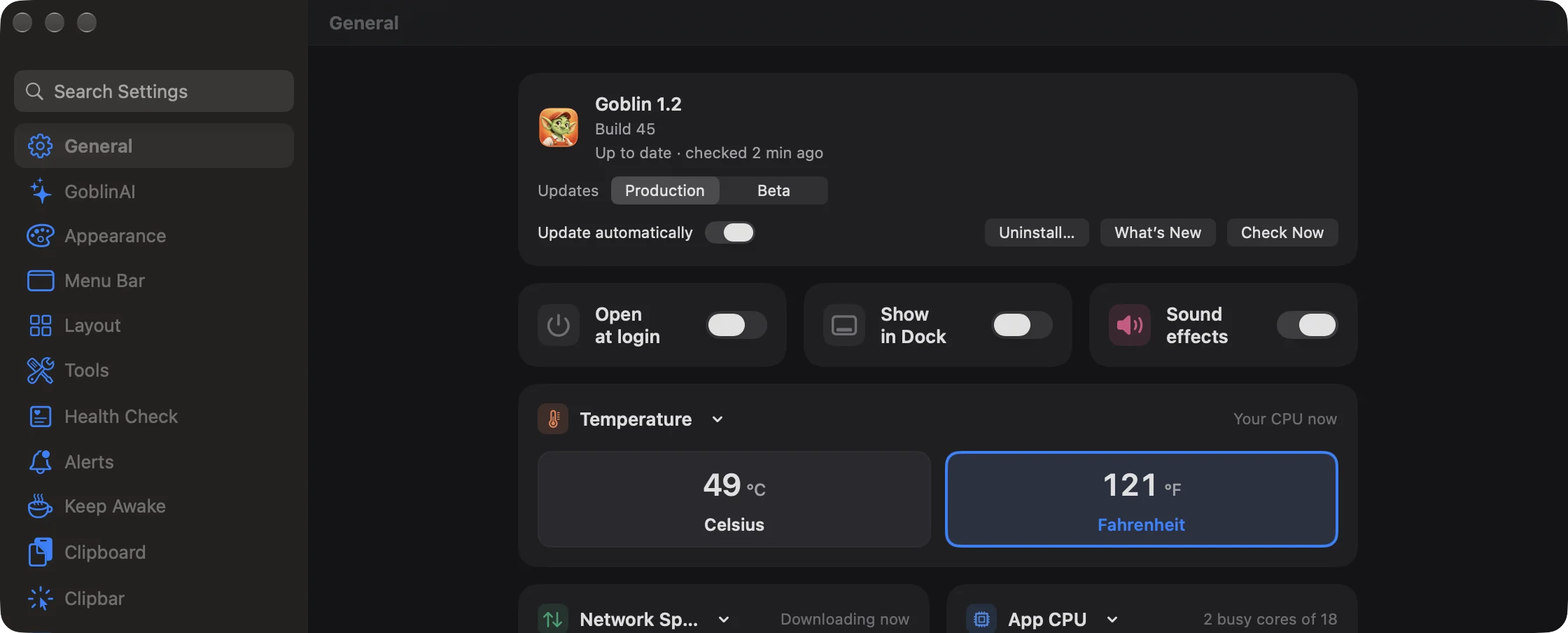
| Setting | What it does | Default |
|---|---|---|
| Update automatically | Downloads and installs new versions by themselves, as described above. Off, a new version only shows as available here. | On |
Turning Update automatically on while a new version is waiting downloads and installs it straight away, and restarts Goblin.
Turn automatic updates off#
- Open Settings›General.
- Turn Update automatically off.
A new version then only shows as available. When you want it, click Install on the card.
Switch to the Beta channel#
New: Coming in the next update. Update channels.
- Open Settings›General.
- Next to Updates, click Beta. Click Production to go back.
- To choose when betas install, turn Install betas automatically off. It appears only on Beta, and needs Update automatically on.
Next to the build number is an Updates switch with two channels:
| Channel | What you get |
|---|---|
| Production (default) | Finished releases only. |
| Beta | Early versions to try before everyone else, as well as every finished release. |
Going back to Production keeps the version you have, beta or not, until a newer finished release comes out. A beta waiting to be installed is dropped when you switch back.
On Beta, Install betas automatically appears (on by default; it needs Update automatically on). Turn it off and betas wait for you to choose Install, while finished releases still install on their own. Check Now always installs the newest version on your channel. A beta is labeled with its build, such as "1.2 beta (build 45)".
The button beside it changes with the state:
| Button | When it shows | What it does |
|---|---|---|
| Check Now | Normally | Checks right away. If there's a newer version, Goblin downloads and installs it at once, then restarts. |
| Install | A new version is available and automatic updates are off | Downloads and installs it now. |
| Download | A new version is available, but this copy can't replace itself | Opens macgoblin.com so you can download it. |
| Restart Now | An update is downloaded and waiting | Installs it now and restarts Goblin. |
The status line reads, for example:
- "Checking for updates…" or "Downloading 1.2…"
- "1.2 is ready. It installs the next time Goblin is out of sight or quits."
- "Version 1.2 is available." (or "…available on the download page." when this copy can't replace itself)
- "Up to date · checked 2 hours ago"
- "Couldn't reach the update server. Check your connection and try again." (only after Check Now)
- "Couldn't download Goblin 1.2. It will try again later."
- "The download didn't match what the update server announced, so it wasn't installed."
- "The download isn't signed by Higher Bar, so it wasn't installed."
Update from the banner#
New: Coming in the next update. The update banner.
- When the banner appears (top of the panel, bottom of the window), click Update.
- Goblin installs the new version and reopens. Click Later instead to hide the banner for that version.
While a newer version is waiting on you, a banner says so, at the top of the menu bar panel and at the bottom of Goblin's window. It shows when an update has downloaded while you were using Goblin (otherwise it would install the next time Goblin is out of sight or closed), or when a version is only on offer because Update automatically is off, betas are set to wait for Install, or this copy can't replace itself.
| Banner | What it says | Update does |
|---|---|---|
| Goblin 1.2 is ready | Update quits and reopens Goblin with it. Otherwise it installs the next time Goblin closes. | Installs it now. |
| Goblin 1.2 is available | Update downloads it, then quits and reopens Goblin. | Downloads and installs it. |
| Goblin 1.2 is available (this copy can't update itself) | This copy can't update itself where it is. | Opens the download page. |
| Downloading Goblin 1.2… | This takes a moment. | (Nothing to click.) |
Later hides the banner for that version in both places. A ready update still installs by itself when Goblin closes; the update card in Settings can install any other one whenever you like.
The card also has Uninstall… (see Uninstalling Goblin) and What's New.
What's New#
To read what changed, open Settings›General and click What's New. Or choose What's New in Goblin from the Goblin menu, What's New from the menu bar item's right-click menu, or use Settings›Help & Feedback.
What's New in Goblin shows the release notes from macgoblin.com, with your version marked. It opens by itself the first time you open the main window after an update to a new version. (A rebuild of the same version shows a short "Goblin updated to" message at the bottom of the window instead.) It doesn't open after a fresh install.
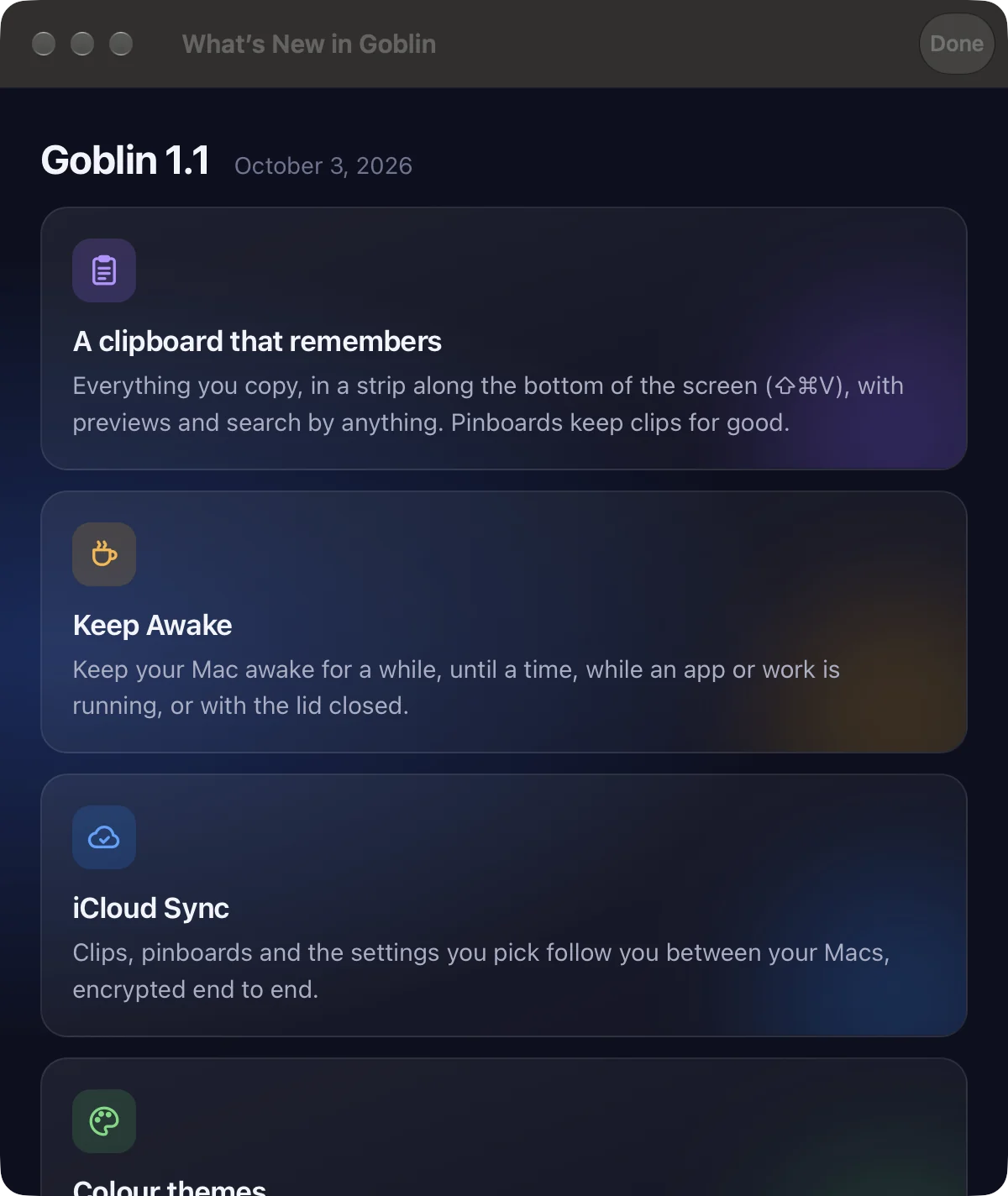
Links in the notes open in your browser. Click Done or press Return to close it. Without a connection it says What's New is unavailable and offers Open in Browser.
What goes online#
The update check fetches a small file from macgoblin.com. What's New loads a page from the same site and tells it your Goblin version, so the page can mark it. Nothing else about you or your Mac is sent. See Privacy and data.