 Goblin
 can be scripted with AppleScript, so Script Editor, a launcher or automation app, the Shortcuts Run AppleScript action or osascript in Terminal can control Keep Awake. A script can do what the Keep Awake card does: start a session, extend it, end it, and say whether one is running.
Only Keep Awake is scriptable. The clipboard has no AppleScript commands; to reach it from a script, use goblin://clip links, the goblin clip command (for example through do shell script) or the Shortcuts actions.
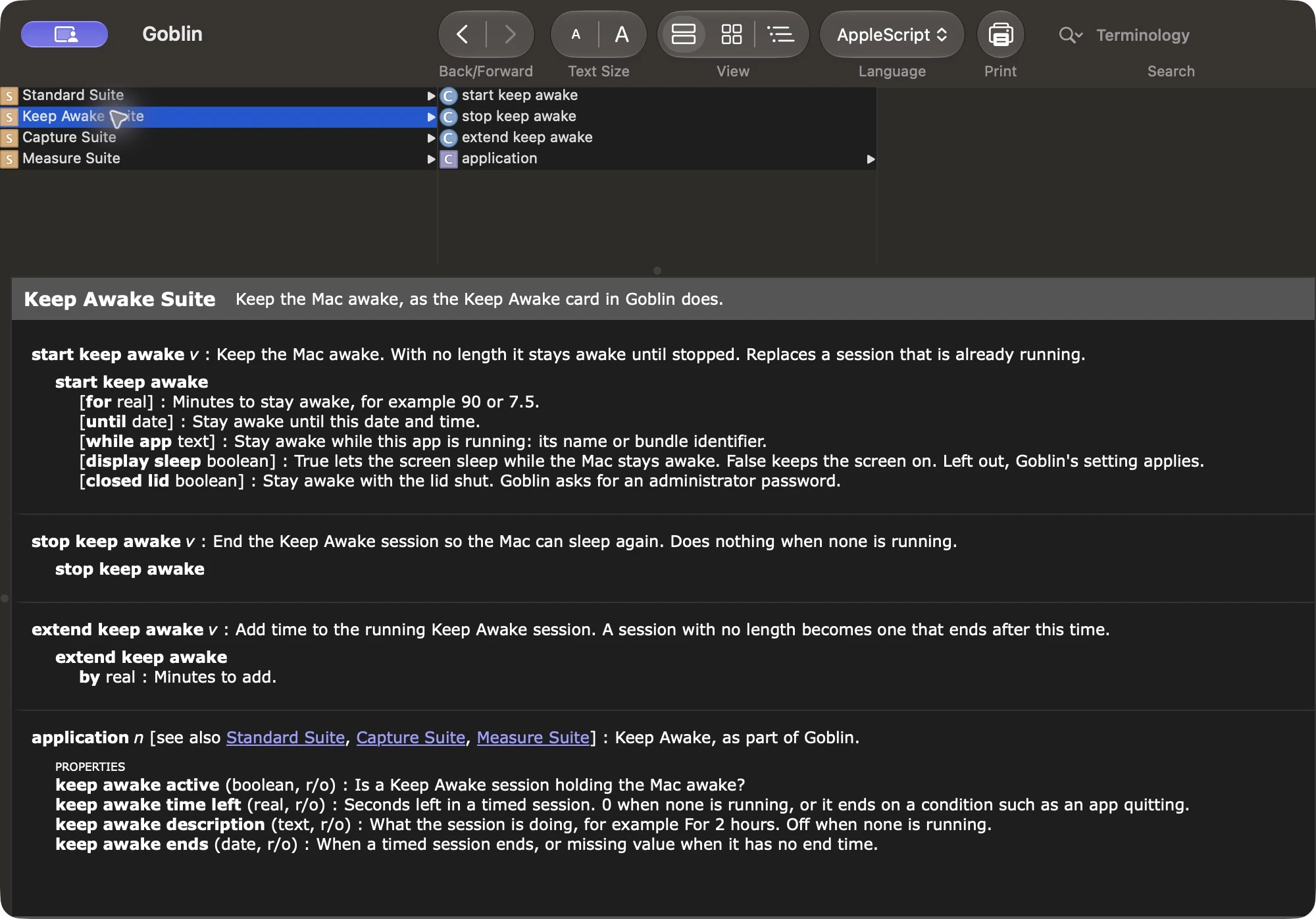
To see the dictionary yourself, open Script Editor, choose File›Open Dictionary… and pick Goblin.
Run a script#
- Open Script Editor (in Applications›Utilities).
- Choose File›New.
- Paste the script below.
- Click the Run button ▶ in the toolbar.
tell application "Goblin"
    start keep awake for 90 with display sleep
    if keep awake active then display dialog keep awake description
    extend keep awake by 30
    stop keep awake
end tell
This starts a 90-minute session that lets the screen sleep, shows a dialog that says "For 1 hour 30 minutes", adds 30 minutes, then ends the session. The first time, macOS asks whether Script Editor may control Goblin: click OK.
To run a script from Terminal instead, use osascript:
osascript -e 'tell application "Goblin" to start keep awake for 45'This starts a 45-minute session and prints nothing. In the Shortcuts app, the Run AppleScript action runs the same text.
If Goblin isn't running, the script starts it. A session started from a script shows in the Keep Awake card and the menu bar like any other, and follows the same rules: it ends by itself when the battery runs low or the Mac gets too hot, and it ends when Goblin quits.
start keep awake#
Starts a session. Without a length it lasts until you stop it. A session that's already running is replaced.
| Parameter | Value | What it does |
|---|---|---|
for | Minutes, as a number such as 90 or 7.5 | Stays awake that long. |
until | A date | Stays awake until that date and time. |
while app | An open app's name or bundle identifier, such as "Safari", "Safari.app" or "com.apple.Safari" | Stays awake until that app quits. |
display sleep | true or false | true lets the screen sleep while the Mac stays awake; false keeps the screen on. |
closed lid | true or false | Stays awake with the lid shut. macOS asks for your administrator password. See Closed-lid mode. |
Give one of for, until or while app, not more. Lengths go up to 30 days. AppleScript writes the two true-or-false parameters as with and without:
tell application "Goblin"
    start keep awake for 120 without display sleep
    start keep awake until (current date) + 2 * hours
    start keep awake while app "Xcode"
    start keep awake with closed lid
end tell
In order, these keep the screen on for two hours; stay awake until two hours from now; stay awake while Xcode is open; and stay awake with the lid closed until you stop it (macOS asks for your password). Each replaces the session before it, so run them one at a time.
Anything you leave out comes from your defaults in Settings › Keep Awake, as with links and Shortcuts.
stop keep awake#
Ends the session, whoever started it, so the Mac can sleep again. It does nothing when no session is running.
extend keep awake#
tell application "Goblin" to extend keep awake by 30This adds 30 minutes to the running session and prints nothing. It adds that many minutes to the running session. A session with no end time becomes one that ends that long from now. A session that ends when an app quits or when work finishes can't be extended.
What a script can read#
These belong to the application, and a script can only read them:
| Property | Type | What it says |
|---|---|---|
keep awake active | boolean | Whether a Keep Awake session is holding the Mac awake. |
keep awake time left | real | Seconds left in a timed session. 0 when none is running, or when the session ends on a condition such as an app quitting. |
keep awake description | text | What the session is doing, such as "For 2 hours" or "While Xcode is running". "Off" when none is running. |
keep awake ends | date | When a timed session ends, or missing value when it has no end time. |
name, version, frontmost | text, text, boolean | The usual application properties. |
For example, to show the time left in minutes:
tell application "Goblin"
    if keep awake active then
        set minutesLeft to round ((keep awake time left) / 60)
        display notification (minutesLeft as text) & " minutes left" with title "Keep Awake"
    end if
end tell
This shows a notification such as "74 minutes left" with the title "Keep Awake", and does nothing when no session is running. quit quits Goblin, and a running session ends with it.
When something goes wrong#
A command that can't do what it was asked stops the script with an error you can catch with try:
| Message | Number | When |
|---|---|---|
| "The length must be between a second and 30 days, in minutes." | -50 | for or by is too small or not a number. |
| "Keep Awake sessions can't be longer than 30 days." | -50 | The length or the until date is more than 30 days away. |
| "The time to stay awake until has already passed." | -50 | until is in the past. |
| "Give one of for, until or while app, not several." | -50 | More than one length. |
| "The app name or bundle identifier is empty." | -50 | while app "". |
| "<app> isn't running." | -50 | while app names an app that isn't open. |
| "Keep Awake isn't on." | -10500 | extend keep awake with no session running. |
| "A session that ends when an app quits or work finishes can't be extended." | -10500 | extend keep awake on such a session. |
| Goblin's reason, such as "Not started: the battery is at 8%." | -10501 | The session couldn't start because of a battery or heat rule. |
tell application "Goblin"
    try
        extend keep awake by 15
    on error message
        display dialog message
    end try
end tell
With no session running, this shows a dialog that reads "Keep Awake isn't on." instead of stopping the script with an error.
The first time an app sends commands to Goblin, macOS may ask whether that app may control Goblin. You can change your answer later in System Settings › Privacy & Security › Automation.