 Goblin
The Temperatures & Fans page of the Power tab shows how warm your Mac is inside: the processor, the graphics, the battery and the SSD, the fans, and how much power the Mac is drawing. It also tells you when macOS is slowing the Mac down to cool it, and which apps are making the heat. Use it when the fans are loud, the Mac feels hot, or it seems slow. Goblin only reads temperatures and fans; it doesn't change fan speeds.
New: Coming in the next update. This used to be a tab of its own. Battery and Thermals are now pages of one Power tab, with Keep Awake as the third. Anything that remembered the old Thermals tab opens this page.
Check how hot your Mac is#
- Click Power in the tab bar of the main window, or press ⌘7.
- In the switcher at the top of the tab, click Temperatures & Fans.
- Read the big figure: the processor's temperature. The chip beside the bar is macOS's verdict (Normal, Warm, Hot, slowing down or Very hot, slowing down).
- Scroll down for each part's sensors, the fans, and the apps making heat.
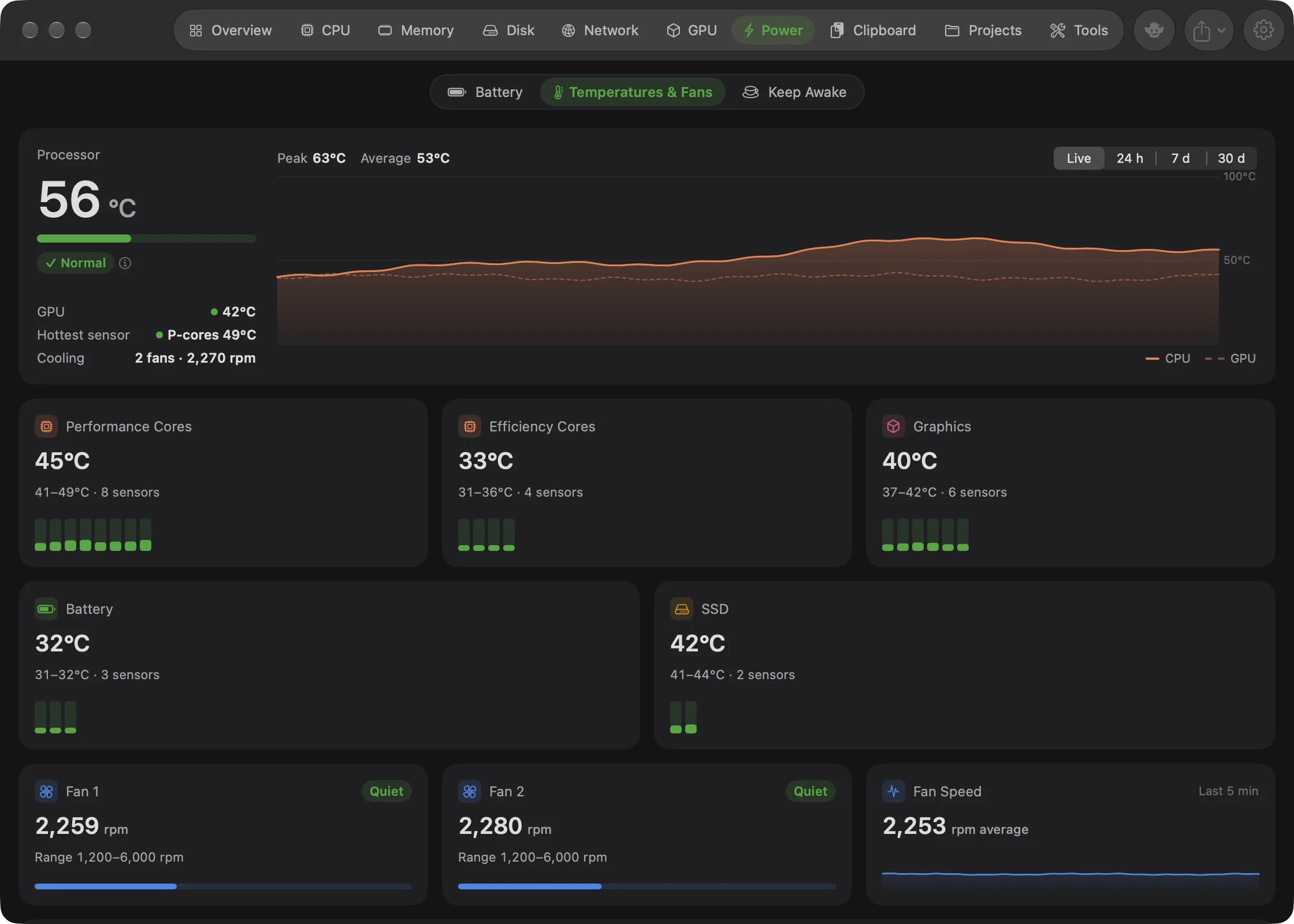
When it worked, you see a temperature in green below 70 °C. If a red strip across the top says Your Mac is hot and slowing itself down, macOS is already slowing the processor; see the next section. Goblin shows the page even when your Mac reports no sensors. It then says so and shows macOS's level only.
Switch between Celsius and Fahrenheit#
- Open Settings (⌘,) and click General.
- In the Temperature card, click Celsius or Fahrenheit.
Every temperature in Goblin changes at once. The default follows your Mac's region.
When macOS slows the Mac down#
When the Mac gets too hot, macOS slows the processor down until it cools. While that happens, a red strip at the top of the tab says Your Mac is hot and slowing itself down, or Your Mac is very hot and slowing itself down at macOS's highest level. Quitting an app you don't need, or giving the Mac more air, helps.
macOS has four levels, shown in a chip throughout Goblin:
| macOS level | Chip | What it means |
|---|---|---|
| Nominal | Normal (green) | All is well. |
| Fair | Warm (orange) | Warmer than usual, but not slowed down. |
| Serious | Hot, slowing down (red) | macOS is slowing the processor to cool it. |
| Critical | Very hot, slowing down (red) | Slowing it a lot. |
Processor temperature#
The big figure is the processor's temperature: the average of every core sensor that has a reading. The bar under it fills from 20 °C to 105 °C and changes color:
| Temperature | Color |
|---|---|
| under 70 °C | Green |
| 70–87 °C | Orange |
| 88 °C and above | Red |
The same colors are used for every temperature in Goblin. Next to the bar is the chip with macOS's level; click the ⓘ beside it for an explanation.
| Row | What it shows |
|---|---|
| GPU | The graphics processor's temperature. |
| Hottest sensor | The single hottest reading, and where it is, such as "P-cores 71°C". |
| Cooling | The fans: for example "2 fans · 2,300 rpm", "1 of 2 fans · 2,300 rpm", Fans off, or No fans. |
The chart#
Choose Live (the last few minutes), 24 h, 7 d or 30 d. The processor is drawn as a solid line and the graphics processor as a dashed one. Above the chart are the Peak and Average processor temperature for that time. Longer ranges come from Goblin's history, so they only cover time when Goblin was running.
Sensor groups#
Below the main card, one card for each part of the Mac that has sensors:
- Performance Cores and Efficiency Cores (on some newer chips, Processor Cores), or Processor on Intel Macs
- Graphics
- Battery
- SSD
- Wi-Fi
Each card shows the group's average temperature, the range across its sensors and how many there are, such as "64–78°C · 12 sensors". A strip draws one small bar per sensor. Rest the pointer on a bar to see that sensor alone, for example "Sensor 3 of 12 · 71°C".
Cores that are asleep report no real temperature, so Goblin leaves them out. That means a group's sensor count changes as cores sleep and wake, and a group can disappear for a moment when all its cores are asleep. Some groups say Idle or "No reading while idle" instead of a temperature.
Goblin finds the sensors once, when it starts. Temperatures are read every 2 seconds while a Goblin window or the panel is open, and less often otherwise.
Some Macs give apps no temperature sensors at all. The tab then says This Mac doesn't report its temperatures, and still shows macOS's level, because macOS slows the Mac down when it's too hot whether or not Goblin can read a temperature.
Fans#
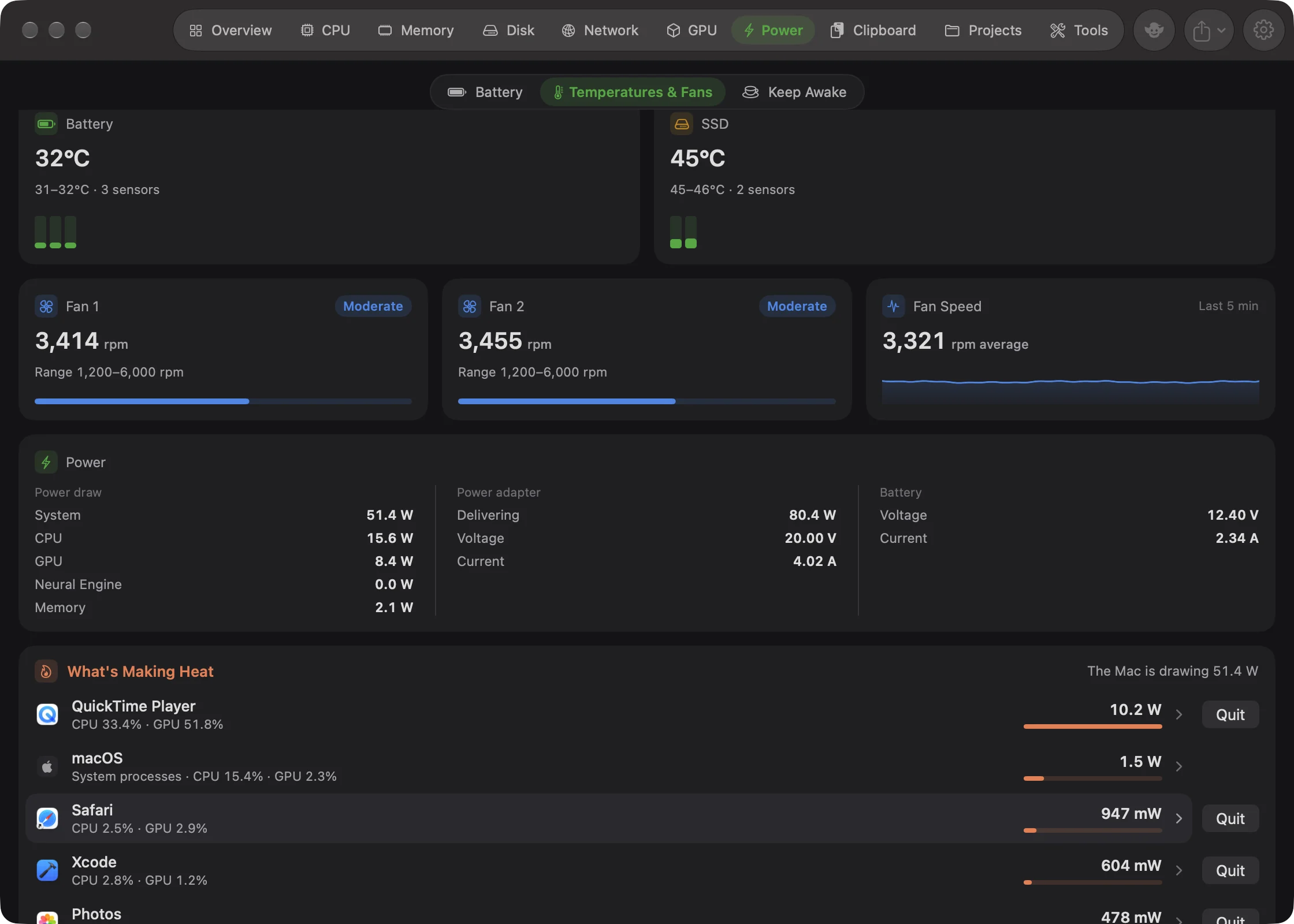
One card per fan (Fan, or Fan 1, Fan 2…), each with its speed in rpm, or Off. A chip describes the speed against the fan's top speed: Quiet under 40%, Moderate under 75%, Fast above. Under it is the fan's range, such as "Range 1,200–6,500 rpm".
The Fan Speed card shows the average speed of the fans over the last few minutes, with a small chart.
A Mac without fans, such as a MacBook Air, says "This Mac has no fans; it cools silently and slows down if it gets too hot." If Goblin can't tell, it says "This Mac doesn't report its fans."
Power#
The Power card shows what the Mac reports about its power. It only appears when there's more than the whole-Mac figure to show. Up to three columns:
| Column | Rows |
|---|---|
| Power draw | System (the whole Mac), Processor, Graphics, Neural Engine, Memory, in watts. |
| Power adapter | Power in (watts), Voltage, Current. |
| Battery | Voltage, and Current: positive while charging, negative while running on the battery. |
Goblin only shows a reading when it makes sense; a part it can't read fully is left out rather than shown too low. These figures only update while Goblin is on screen, and the per-part rows appear from the second reading.
Find out which apps are making the heat#
On the Temperatures & Fans page, scroll to the last card. Click an app's row to open its details, or click Quit to quit it; Goblin asks first.
The card lists up to five apps drawing the most power, highest first. macOS's own processes count together as one row. Its title is What's Making Heat, or Keeping the Fans On when macOS reports anything warmer than normal or the processor is above 80 °C. Next to the title, The Mac is drawing gives the whole Mac's power.
Each row shows how much processor and graphics the app is using and its power in watts. When you quit from a row, Goblin asks first, and Force Quit is in that question.
Every watt ends up as heat. Apps count only their own processor and graphics work; the display and other parts draw the rest. On Intel Macs without power counters, an app's watts are an estimate from its processor use, marked with ≈. All Apps by Power opens the Battery page with every app.
In the menu bar panel#
The panel's Power tab, on its Temperatures & Fans page, shows the processor temperature with its chip and a short chart, the GPU temperature, the hottest part (named for where it is, such as CPU, with Hottest beside it), each fan, and the three apps making the most heat. Click an app to open it in the main window. See The menu bar panel.
Get a warning when the Mac runs hot#
Two things tell you when the Mac is too hot. The status banner needs nothing from you. For the notification:
- Open Settings (⌘,) and click Alerts.
- In the Watch your Mac card, find The Mac is running hot and turn it on (it's on by default).
- Use the Temperature stepper to choose when it warns, from 70 to 105 °C in steps of 5.
What each one does:
- The status banner says Your Mac is hot and slowing itself down while macOS is slowing it, and offers to quit the busiest app. It has a small × in its corner; once closed, it stays closed until the Mac cools and heats up again.
- The Mac is running hot in Settings›Alerts sends a notification when the processor stays at or above 95 °C for two minutes, or macOS slows it down. You can set the temperature from 70 to 105 °C. It's on by default, comes at most once an hour, and names the busiest app.
Details are on Health and alerts.