 Goblin
Keep Awake stops your Mac from going to sleep while you need it, then lets it sleep again. Use it for a long download, a build, a presentation, a backup, or a coding agent working through a task. You pick how long: a set time, until a clock time, until you turn it off, or while something is still happening. Goblin calls each of these a session, and only one runs at a time: starting a new one replaces the one that's running.
Where you find it#
- The Keep Awake card in the menu bar panel: click Goblin's menu bar item, open the Power tab, and look under the battery figures. (The panel's first page there is called Battery, or Power on a Mac without a battery.)
- The Keep Awake page of the Power tab in Goblin's window has the same card, plus your three most recent sessions and a Keep Awake Settings… button. Open the window's Power tab with ⌘7, then click Keep Awake at the top.
- The Tools tab has a Keep Awake card with the same switch and Start menu.
- Settings›Keep Awake holds every option. See Keep Awake settings.
- An icon in the menu bar appears while a session runs: a cup unless you choose another, such as a mug, a bolt or a light bulb. You can also add a separate Keep Awake menu bar item with its own menu, or use the Keep Awake section in the menu a right-click on Goblin's item opens. All three are on the settings page.
- A keyboard shortcut, links, the
goblincommand, AppleScript, Shortcuts and AI assistants can all start and stop sessions. See Automate it below.
Start a session#
Pick the way that fits. They all start the same kind of session; only the stop condition differs.
- Click Goblin's menu bar item to open the panel, then click the Power tab (or press ⌘7).
- Find the Keep Awake card under the battery figures. It reads Off.
- Click Start.
- Choose how long: Indefinitely, or a length from Minutes or Hours.
The card now shows the time left in large figures and a line such as "Until 6:30 PM · Screen on", and Goblin's menu bar item shows the Keep Awake icon. Your Mac won't sleep until the time runs out or you end the session.
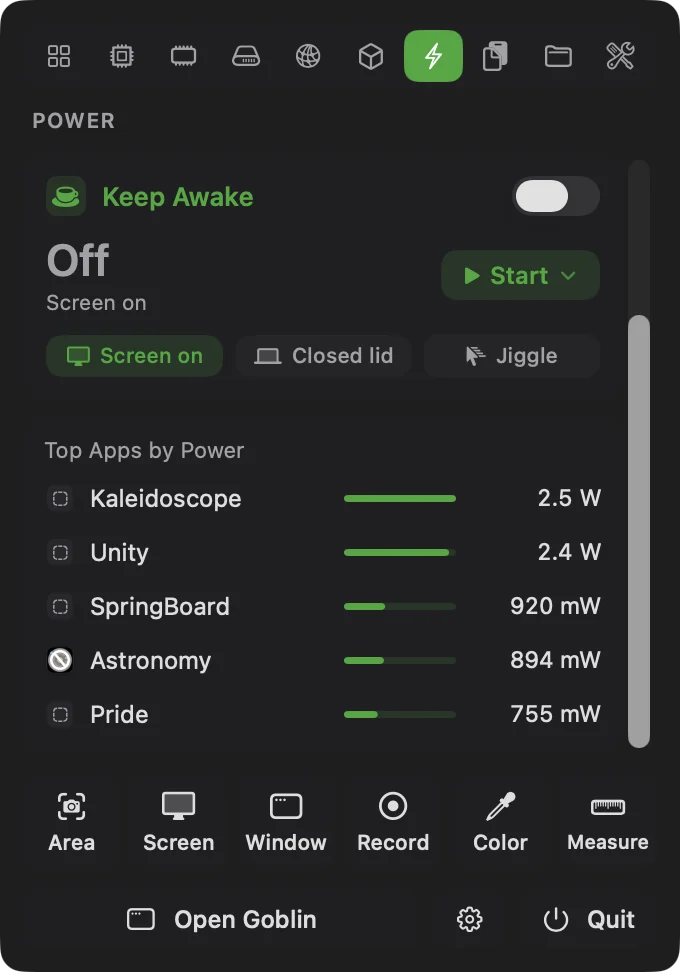
The quickest way is the switch at the top right of the card. Switching it on starts a session that lasts Indefinitely, until you switch it off, with your default options.
In Goblin's window, do the same on Power›Keep Awake. The card and menu are identical.
The Start menu has these choices:
| Choice | What it does |
|---|---|
| Indefinitely | Keeps the Mac awake until you end the session. |
| Minutes › | 5, 10, 15, 30 or 45 minutes. |
| Hours › | 1, 2, 3, 4, 5, 6, 8 or 12 hours. |
| Until a Specific Time… | Asks for a clock time and stays awake until then. |
| While a File Is Downloading › | Any Download, one of the files downloading now, or Choose File… to pick one. Ends when the download finishes. |
| While an App Is Running › | Lists every open app with its icon. Ends when that app quits. |
| While Work Is Running | Stays awake while coding agents, builds, dev servers or a Time Machine backup are running. |
You can change the numbers in Minutes and Hours under Settings›Keep Awake›Start Menu.
You can also start from the separate Keep Awake menu bar item, or the right-click menu on Goblin's item (Start New Session), or by saying "keep my computer awake for 3 hours" to your Goblin; see Ask Goblin.
Keep awake until a clock time#
- On the Keep Awake card, click Start.
- Choose Until a Specific Time….
- In the small window that opens, set the time. It starts an hour from now. The line under the picker shows exactly when the session will end, and says "tomorrow" if the time has already passed today.
- Click Start, or press Return.
The card shows "Until" and your time. Clock times, here and on the card, follow Clock under Settings›Keep Awake›Menu Bar: the Mac's own setting unless you pick 12-hour or 24-hour.
While a file is downloading#
Use this when a browser or download app is fetching something big and you want the Mac to stay awake until it's done.
- On the Keep Awake card, click Start.
- Point at While a File Is Downloading.
- Choose Any Download to cover everything in your Downloads folder, or pick one of the files listed. To pick a file that isn't listed, choose Choose File… (see below).
The card reads "While a download finishes" or "While <file> downloads", and the session ends by itself when the download is done.
Any Download watches your Downloads folder and keeps the Mac awake while anything in it is still downloading. A file counts as downloading when:
- its name ends the way browsers and download apps name unfinished files:
.download(Safari),.crdownload(Chrome, Brave, Edge, Vivaldi),.part(Firefox),.partial,.opdownload(Opera),.aria2,.!qB(qBittorrent) or.!ut(uTorrent), or - it is still growing: its size changed in the last 30 seconds.
When nothing has been downloading for 20 seconds, the session ends.
The card lists the files downloading now only when Goblin has Full Disk Access; without it you see Any Download alone, so that looking at the card never makes macOS ask about your Downloads folder. To watch a different folder, change While a File Is Downloading›Watch in Keep Awake settings.
Wait for one particular file#
Choose File… works with or without Full Disk Access.
- Click Start›While a File Is Downloading›Choose File….
- In the file window titled "Choose the file to wait for", pick the file. It opens in the watched folder.
- Click Keep Awake.
The card reads "While <file> downloads". The chosen file counts as downloading while its name has one of the unfinished endings above, while a twin with such an ending sits next to it (such as Big.zip.download for Big.zip), or while it's still growing. The separate Keep Awake menu bar item has the same Choose File….
While an app is running#
Use this to keep the Mac awake as long as one app is open, for example a video editor or a game.
- Open the app you want to wait for.
- On the Keep Awake card, click Start.
- Point at While an App Is Running and click the app. Each app is listed with its icon.
The card reads "While <app> is running". The session ends within about 5 seconds of that app quitting. If no apps are open, the submenu says "No apps are open".
While work is running#
Use this to keep the Mac awake while something you care about is working, without naming it each time.
- On the Keep Awake card, click Start.
- Click While Work Is Running.
While it runs, the card shows what it's waiting for, such as "Waiting for claude, cargo", or "Nothing is running right now". It counts:
- programs that count whenever they run, such as
xcodebuild,cargo,make,ffmpegorrsync; - programs that count only while busy, when one uses at least 2% of a core on average over the last minute: coding agents and model servers such as
claude,codex,geminiorollama, and runtimes such asnode,pythonordocker. They stay open between jobs, so an open but idle Claude session (under 1% of a core) doesn't keep the Mac up all night, while one at work (3% to 12%) does; - dev servers from the Projects tab that are actually in use;
- a Time Machine backup.
When the last of these stops, the session keeps going for 2 more minutes, in case the next step of a build or agent starts straight away, and then ends. Both lists, the dev server switch and the 2 minutes are in Keep Awake settings.
While a session runs#
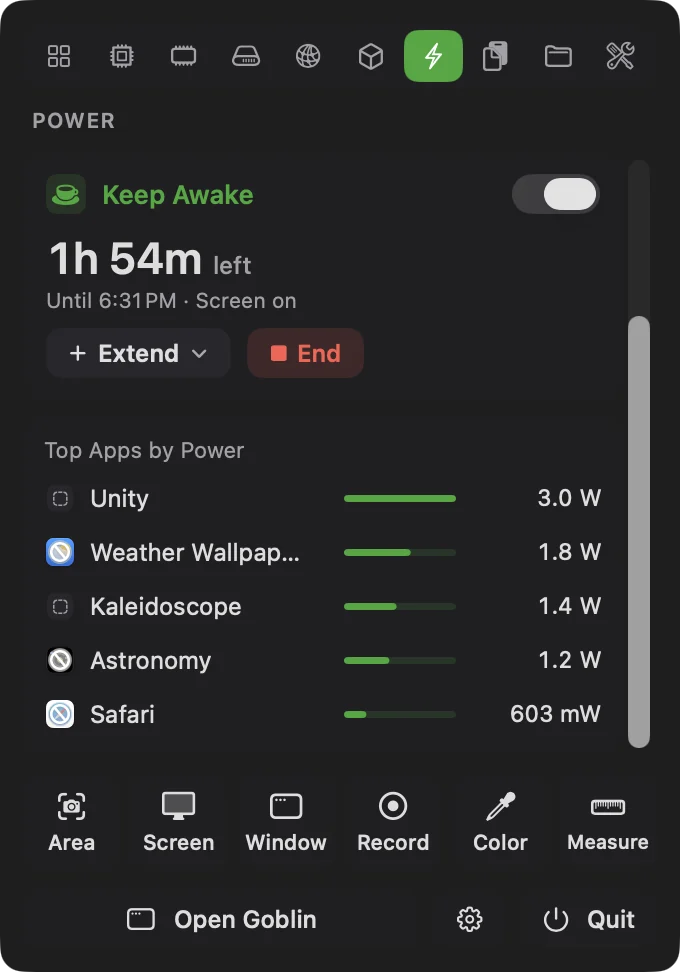
The card shows the time left in large figures, counting down every second, or On for a session with no end time. Under it is what the session is doing, such as "Until 6:30 PM · Screen on", "Until you turn it off · Screen on" or "While Xcode is running · Screen on".
Add time to a session#
- On the Keep Awake card, click Extend.
- Choose + 5 minutes, + 15 minutes, + 30 minutes, + 1 hour or + 2 hours.
The time left grows by that much. Extend works on sessions with an end time, and on an Indefinitely session, which then ends that long from now. It does nothing for a session that ends on a condition (an app, a download or work), because those end when the thing finishes.
End a session#
Click End on the card, or switch the card's switch off. The session stops at once and the Mac can sleep again whenever macOS decides. The same works from the separate menu bar item (End Current Session), the right-click menu on Goblin's item, a shortcut, goblin awake off, or by saying "stop keep awake" to your Goblin.
Choose the options for the next session#
When no session is running, the card shows the options the next session will start with, and three buttons to change them. Click a button to turn it on (lit) or off.
- Screen on keeps the display awake too. Turn it off and the screen sleeps as usual while the Mac stays awake.
- Closed lid keeps the Mac awake with the lid shut. It asks for your administrator password when a session starts, unless you've approved Goblin's helper.
- Jiggle nudges the pointer when you've been idle, so chat apps keep showing you as active.
These change your defaults in Settings›Keep Awake›New Sessions too. A session keeps the options it started with: changing them while a session runs affects the next one. The screen saver, lock and Drive Alive options are explained in Screen, closed lid, mouse jiggle and Drive Alive.
When a session ends by itself#
Besides finishing on time or when its app, download or work is done, a session ends to protect your Mac:
| Rule | When it ends the session | Default |
|---|---|---|
| Too hot | macOS reports the Mac is seriously hot | On |
| Battery | On battery, when the charge reaches the floor | On, 10% |
| Unplugged | As soon as the Mac runs on battery | Off |
| Low Power Mode | When Low Power Mode turns on | Off |
The battery rules never apply to Macs without a battery. Closed-lid sessions have stricter rules of their own; see Closed-lid mode. Change these under Settings›Keep Awake›Battery and Heat.
When a session ends by itself, the card says why for 10 minutes afterwards, for example "Ended: time was up", "Ended: the app quit", "Ended: the work finished" or "Ended: the battery reached 10%". Goblin also sends a notification, unless you turn that off.
If one of these rules already applies when you try to start, the session doesn't start and the card tells you why, for example "Not started: the battery is at 8%." or "Not started: the Mac is too hot." A time that has already passed gives "That time has already passed."
Note: Sessions belong to the Goblin app. Quitting Goblin ends the session, and it doesn't resume the next time Goblin opens. To start one every time Goblin opens, turn on Start a session when Goblin opens in Keep Awake settings.
Check that it's working#
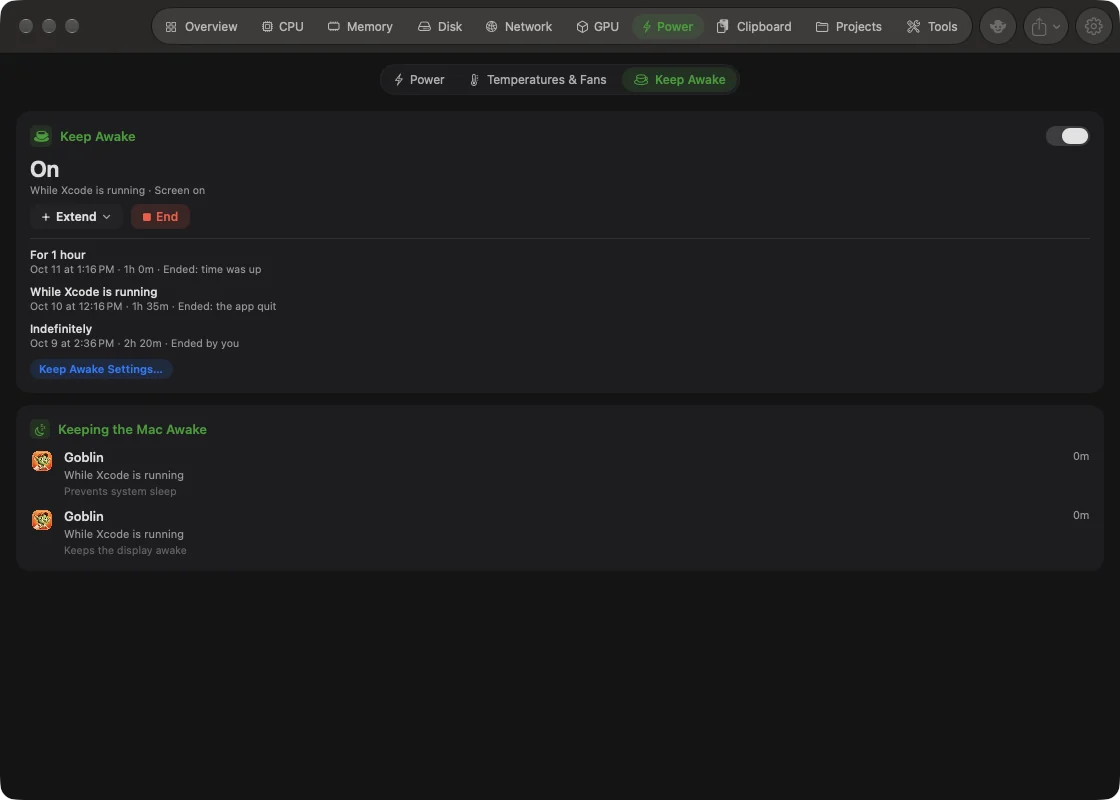
- Open Goblin's window and click the Power tab (or press ⌘7).
- Click Keep Awake at the top of the tab.
- Scroll to the Keeping the Mac Awake card, below the Keep Awake card.
Your session appears there as Goblin, with its description, such as "For 2 hours". With the screen kept on it appears twice: once as "Prevents system sleep" and once as "Keeps the display awake". Other apps that hold the Mac awake are listed too, which helps when your Mac won't sleep and you don't know why.
In Terminal, pmset -g assertions shows the same session under the name "Goblin Keep Awake".
Set a keyboard shortcut#
You can give Keep Awake a global shortcut that works from any app. There's none until you add one.
- Open Settings›Menu Bar.
- In the Shortcuts card, click Add Shortcut. Goblin adds a row with the first free key combination.
- Choose the modifier keys and the letter you want.
- After the arrow, open the action menu and choose Turn Keep Awake on or off.
Pressing the shortcut starts an Indefinitely session with your default options, or ends whatever session is running. If the combination clashes with another shortcut, the row says so in red and doesn't work until you change it. See Keyboard shortcuts.
Ask Goblin#
Say “keep my computer awake for 3 hours” to start a three-hour Keep Awake session using the current Keep Awake options. “stop keep awake” ends the session, and “check keep awake status” reads its state. These direct commands work without Apple Intelligence. Starting a new session replaces an existing session; closed-lid and mouse-jiggle options still use their normal permissions and hardware requirements.
Automate it#
Anything that can open a link or run a command can control Keep Awake. Sessions started this way show in the card and follow the same end rules.
goblin://awake links#
Open a link from Terminal with open, from a script, or from a Shortcuts "Open URL" action. For example, this starts a two-hour session and nothing prints:
open "goblin://awake/start?for=2h"| Link | What it does |
|---|---|
goblin://awake/start | Starts a session that lasts until you end it. |
goblin://awake/start?for=2h | Starts a two-hour session. |
goblin://awake/start?until=18:30 | Stays awake until 6:30 PM. |
goblin://awake/start?file=/Users/me/Downloads/Big.zip | Stays awake while that file downloads. |
goblin://awake/start?for=90m&display=sleep&label=Render | 90 minutes, screen allowed to sleep, named "Render". |
goblin://awake/stop | Ends the session. |
goblin://awake/toggle?for=1h | Ends a running session, or starts a one-hour one. |
goblin://awake/extend?by=30m | Adds 30 minutes to the running session. |
fortakes lengths like45s,90m,2h,1.5h,1h30mor1d. A number needs a unit.untiltakes a clock time like18:30,6:30pmor6pm(the next time the clock shows it), or a full date and time.filetakes a full path, starting with/(percent-encode spaces as%20).- Give one of
for,untilorfile, not more. With none, the session lasts until you end it. The longest session is 30 days. display=onkeeps the screen on,display=sleeplets it sleep.lid=1turns closed-lid mode on and still asks for your password;lid=0turns it off for this session. Anything you leave out comes from your defaults.labelnames the session in the card and History.toggletakes the same options asstart.extendonly does something while a session is running.
goblin awake in Terminal#
You need the goblin command installed first; see The goblin command. Then:
goblin awake on --for 2h
goblin awake
goblin awake off
The first line starts a two-hour session and prints something like Keep Awake is on: 2h left, until 8:30 PM. The second prints that line again while the session runs and exits 0; with nothing running it prints Keep Awake is off. and exits 1. The third ends the session and prints Keep Awake is off.
| Command | What it does |
|---|---|
goblin awake | Says whether a session is running. Exits 0 if one is, 1 if not. Add --json for JSON. |
goblin awake on --for 2h | Starts a session. Also takes --until 18:30, --file path, --display-sleep, --lid and --label text. |
goblin awake off | Ends the session. |
goblin awake toggle | On when off, off when on. Takes the same options as on. |
goblin awake extend --by 30m | Adds time to the session. |
goblin awake -- make release | Stays awake exactly as long as the command runs. |
goblin awake --pid 4242 | Stays awake until that process exits. |
The last two keep the Mac awake from the command itself, separately from Goblin's session: they don't show in the card, the battery and heat rules don't apply, and they work with Goblin closed. Add --display to keep the screen on too.
--file waits for that file to finish downloading, like Choose File…; it can't be combined with --for or --until. A path that doesn't start with / is taken from the folder you're in. Times that goblin awake prints follow your Clock choice.
AppleScript#
tell application "Goblin"
    start keep awake for 90 with display sleep
end tell
This starts a 90-minute session and lets the screen sleep. Scripts can start, extend and stop sessions and read how long is left. See AppleScript.
For every detail, see The goblin command, goblin:// links, Shortcuts (Start, Stop, Toggle and Extend Keep Awake actions) and AI assistants, which can start and stop sessions once you allow it in Keep Awake settings.
Ask your Goblin to manage a session#
New: Coming in the next update. Goblin AI can start and extend sessions with explicit options.
Try keep awake 30 minutes with screen on, keep awake indefinitely allowing screen sleep, or extend keep awake by 15 minutes. Allowing screen sleep lets macOS turn the screen off at its usual time; it does not turn the screen off immediately. Extending a session that was indefinite gives it an end time. An app, download, work, or trigger session ends on its condition and cannot be extended.
For an exact deadline, give the date, time, and timezone: keep awake until 2026-10-05T18:30:00-05:00. Replace that example with a future time within 30 days. Goblin asks you to clarify an incomplete deadline. You can also ask keep awake while work runs or keep awake while any file downloads. For a particular app, use keep awake while app com.apple.Safari; the app must be installed and running. For a particular file, use keep awake while downloading /absolute/path/to/download with its actual path.
These requests use the normal Keep Awake permission and hardware checks. A pending closed-lid setup is reported as pending. Ask keep awake status to check the session or stop keep awake to end it.