 Goblin
Storage Explorer can map your cloud storage as well as your disks. Connect a Dropbox, Google Drive, OneDrive or Box account, and Goblin lists everything in it through the service's own interface, including files that are only online and were never downloaded to this Mac. You see the account as a ring map, with the quota as its capacity, and you can move what you don't need to the service's trash.
This is separate from the cloud folders on your disk. Files that a sync app keeps on your Mac show up in ordinary disk and folder scans, marked with a red cloud icon; see Storage Explorer.
Connect an account#
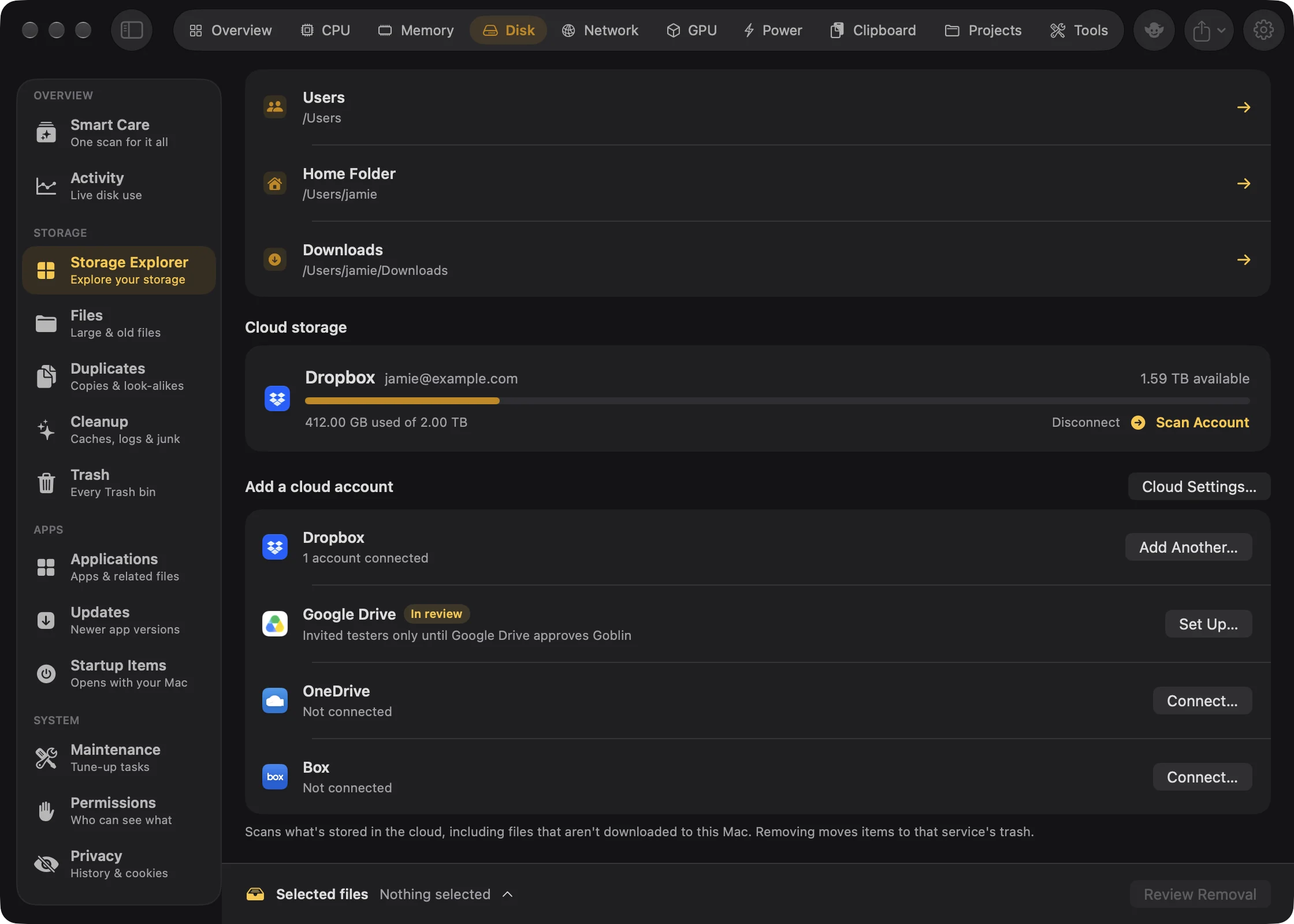
To connect an account:
- Click Disk in the main window's tab bar, then Storage Explorer in the sidebar.
- On the Disks & folders screen, scroll to Cloud storage (it reads Add a cloud account once you've connected one).
- Click Connect… on the service's row. Goblin opens the service's sign-in page in your default browser.
- Sign in and allow access. While you do, Goblin shows "Signing in to …" with a Cancel button.
- Come back to Goblin. A card says the account is connected, with its name and how much of its quota is used. Choose Scan Account now or Later.
Each service has a row with its status and a button:
- Connect… starts signing in. Once an account is connected, it reads Add Another…, for connecting a second account of the same service.
- Set Up… appears when this copy of Goblin has no built-in registration for the service; the status reads "Not available in this copy of Goblin yet." See Use your own developer app.
Google Drive shows an In review badge. Google is still reviewing Goblin's access, and until it approves it, only invited testers can connect a Google account.
Goblin uses the service's standard OAuth sign-in. Your browser hands the reply back to Goblin at http://localhost:53682/goblin-oauth, an address on your own Mac. Goblin keeps the sign-in token in your Keychain.
What Goblin can access#
Each service asks you to allow the access Goblin needs to list every file and folder and to move the ones you choose to the trash:
| Service | Access requested |
|---|---|
| Dropbox | Your account info, the list of your files, and permission to change files (account_info.read, files.metadata.read, files.content.write) |
| Google Drive | Full access to your Drive (drive) |
| OneDrive | Your profile, and read and write access to your files, kept between sessions (User.Read, Files.ReadWrite.All, offline_access) |
| Box | Read and write all files and folders |
Goblin uses this access only to list your files and to move the items you confirm to the service's trash. It never downloads your files' contents to scan them.
Scan an account#
- In Storage Explorer's Disks & folders screen, find the account under Cloud storage. It shows the service, account name, space available, a usage bar and how much of the quota is used (some services don't report it).
- Click Scan Account. Right-clicking the row also offers Scan Account.
- Wait for the scan. Goblin scans one disk or account at a time, so while another scan runs the button reads After the current scan.
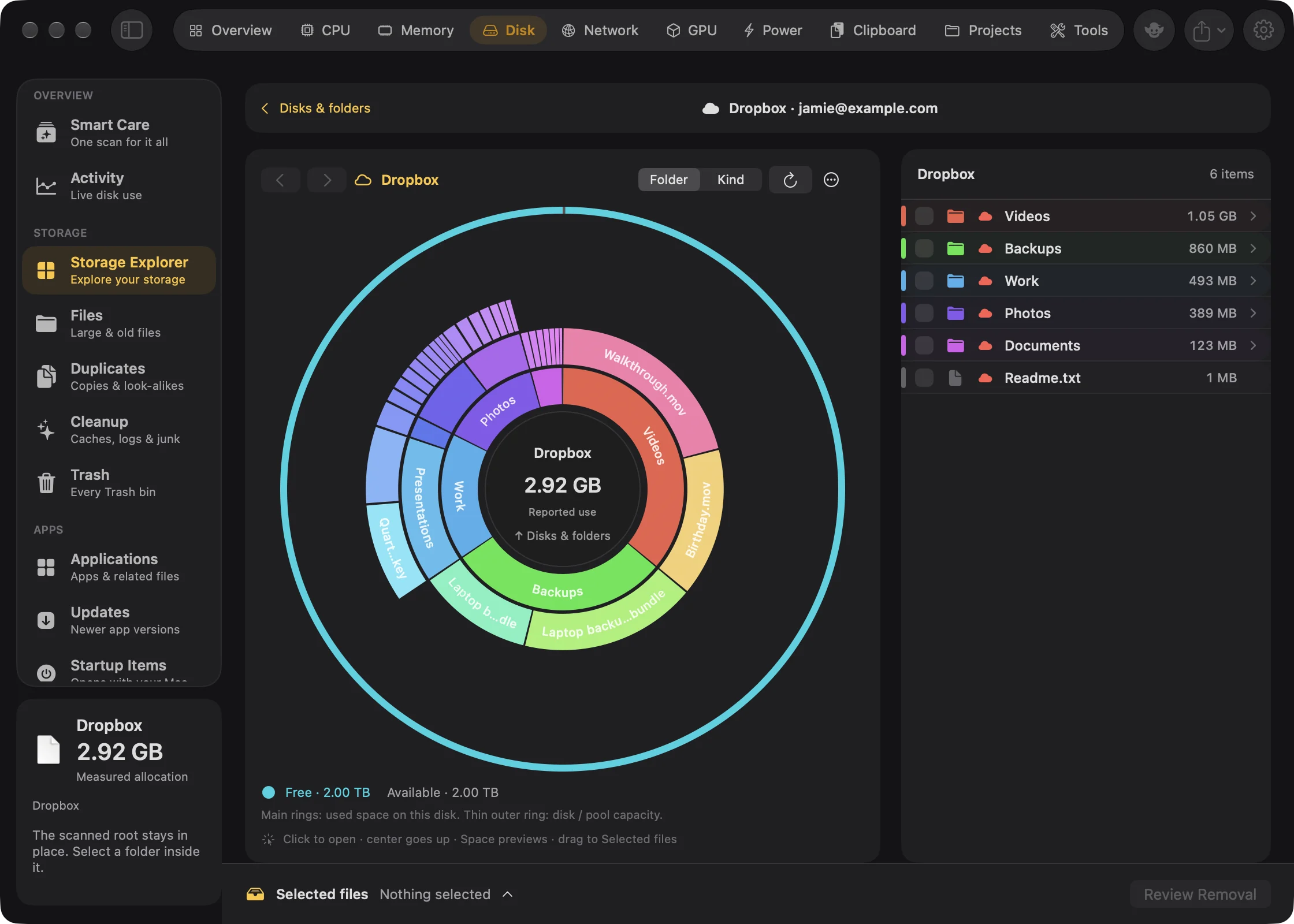
The account then shows like a disk, with "‹ Disks & folders" and the service and account name in the location bar. Everything in Reading the map applies, with a few differences:
- The quota is the capacity. Not accounted for is quota used by things the file list doesn't include: the service's own trash and items shared with you, and for Google, Gmail and Google Photos too.
- Actions that only make sense on your Mac are hidden: Quick Look, Show in Finder, Open in Terminal, Get Info, Copy Path, the size switch, administrator scans and dragging items out. Open on the Web opens an item in your browser instead.
- Scan Account Again (in place of Rescan Folder) lists the whole account again.
Removing from an account#
- Scan the account, then select items as you would on a disk.
- Press Review Removal.
- Tick the red checkbox, I understand this removes these items from <service> on all my devices.
- Press Delete from <service> Everywhere.
The review sheet says the items "will move to <service>'s trash, where they can be restored for a while." There's no option to delete immediately.
Because removing them affects every device and anyone you share them with, the red cloud warning appears, and you must tick its checkbox before Delete from <service> Everywhere becomes available. Each service keeps deleted items only as long as its own trash allows. If you change your mind, restore items from the service's trash on its website.
Disconnect an account#
- On Storage Explorer's Disks & folders screen, find the account under Cloud storage.
- Click Disconnect on its row (or right-click the row and choose Disconnect).
Goblin deletes its sign-in token, so it no longer has access. Your files stay where they are. To be thorough, you can also revoke Goblin's access in your account settings on the service's website. Uninstalling Goblin from its Settings deletes the tokens too.
Use your own developer app#
Cloud Settings… in the Cloud storage section (or Set Up… on a service's row) opens Cloud Settings. Services marked Built in work with Goblin's own registration: click Connect… and you're done.
If you'd rather use your own developer app, or this copy of Goblin has no built-in registration for a service:
- Register an app in the service's developer console (each service has a Developer console link).
- Add the Redirect URI shown at the top of the sheet; Copy copies it.
- Paste the app's Client ID, and for Google Drive and Box its Client secret. Leave the client ID blank to use Goblin's built-in one.
- Press Done to save.
Secrets are kept in your Keychain.
Ask Goblin for a native cloud flow#
“List Storage Cloud Accounts” returns connected account IDs. “Scan Storage Cloud Account ID” requests that exact account’s native scanner. “Start Storage Cloud Connection dropbox” starts native browser sign-in for a configured service; approve there before the account is connected. “Cancel Storage Cloud Connection” cancels the native sign-in request.
“Review Disconnect Storage Cloud Account ID” prepares a review that identifies the exact account and saved token to remove. Cloud files are retained. “Review Storage Cloud Credentials” opens the native Cloud Settings sheet for entering, changing or clearing registrations. Credentials stay in the native flow and Keychain; do not put secrets in chat.