Goblin
A monitor shouldn't become the thing slowing your Mac down. Goblin works hard while you're looking at it and very little when you aren't. This page explains what it reads, how often, and what stops until you look again, so you can choose settings with the cost in mind.
Three speeds#
How often Goblin takes a reading depends on what of it you can see.
| What's on screen | How often Goblin reads | What it reads |
|---|---|---|
| The main window, with Goblin in front | Every second | Everything the window can show: the Mac, every app and process, and the extras on the tab you're on |
| The menu bar panel, or the main window behind another app's window | Every 2 seconds | The same |
| Nothing of Goblin | Every 5 seconds | Only the Mac-wide figures your menu bar item shows; the rest on the slower schedule below |
A window that's minimised, on another Space or completely covered by other windows counts as hidden. Goblin notices and stops drawing it. While Settings is open, Goblin keeps passing it readings, because it shows live examples.
What Goblin reads in the background#
With nothing on screen, Goblin still keeps alerts working and history complete, on a much slower schedule:
| Reading | In the background | On screen |
|---|---|---|
| CPU and memory for the whole Mac | Every 5 seconds | Every tick |
| Apps and processes, disk and network totals | Every 30 seconds | Every tick |
| Other users' processes and per-app network | Every 2 minutes | Every 3 to 4 seconds |
| Per-app GPU | Every minute | Every 3 seconds |
| Temperatures and fans | Every 10 seconds if the menu bar shows a temperature, otherwise every 30 | Every 2 seconds |
| Battery | Every 15 seconds if the menu bar shows the battery, otherwise every minute | Every 5 seconds |
| What's keeping the Mac awake | Every minute | Every 5 seconds |
| Dev servers | Every minute | Every 2 seconds |
| Bluetooth devices' batteries | Every 10 minutes | Every 2 minutes |
| Drive health | Every 30 minutes | Every 10 minutes |
| The size of your Trash, for the Trash alert | At most every 30 minutes | At most every 30 minutes |
Disk, app and network counters only ever add up, so a reading every 30 seconds gives the average over that time rather than missing what happened in between. The slower steps lose detail, not accuracy.
Some readings stop entirely when you can't see them: processor clock speeds, the Power card's per-part watts, listening ports, Docker containers (only while that tab is open), and your Mac's network addresses, unless the My IP address changes alert is on.
What else waits until you look#
- Connection quality pings run only while a Goblin window or the panel is on screen.
- Network›Connections collects only while it's on screen. Without the firewall, it asks macOS for connections every 3 seconds, and slows to every 6 or 12 seconds when the list gets large or the work gets expensive.
- The animated Goblin plays only on the Overview while the window is visible. He pauses when the window is hidden, while Reduce Motion is on, and while an app's details are open. His animation runs on the system's compositor, so the dashboard isn't redrawn for each frame. See Meet the Goblin.
- Goblin's own updates install only when nothing of Goblin is on screen, or when you quit.
- Disk scans run only when you ask, or the first time you open a section that scans by itself. Smart Care, Storage Explorer and Duplicates never start on their own.
Letting macOS save energy#
- With nothing on screen, Goblin gives macOS a full second of leeway on each timer, so its wake-ups can be folded in with other apps' and the Mac wakes less often.
- Goblin asks macOS not to put it in App Nap only while figures are on screen, so the one-second readings stay on time. The rest of the time, App Nap works as usual.
- The menu bar item is redrawn only when a rounded figure changes.
- Measuring runs on a background queue at a low priority, apart from the windows.
- History is written once a minute for the Mac and once a quarter hour for apps, into one small file that's trimmed to 30 days.
New in 1.1: Keep Awake checks its triggers and end rules every 5 seconds, and only checks triggers while no session is running. See Keep Awake triggers.
The firewall's network extension#
The firewall is off until you turn it on, and then its work happens in a separate network extension. It decides each connection from its details as it opens: the app, address, port and protocol. It never reads the data passing through, and it takes byte counts from macOS's own statistics. Its cost grows with the number of new connections, not with how much you download.
The extension keeps a bounded list of recent connections in memory, up to the Capacity in Settings › Firewall › Monitor (20,000 by default). When it's full, the oldest closed connections go first. A bigger capacity reaches further back and uses more memory.
Make Goblin use less#
Most of Goblin's cost comes from what you have open. To make it as quiet as possible:
- Close the main window when you're done with it. Goblin stays in the menu bar.
- Open Settings›Menu Bar and keep the menu bar item to figures that don't need extra background reading. A temperature in the menu bar means sensor reads every 10 seconds instead of 30, and GPU or network figures keep those readings going too.
- Open Settings›Alerts and leave My IP address changes off unless you need it.
- Close Network › Connections when you aren't watching it.
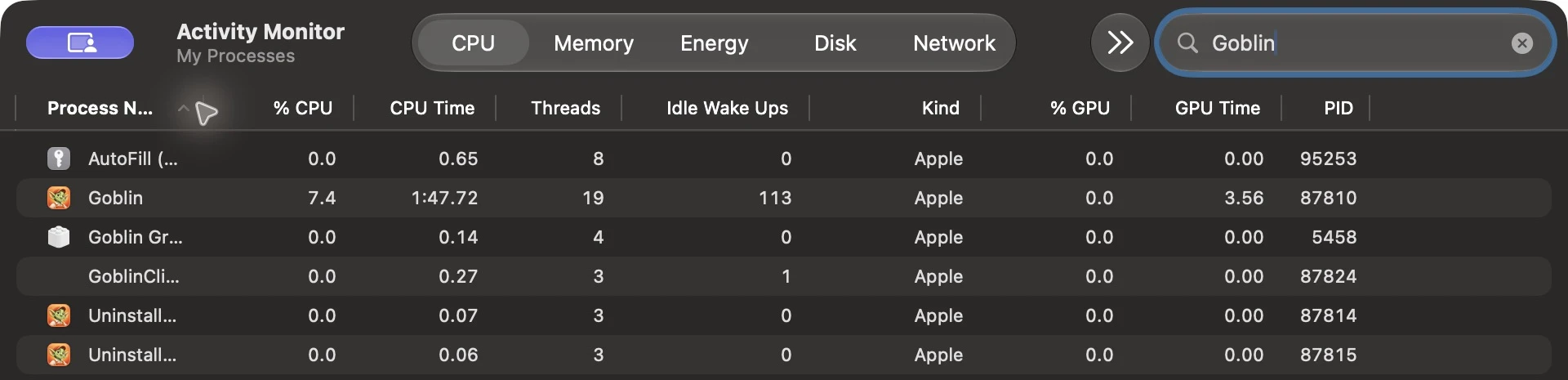
To check Goblin's use, open Activity Monitor with Goblin's window closed. Opening Goblin to look makes it switch to its fastest schedule. If it uses more than you expect, see Troubleshooting.