 Goblin
Network›Rules is where every firewall rule lives. It lists the rules you made, the ones that came with Goblin, rules from groups you subscribe to, your blocklists, profiles and the networks your Mac has joined. Come here to review what an alert or Silent mode left behind, tidy up rules that no longer do anything, or move rules between Macs.
The Rules screen exists only while the firewall is on. If it's off, see Turning the firewall on.
Open the Rules screen#
- Open Goblin's window and click the Network tab.
- Click Rules in the sidebar.
Faster ways: choose Window›Rules or press ⌘Y, or click Manage Rules… in the menu bar panel's firewall card.
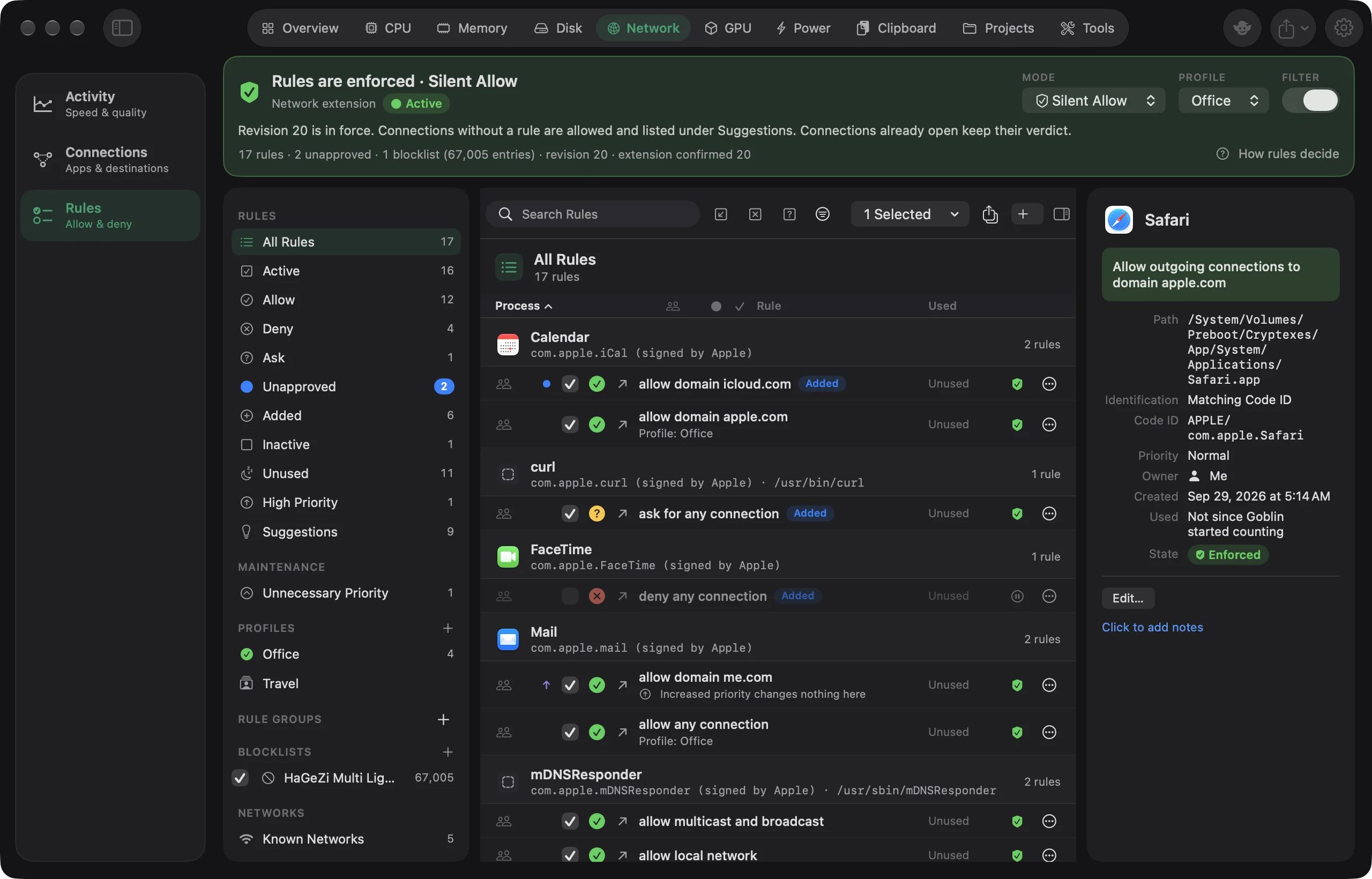
You'll see the header (rules enforced or not), a sidebar of filters and groups, and the list of rules.
The header#
The top of the screen tells you whether your rules are doing anything right now.
- Rules are enforced · <mode> with a green shield: Goblin's network extension has confirmed the current rules.
- Rules are not being enforced with an amber shield: the extension isn't active, or hasn't confirmed the latest change yet. Your rules are saved and sent as soon as it confirms them.
- Filtering is off: every connection is allowed, whatever the rules say. Connections are still listed.
The Network extension chip beside it reads Off, Needs approval, Starting, Active or Unavailable. Update pending: alerts need the newer extension means the running extension is older than Goblin and can't hold connections for alerts until the newer one takes over.
Below the title, a sentence explains the state in more detail, such as which revision of your rules is in force. Every change you make creates a new revision; a rule counts as enforced only once the extension confirms the revision that contains it. Connections that are already open keep the verdict they got.
| Control | What it does |
|---|---|
| MODE | The operation mode for connections no rule covers: Alert, Silent Allow or Silent Deny. See the operation modes. |
| PROFILE | Which profile is active, or None. See Profiles. |
| FILTER | Turns filtering on or off. Off means watching only: every connection is allowed and still listed. |
| Lock button | Locks or unlocks the configuration. Shown only when one of the Security switches is off; see Locking the rules. |
Under the controls, a counts line reads like "42 rules · 2 unapproved · 3 blocklists (85,312 entries) · revision 118 · extension confirmed 118". The How rules decide button opens a short summary of rule precedence, explained in full in How rules decide.
The sidebar#
Rule filters#
The RULES section filters the list. All Rules, Active, Allow and Deny are always there; the others appear when they have at least one rule. With nothing selected, the inspector beside the list explains the filter you're looking at.
| Filter | What it lists |
|---|---|
| All Rules | Every rule, in force or not. |
| Active | Rules in force right now: turned on, not expired, in the active profile or in every profile, in a group that's on, and with filtering on. |
| Allow, Deny, Ask | Rules with that action. Ask rules hold a connection and ask you every time they match. |
| Show Notification, Play Sound, Hide | Rules that watch instead of deciding. They never allow or deny anything. |
| Unapproved | Rules with the blue dot that you haven't reviewed, with a blue count. See The blue dot. |
| Added | Rules you added in the last 7 days. Goblin's own rules are left out. |
| Modified | Rules you changed in the last 7 days that were made earlier. |
| Recently Used | Rules that decided a connection in the last 30 minutes. |
| Temporary | Rules that end by themselves: after a time, when an app quits, at logout or at restart. |
| Inactive | Rules not in force: turned off, expired, in another profile, in a group that's off, or filtering is off. |
| Unused | Rules that haven't decided anything for longer than a chosen time. Right-click the filter, or use the menu next to the list's heading, to pick 1 day, 2 days, 3 days, 1 week (the default), 2 weeks, 1 month, 2 months, 3 months or 6 months. A rule that has never been used counts from the day it was made. |
| Expired | Temporary rules that have ended. They stay listed for an hour; they also turn up under Suggestions, so you can make them permanent. |
| Protected | Rules from Goblin's factory groups and from groups you subscribe to. See Rule groups. |
| High Priority | Rules that decide before blocklists and every normal rule. |
| Incoming | Rules for incoming connections, including rules for both directions. |
Suggestions#
Suggestions collects connections that no rule covered, so you can decide them on purpose. A connection lands here when:
- Silent Allow or Silent Deny decided it.
- An alert went unanswered and the fallback applied.
- A temporary rule ended.
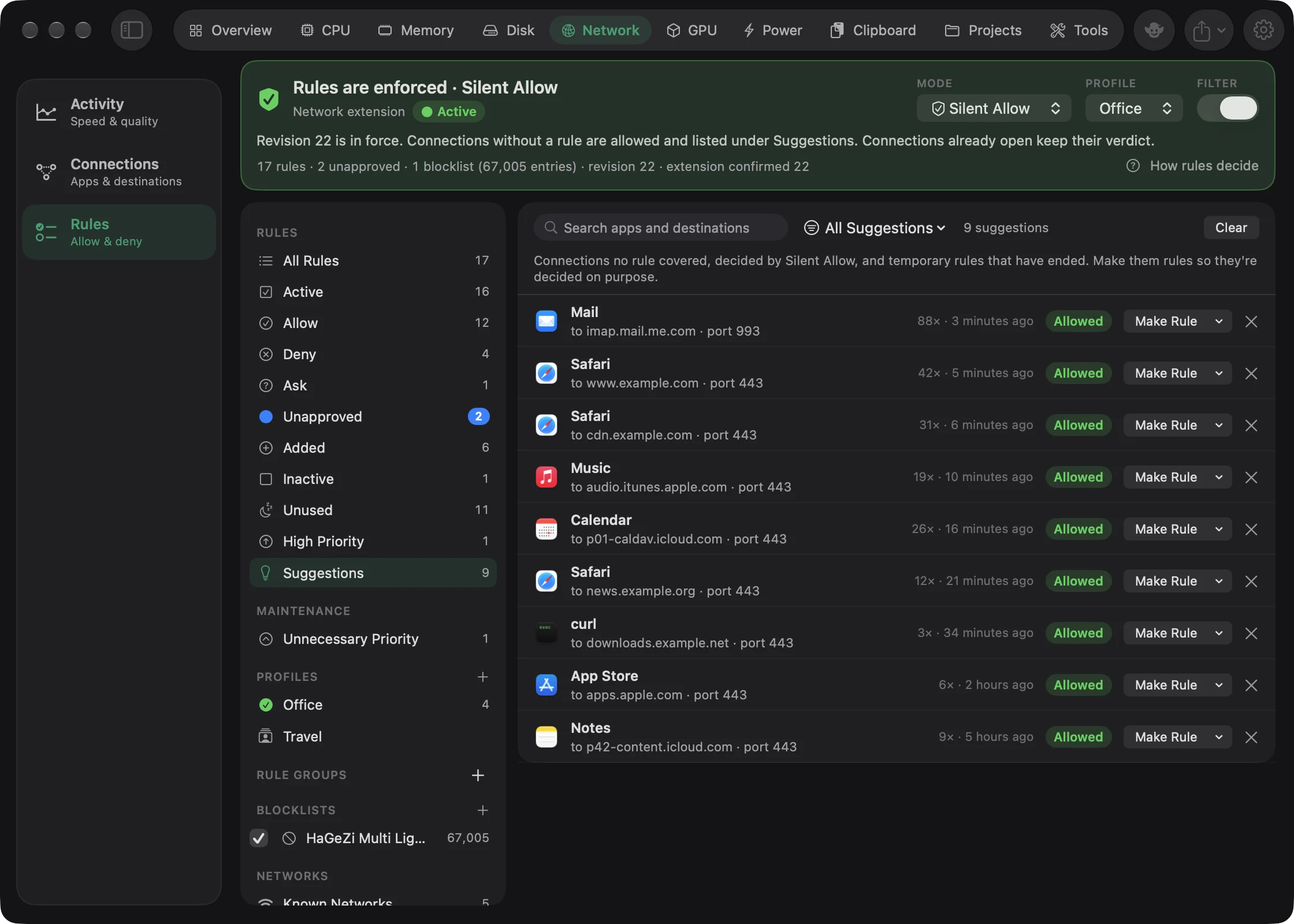
The source menu at the top narrows the list to Silent Mode, Alert Timeout or Expired Temporary Rules, each with a count. Each row shows the app, the destination and port, how often it was seen, and whether it was allowed or denied. Use Make Rule on a row to turn it into a rule:
- Allow any connection or Deny any connection for that app.
- Allow connections to domain "x", …to "host", or …to port N (outgoing connections only).
- Make Permanent, for a temporary rule that ended.
- Create Custom Rule… opens the rule editor filled in from the row.
Turn a suggestion into a rule#
- Click Suggestions in the Rules sidebar.
- Optionally, use Show at the top to narrow the list to Silent Mode, Alert Timeout or Expired Temporary Rules.
- On the row you want, click Make Rule.
- Choose what the rule should do: Allow any connection or Deny any connection, or an option for a domain, host or port.
- Or choose Create Custom Rule… to adjust it in the rule editor first.
When it worked, the row disappears from Suggestions and the rule appears under Rules. To dismiss a row without making a rule, click its ✕. To clear all shown, click Clear.
Select several rows and the menu offers rules for any connection, involved domains, involved ports or involved destinations. Rules made here are approved, and the suggestion goes away. The ✕ on a row dismisses it, and Clear dismisses everything shown. Suggestions nobody has seen again for 30 days are dropped.
Maintenance#
The MAINTENANCE section appears only when Goblin finds something to tidy. Each category has a button above the list to fix all of them at once.
| Category | What it means | Button |
|---|---|---|
| Redundant | Another rule already does the same for everything this rule covers, so removing it changes nothing. A rule only counts as redundant when no rule with a different action could match the same connections. | Delete Redundant… |
| Invalid | The program the rule names isn't where the rule says: it was deleted, moved or renamed. These rules never match. | Repair All |
| Unnecessary Priority | High-priority rules that would decide the same way at normal priority. | Use Normal Priority |
| Identity Mismatch | The program on disk is no longer the one the rule was made for: it was modified, replaced or signed by someone else. | Accept All |
Clean up redundant and broken rules#
- Click a category under Maintenance in the sidebar. The section only appears when there is something to fix.
- Click the button above the list: Delete Redundant…, Repair All, Use Normal Priority or Accept All.
- For a single rule, right-click it and choose Repair Process Path, Accept Modification or Disable Identity Check.
Repair Process Path looks for the program in the usual places for apps and command-line tools. If it can't find it, Goblin says so and you can choose the program in the rule editor. For an identity mismatch, Accept Modification trusts the program as it is now, and Disable Identity Check stops checking it. What happens to that program's connections in the meantime is set in Settings › Firewall › Security.
Refresh Redundant Rules in the list's filter menu checks again, including whether programs are still on disk.
Profiles, rule groups, blocklists and networks#
The rest of the sidebar lists your PROFILES (the active one has a green check), RULE GROUPS (each with an on/off checkbox), BLOCKLISTS (each with a checkbox, its entry count and a warning sign when the last update failed) and NETWORKS›Known Networks. Selecting one shows its rules or settings. Profiles and Known Networks are covered in Profiles and known networks, blocklists in Blocklists.
The rule list#
Find a rule#
- Click the search field at the top of the list, or press ⌘F.
- Type part of an app name, a server, a port or a note.
- To search only one kind of thing, click the magnifier at the left of the field and choose Process, Server, Port and Protocol or Notes under Search In.
- To clear it, click the ✕ in the field, or Clear Search if nothing matches.
To narrow by category instead, click a filter in the sidebar, such as Deny or Unapproved. To see only rules of one kind, use the three small buttons next to the search field. Hover shows "Show only incoming rules", "Show only rules that deny" and "Show only unapproved rules".
Searching, filtering and sorting#
The search field's menu sets what it searches: Search All Fields, Process, Server, Port and Protocol or Notes. ⌘F jumps to it. Three buttons beside it show only incoming rules, only rules that deny, or only unapproved rules.
The filter menu holds:
- Direction: Any, Incoming, Outgoing, or Any Direction (rules for both ways).
- Server Type: Any, Any Server, Domain, Hostname, IP Address or Local Network.
- Process Type: Any, Any Process, Application, Background Process, macOS Process or iOS Simulator Process. Goblin guesses the type from the program's path and identity.
- Clear Filters.
- Sort By: Process Name (the default), Modification Date, Creation Date, Last Used Date, Usage, Process Owner, Domain, Action or Precedence, plus Reverse Order. Sorting by Process Name lists rules under a header for each app, with Any process last. Sorting by Precedence lists rules in the order Goblin tries them.
- Show Disabled Rules and Show Usage, both on at first.
- Focus on Rules Affecting Selection (⌘R) shows the selected rules plus every rule that could decide a connection they also match. Focus on Selected Rules (⌥⌘R) shows only the selection. Clear Focus ends either.
The heading above the list names the filter and counts its rules, for example "Active Rules · 38 of 42 rules".
Columns#
| Column | What it shows |
|---|---|
| Process | The app or program. Hidden when sorted by Process Name, where each app gets its own header. |
| Owner | A gear for rules made by the system (Goblin's factory groups), people for rules made by you. |
| Lock | The rule is edited at its source: a factory or subscribed group. |
| Dot | Blue: unapproved. Purple ↑: high priority. |
| On | The rule's checkbox. Turning off a factory rule asks you to confirm with Disable Anyway. |
| Action | Green ✓ Allow, red ✕ Deny, amber ? Ask, a bell for Show Notification, a speaker for Play Sound, an eye with a slash for Hide. |
| Direction | ↗ outgoing, ↙ incoming, ↕ both. |
| Rule | The rule as a sentence, such as "allow domain icloud.com (https)". Below it: an Added or Modified pill for changes in the last 7 days, the group name, when it expires, its profile and its note. |
| Used | How many times it decided a connection and when it last did, or Unused. |
| State | Whether the rule is in force (below). |
| ⋯ | The rule's menu. |
| State | Meaning |
|---|---|
| Enforced | The extension confirmed the rules that contain this one. |
| Pending | Sent, or about to be; not confirmed yet. |
| Not enforced | The extension isn't active, so the rule affects nothing. |
| Off | Turned off. |
| Expired | Ended; removed from the list after an hour. |
| Other profile | Only in force while its profile is active. |
| Group off | Its rule group is turned off. |
| In Goblin | Notification, sound and hide rules. Goblin applies these itself, so they only work while Goblin is running. |
| Invalid | Not sent to the extension, with the reason. |
Turned-off and expired rules are dimmed.
Turn a rule on or off#
- Find the rule in the list.
- Click its checkbox in the On column. Or right-click it and choose Turn Off or Turn On.
- For a rule from a factory group, confirm with Disable Anyway.
An off rule is dimmed and its state reads Off. Turning rules off is safer than deleting them while you test.
Edit a rule#
- Double-click the rule. Or select it and click Edit… in the inspector, or right-click and choose Edit….
- Change what you need in the rule editor.
- Click Save.
Rules from factory or subscribed groups open read-only because they're changed at their source.
Make a new rule#
- Click New Rule… (the + button) above the list, or press ⌘N. Or drag an app from the Finder or the Dock onto the screen.
- Fill in the rule editor.
- Click Save.
Delete rules#
- Select one or more rules.
- Right-click and choose Delete, or press ⌘⌫. With several selected, use Delete… in the N Selected menu.
- In the dialog "Delete N rules?", click Delete. If some are redundant, you can choose Delete Redundant Only instead.
You can undo this with ⌘Z right away (see Undo). Protected rules can't be deleted.
Working with rules#
- Click to select, ⌘-click to add or remove a rule, ⇧-click to select a range.
- Double-click a rule, or press Edit…, to open the rule editor. New Rule… (+) starts a new one. Drag an app or program from the Finder or the Dock onto the screen to start a rule for it.
- The inspector on the right shows the selected rule in full: its path, how it identifies the program, its code ID, priority, owner, group, profile, duration, dates, use count and state. Internet Access Policy shows what the app's developer says it connects to, and you can add notes with Click to add notes.
Right-click a rule, or use its ⋯ button, for:
- Edit…, Turn Off or Turn On, Approve, Increase Priority or Decrease Priority, Duplicate.
- Repair Process Path, Accept Modification and Disable Identity Check, when they apply.
- Show Covered Rules or Show Covering Rule, for redundant rules, and Focus on Rules Affecting This Rule.
- Show in Connections: opens Connections searched for the rule's app.
- Turn into Permanent Rule, for temporary rules.
- Copy Rules, Copy Hostnames, Copy Domains, Copy IP Addresses, Copy Connection Endpoints and Copy Process Path.
- Paste to Selection: pastes copied rules into the profile or your own group shown in the sidebar.
- Delete. It asks first, and isn't offered for protected rules.
With several rules selected, the N Selected menu above the list (or a right-click) changes them together. It adds Move to Profile and Move to Group, and Export…. Delete… offers Delete Redundant Only when some of the selection is redundant. Protected rules are left out of a delete.
The blue dot: approving rules#
A blue dot marks a rule nobody has reviewed. Rules get one when they're made from a connection alert or from Connections (the row switch, quick rules and Allow for … Only), and when you delete a profile but keep its rules.
The dot is a reminder only. An unapproved rule is enforced like any other.
To approve rules:
- Click Unapproved in the Rules sidebar, or find the rule with the blue dot.
- Select the rule. While Approve rules automatically is on (the default), selecting it approves it.
- Or right-click and choose Approve, or choose Edit›Approve or press ⌘K.
- To approve everything at once, click Approve All above the list in the Unapproved filter.
The dot disappears, and the Unapproved count goes down.
Both switches live in Settings › Firewall › Advanced: turn off Mark new rules as unapproved to skip the dot altogether, or turn off Approve rules automatically to approve only by hand.
Rule groups#
A rule group bundles rules you can turn on and off together and export as one file. Each group in the sidebar has a checkbox; turning a group off takes all its rules out of force. Select a group to see its name, description and On switch.
Make a rule group#
- Click the + next to Rule Groups in the Rules sidebar and choose New Rule Group. Or choose File›New Local Rule Group….
- In the group's page, type a name in Group name, and optionally a description.
- Move rules in with Move to Group in the N Selected menu, or paste copied rules into it with Paste to Selection.
Turn a rule group on or off#
- Find the group under Rule Groups in the sidebar.
- Click its checkbox. Or select it and use the On switch at the top of its page.
There are three kinds:
- Your own groups (a folder icon). Make one with New Rule Group in the + menu or File›New Local Rule Group…. You can rename them, describe them and move rules in and out.
- Factory groups (a gear). They come with Goblin and are kept up to date with it.
- Subscribed groups (a download arrow). Goblin downloads them from a URL and keeps them updated.
Protected rules#
Rules in factory and subscribed groups are protected. You can turn a single rule off, but you can't edit or delete it here; it's changed at its source. The editor shows them read-only, and deletes skip them.
The factory groups#
All three are on when Goblin starts out.
| Group | What it allows |
|---|---|
| macOS Services | Name lookups, network setup, time, certificate checks, push notifications and location. Turning these off can stop the Mac from getting online. Covers mDNSResponder (anywhere), configd (UDP 67–68), timed (UDP 123), trustd (TCP 80 and 443), apsd (push.apple.com), locationd, geod, syspolicyd, softwareupdated, nsurlsessiond and mobileassetd (apple.com), and netbiosd, rapportd and sharingd (local network). |
| iCloud Services | iCloud sync, Keychain, messages and account sign-in. Recommended when you use iCloud. Covers cloudd, bird, akd and identityservicesd to icloud.com and apple.com. |
| Goblin | Goblin itself, to macgoblin.com (update checks) and db-ip.com (the map's geolocation database). |
These matter most in Silent Deny and Alert mode, where anything without a rule is denied or asked about.
Subscribing to a group#
- Click the + next to Rule Groups in the sidebar and choose Subscribe to Rule Group…. Or choose File›New Remote Rule Group….
- Enter the
https://URL of a rule group in the widely used.lsrulesrule-group format. - Click Subscribe. Goblin downloads it right away and shows the group in the sidebar.
Only subscribe to groups you trust: their rules can allow connections.
A subscribed group shows its URL, when it was last checked and changed, and any error. Its settings:
| Setting | What it does | Default |
|---|---|---|
| Keep newly added allow rules off until I review them | Allow rules that arrive in an update start turned off. | Off |
| Update: | Manually, Hourly, Daily or Weekly. | Daily |
Update Now fetches it immediately; Update Now (Without Cache) in its menu ignores what was downloaded before. Unsubscribe… removes the group and its rules.
Groups for installed apps#
To make them, click the + next to Rule Groups and choose Groups for Installed Apps. It looks through /Applications, /System/Applications (and its Utilities folder) and ~/Applications. It makes an Apple Apps and a Third Party Apps group, each with one "allow any connection" rule per app. Both groups start turned off, so nothing changes until you turn one on. They are the same groups the firewall's welcome tour offers.
Removing a group#
- Select the group in the sidebar.
- Click Delete Group… (Unsubscribe… for a subscribed group). Factory groups can't be removed.
- Choose how:
Delete Group… asks how: Remove Group and Its Rules, or Remove Group, Keep Rules (your own groups only), which keeps the rules without a group.
Undo#
To undo a change, make sure the Rules screen is showing and you aren't typing in a field, then choose Edit›Undo or press ⌘Z. To redo it, choose Edit›Redo or press ⇧⌘Z.
Changes to rules, groups, profiles and blocklists can be undone this way. The menu names what it will undo, such as Undo "Delete Rules". Undo works while the Rules screen is showing and you aren't typing in a field. Clear Undo History forgets everything that could be undone. Restoring a backup or the factory settings also clears it.
Import and export#
Goblin reads and writes rule groups in the widely used .lsrules rule-group format. A file you export can be imported into Goblin or other firewall apps that read it, or put on a web server for others to subscribe to.
Export rules#
- Select the rules to export, or a filter, or a group in the sidebar.
- Click the import/export button (the square with an arrow) above the list and choose Export Selected Rules… (Export These Rules… if nothing is selected). Or press ⌘E, or click Export… on a group's page.
- In the "Export Rules" sheet, type a name in Name of the rule group and optionally a description.
- Click Export…, choose where to save, and click Save. The file is
<name>.lsrules.
Notification, sound and hide rules aren't part of the format and are left out. Goblin adds its own keys for signing identities and identity checks, so they survive a trip out and back in.
Import rules#
- Click the import/export button above the list and choose Import Rules…. Or choose File›Import Rules from File… or press ⌘I. The + menu next to Rule Groups has the same item.
- Choose an
.lsrules(or.json) file. The "Import Rules" sheet says how many rules the file holds and how many can't be imported. - Choose what to do:
- Import into: a new rule group named after the file, one of your own groups, or no group.
- Same rules: Skip rules I already have (the default), Replace my rules for the same app and destination, or Add all rules.
- Click Import. When the sheet says "Import Complete", click Done.
If the file also holds a blocklist, the import mentions it but doesn't add it; add the file's URL as a blocklist to use those entries.
Backups and factory settings#
Back up the configuration#
- With the Rules screen showing, choose File›Create Backup… or press ⌘S.
- Choose where to save and click Save. The file is named
Goblin Firewall Backup <date>.json.
Restore a backup#
- With the Rules screen showing, choose File›Restore from Backup… or press ⌘O.
- Pick one of the recent automatic backups in the list, or click Choose File… and select a backup.
- The sheet shows what the backup holds ("It holds 42 rules, …"). Click Restore to replace your current configuration, or Back to pick another.
- When it says "Restored", click Done. Blocklists download again in the background.
Warning: Restoring replaces everything with the backup's contents. Goblin saves your current configuration first, so you can go back.
What each does:
- Create Backup… ⌘S saves your rules, profiles, rule groups, blocklist subscriptions and known networks to
Goblin Firewall Backup <date>.json. - Restore from Backup… ⌘O lists up to six recent automatic backups, or Choose File…. It shows what the backup holds, and Restore replaces your current configuration with it. Blocklists are downloaded again afterwards.
Before a restore, Goblin writes an automatic backup of what you have now to ~/Library/Application Support/Goblin/Backups/, keeping the newest 10. The same two actions are in Settings › Firewall › Advanced as Export Configuration… and Restore Configuration….
Restore factory settings#
- With the Rules screen showing, choose File›Restore Factory Settings….
- In the sheet "Restore Factory Settings?", untick any of the three Preserve… boxes you don't want to keep (see the table below).
- Click Restore Factory Settings.
- When it says "Factory settings restored", click Done.
Warning: This removes your rules and your own rule groups. Goblin writes an automatic backup first, so you can go back with Restore from Backup….
File›Restore Factory Settings… starts over. It then:
- Removes your rules and your own rule groups.
- Puts Goblin's factory groups back, turned on.
- Turns filtering on.
- Sets the operation mode to Silent Allow, the mode a fresh install starts in. (The sheet's text says Alert mode, but Silent Allow is what it sets.)
- Clears the undo history.
Three checkboxes, all on at first, decide what survives:
| Checkbox | What it keeps |
|---|---|
| Preserve subscribed rule groups and blocklists | Subscribed groups with their rules, and your blocklists. Off: they're removed too. |
| Preserve profiles and their rules | Your profiles and the rules that belong to them. Off: they're removed, and no profile is active. |
| Preserve known networks | Your Known Networks list. A network set to activate a profile that's gone goes back to Ask. |
Your own rules outside a profile are removed either way. Settings outside the rules, such as the Alert and Security panes, aren't touched.
Locking the rules#
Anyone who uses your Mac can change the firewall unless you lock it.
To lock it:
- Open Settings›Firewall and click Security.
- Under Editing, switch off Allow Rule Editing. Switch off Allow Profile Switching and Allow Settings Editing too if you want those protected.
- Authenticate with Touch ID or your password when asked.
- Back on the Rules screen, a lock button appears in the header. Click it to lock right away, or leave it: the first change you make after this asks for Touch ID or your password.
To unlock for a while, click the lock button (or choose File›Unlock Configuration…) and authenticate. To remove the lock for good, switch the three Allow switches back on.
In Settings › Firewall › Security there are three switches, all on by default:
- Allow Rule Editing: rules, groups, blocklists, known networks, imports and restores. That's every control on those pages, down to a group's description, a blocklist's Update: menu, a profile's mode menus and a network's When joined menu.
- Allow Profile Switching: changing the active profile, from anywhere.
- Allow Settings Editing: the mode, the filter switch and the firewall settings.
Turn one off and a change in that area asks for Touch ID or your login password first. One success unlocks every area until you lock again or quit Goblin. While any switch is off, a lock button appears in the Rules header and File›Lock Configuration / Unlock Configuration… appear in the menu. Answering a connection alert isn't covered by the lock, even though it can make a rule.
Menu commands#
These menu items work while the Rules screen is showing.
| Menu | Command | Keys |
|---|---|---|
| File | New Rule… | ⌘N |
| File | New Rule for Selection… (a new rule for the same app) | |
| File | Duplicate… | ⌘D |
| File | New Local Rule Group…, New Remote Rule Group…, New Blocklist…, New Profile… | |
| File | Export Selected Rules… | ⌘E |
| File | Import Rules from File… | ⌘I |
| File | Create Backup… | ⌘S |
| File | Restore from Backup… | ⌘O |
| File | Restore Factory Settings… | |
| Edit | Undo, Redo | ⌘Z, ⇧⌘Z |
| Edit | Find | ⌘F |
| Edit | Delete | ⌘⌫ |
| Edit | Approve | ⌘K |
| Edit | Select All Rules, Edit Rule…, Turn into Permanent Rule, Enable, Disable, the copy items, Paste to Selection | |
| View | Category›Rules / Suggestions / Known Networks | |
| View | Focus on Rules Affecting Selection | ⌘R |
| View | Focus on Selected Rules | ⌥⌘R |
| View | Show Inspector / Hide Inspector | ⌥⌘I |
| Window | Rules | ⌘Y |
Prepare a rule with Goblin#
“List Firewall Rules” returns stable rule UUIDs. “Review Edit Firewall Rule UUID” opens that exact rule in the native editor. “Review Delete Firewall Rule UUID” prepares the existing delete confirmation. A companion-prepared edit or deletion refuses a rule that changed before confirmation. Subscribed and built-in rules retain their native source restrictions.
“Review Block Application /absolute/path/App.app” and “Review Allow Application /absolute/path/App.app” prepare native rules for an explicit app. “Review Block Domain example.com” and “Review Allow Domain example.com” prepare rules for all programs at that domain. Review the app identity, direction, destinations, ports, lifetime and priority before saving. The request does not save or enforce a rule.
For explicit changes, “Review Firewall Rule Changes {"ruleID":"UUID","action":"deny","destinationKind":"domain","destination":"example.com","ports":"443","protocol":"tcp"}” validates a typed draft before opening the native editor. Optional fields also include direction, enabled, highPriority, note, profileID, groupID and lifetime; profile/group targets must be current UUIDs or none.
“List Firewall Blocklists” returns source IDs. “Inspect Firewall Blocklist Exact Name” selects the native inspector. “Review Add Firewall Blocklist https://example.com/list.txt” seeds the existing Add Blocklists sheet, where you confirm before subscribing. “Review Firewall Blocklist Changes {"id":"UUID","enabled":false}” and “Review Remove Firewall Blocklist UUID” prepare exact native reviews. Changes require a fresh matching source and native authorization at confirmation. Saving a subscription or rule does not prove the extension has acknowledged it.
“List Firewall Profiles” and “List Firewall Rule Groups” return current IDs. Native review requests support create, configure, activate and delete profiles; create, configure, delete, subscribe and refresh groups. Deletion inputs include explicit keepRules. Reviews name affected rule IDs; profile deletion also names affected known networks. Built-in group names and source-owned descriptions retain their native restrictions.
“List Known Firewall Networks” returns stable join identities. “Review Known Firewall Network Changes {"id":"wifi:Example","onJoin":"activate","profileID":"UUID"}” prepares native join behavior. Name changes, restoring the original name, clearing a remembered location and forgetting an exact network also use a review.
“List Firewall Blocklist Entries {"id":"UUID","filter":"unapproved","offset":0,"limit":100}” reads a bounded page of exact entries. “Review Firewall Blocklist Entry {"id":"UUID","kind":"domain","value":"example.com","enabled":false}” prepares one exact entry change. “Review Approve Firewall Blocklist Entries UUID” explicitly reviews approval of all currently unapproved entries in that cached source. “Review Refresh Firewall Blocklist UUID” and “Review Refresh Firewall Rule Group UUID” identify the subscription URL before confirmation. A canceled refresh or a source changed during download cannot apply downloaded policies.
Typed Review Firewall Rule Changes also accepts app identity fields, native identification modes, additional destinations, sound name, trigger and approval. For example, additionalScopes is an array of objects such as {"kind":"domain","value":"example.com"}. Native rule validation and source restrictions still apply before saving.