 Goblin
Everything in the capture menu can be started from outside Goblin. Because anything on your Mac can send these requests, they can only do what the right-click menu does. The one exception, letting an AI assistant see the screen, is off until you allow it.
If Goblin isn't running, a request starts it. Captures still need the Screen Recording permission.
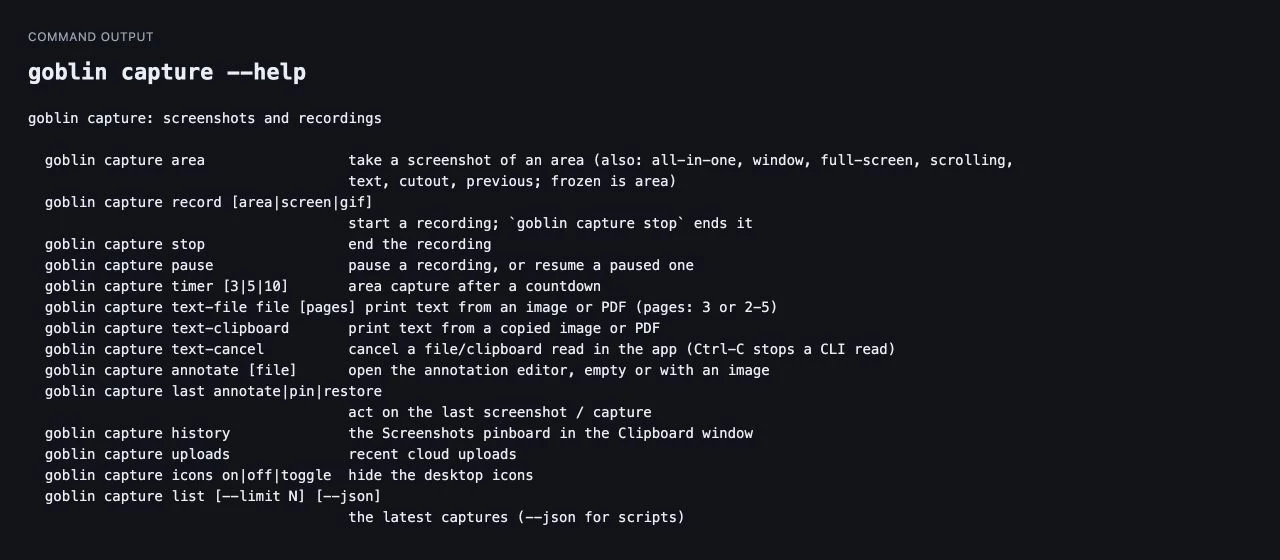
In Terminal: goblin capture#
The goblin command has a capture verb. Install the command first from Settings›Projects›Command Line (The goblin command).
| Command | What it does |
|---|---|
goblin capture area | A screenshot of an area. Also all-in-one, window, full-screen, scrolling, text, cutout, previous. (frozen, from older versions, is area.) |
goblin capture record [area|screen|gif] | Starts a recording. |
goblin capture stop | Ends it. |
goblin capture pause | Pauses a recording, or resumes a paused one. |
goblin capture timer [3|5|10] | An area capture after a countdown. Any whole number of seconds from 1 to 60 works; with no number it counts 5. |
goblin capture text-file file [pages] | Prints the text in an image or PDF (pages: 3 or 2-5). See Capture Text. |
goblin capture text-clipboard | Prints the text in a copied image or PDF. |
goblin capture text-cancel | Cancels a file or clipboard read in the app. |
goblin capture annotate [file] | The annotation editor, empty or with an image. |
goblin capture last annotate|pin|restore | Acts on the latest screenshot or capture. |
goblin capture history | The Screenshots pinboard. |
goblin capture uploads | The recent cloud uploads. |
goblin capture icons on|off|toggle | Hide Desktop Icons. |
goblin capture list [--limit N] [--json] | The latest captures: kind, file and time. Up to 40 are kept; --json is for scripts. |
goblin capture with nothing after it prints the list of commands.
Links#
Links starting with goblin://capture/ do the same from a launcher, a script, or any app that opens links:
goblin://capture/area
goblin://capture/full-screen
goblin://capture/record-gif
goblin://capture/self-timer?seconds=5
goblin://capture/annotate?file=/Users/me/Desktop/Shot.png
goblin://capture/hide-icons?state=toggle
The other names are all-in-one, window, scrolling, text, previous-text, text-ai, code, cutout, previous-area, record, record-full-screen, stop, pause, annotate, video-editor, annotate-last, pin-last, restore-last, history, uploads, show-icons and toggle-icons, and the text links text-file, text-clipboard and text-cancel (Capture Text). (frozen-area, from older versions, is area.) A link with an option Goblin doesn't know is ignored. The file of an annotate link has to be a full path. See goblin:// links for the other links.
Shortcuts app#
Under Apps›Goblin the Shortcuts app has these capture actions (they have no Siri phrases):
- Capture the Screen: all-in-one, area, window, full screen, scrolling capture, text, previous area or object cutout.
- Capture After a Countdown: the self-timer, with a number of seconds from 1 to 60.
- Start Screen Recording: an area, the full screen or a GIF.
- Stop Screen Recording, Pause or Resume Screen Recording, and Is Screen Recording On, which returns yes or no.
- Hide Desktop Icons: hide, show or toggle.
- Annotate Last Screenshot and Open Capture History.
- Read Text from File (with optional pages) and Read Text from Clipboard, which return the text.
AppleScript#
tell application "Goblin"
    capture area              -- also: capture window, capture full screen, capture scrolling,
                              --       capture text, capture previous area
    start recording mode "gif"    -- area (the default), screen or gif
    if recording then display dialog (recording elapsed as text)
    pause recording
    resume recording
    stop recording
    hide desktop icons
    show desktop icons
    open capture history
end tell
recording says whether a recording runs (paused counts), and recording elapsed is the seconds recorded so far, not counting time paused. Pausing when nothing is recording, or stopping when none runs, is an error with a message.
AI assistants#
Goblin's MCP server (AI assistants) has three capture tools. All of them are off until you turn on the AI Assistants access, and the first two need a second switch.
Let an AI assistant see the screen#
- Open Settings›Projects and turn on AI Assistants on the AI Assistants card at the bottom.
- Open Settings›Capture›General and click More at the bottom.
- In the Menu Bar section, switch on Let AI assistants see the screen.
- Allow Screen Recording if macOS asks (Permissions).
To stop it, switch the same setting off. Goblin checks it on every request.
| Tool | What it does |
|---|---|
take_screenshot | Takes a screenshot of the display the pointer is on and gives it to the assistant as an image, scaled to at most 1,920 pixels on its longest side. Goblin's own windows are left out, and nothing is added to your clipboard history or Quick Access. |
read_screen_text | Reads the text on that display with Goblin's text recognition, on your Mac, and returns it as text. Nothing is saved. |
list_recent_captures | The latest captures: kind, saved file's path, whether the file still exists, when, and for text captures the text. Only the list, never the pictures. Needs no screen switch. |
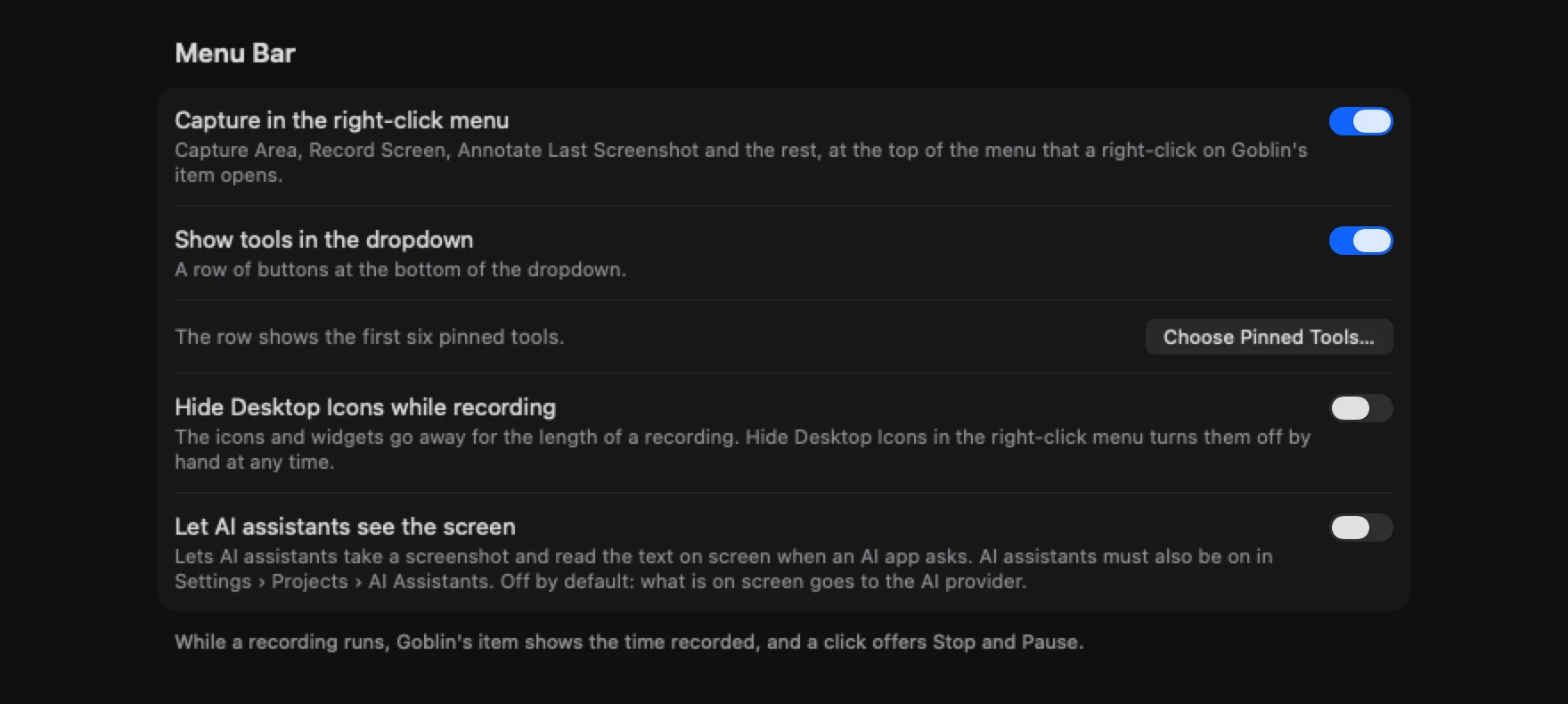
Warning: Let AI assistants see the screen is off by default. What is on your screen goes to the AI service your assistant uses, which is why the switch is separate from the rest of AI access.
With it off, the screen tools tell the assistant how you can turn it on, and take nothing. The switch also needs Screen Recording permission, and if that isn't given Goblin waits up to 30 seconds for an answer before the assistant is told it didn't come.